
Preventing Sleepless PC Syndrome Enterprise-Wide
By Nimrod Yedaya, VP Customer Experience
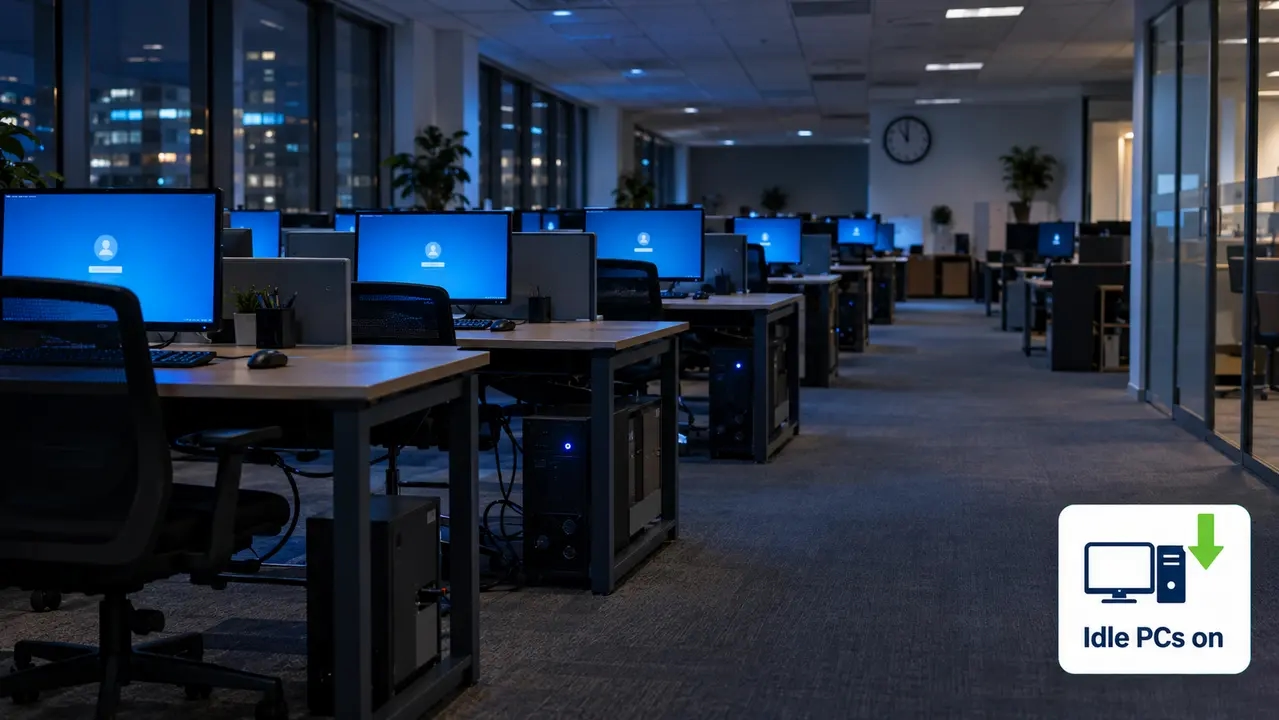
Preventing sleepless PC syndrome enterprise-wide is one of those problems that looks like a user complaint and turns out to be a governance gap. You know the scene: a walkthrough of the office at 11 p.m., long after the cleaning crew has gone, and row after row of monitors glowing, fans humming, login screens casting blue light on empty desks. Nobody is logged in. Nothing is running. The machines are simply awake because nothing ever told them, in a way that stuck, to sleep.
This is both a troubleshooting issue and a fleet issue. A single device that refuses to sleep is a ticket. Ten thousand devices that never sleep are a line item on the energy bill, a wider attack surface, and an ESG report that quietly undercounts your carbon footprint. This article covers both sides: the fast diagnostics your tier-1 team can run today, and the long-term prevention strategy, including how a managed platform like PowerPlug Pro fits into enterprise PC power management without breaking patching or remote support.
Reading time: 5 minutes
Sleepless PC Syndrome Is a Governance Problem Disguised as a Settings Problem
Call it sleepless PC syndrome, insomnia mode, or “that machine in accounting that never sleeps.” The symptoms are consistent across managed fleets: devices awake overnight, fans running after hours, unexpected wake events in the event logs, and screens that dim while the system underneath keeps drawing full idle power. Users report the PC “went to sleep” when in fact only the display turned off.
Microsoft Research documented this pattern years ago in its study of sleep and wake behavior on managed PCs, finding that idle enterprise machines frequently fail to sleep because of background network and application activity, not user choice. You can read the findings in the paper Sleepless? Not Longer! from Microsoft Research. The root cause in an enterprise setting is usually a legitimate business function, such as an update agent, a security scan, or a backup client, that simply has no governing rules around when it may keep a machine running.
Before you change a single setting, confirm one thing: is the device failing to sleep at all, or is it sleeping and then being woken? The fixes are completely different, and mixing them up is where most troubleshooting effort gets wasted.
The Real Reason Your Sleep Timer Is Being Ignored
A machine with a sleep timer set that never sleeps is not malfunctioning. Something is actively blocking sleep. Windows exposes an explicit mechanism for this: applications and drivers can place a “power request” that holds the system awake, and those requests override the timer completely. Typical sleep blockers Windows fleets encounter include conferencing apps left running, remote access agents, backup and sync clients, EDR scans, USB peripherals with buggy drivers, and media playback.
There is a second, quieter culprit. Endpoint management policies, pushed through Group Policy power settings or an MDM tool like Intune, can enforce timeouts that differ from what the user sees in the Settings app. The user checks their power plan, sees “sleep after 20 minutes,” and files a ticket. The effective policy, invisible to them, says otherwise. This is often intentional but undocumented, which is the worst combination: defensible behavior nobody can explain.
Screen off is not the same as system asleep
A dark screen tells you almost nothing. The display powers down on its own timer, frequently well before the system sleeps. If the fans are still spinning, the power LED is steady rather than pulsing, and the network activity light keeps blinking, the system is awake. This distinction, screen turns off but PC stays on, is the single most common misdiagnosis in sleep-related tickets.
When Group Policy says “never sleep” and means it
If local power settings are greyed out or revert after a reboot, a domain or MDM policy is enforcing them. Do not fight it at the endpoint. Check with whoever owns the Group Policy objects or Intune power policy. Sometimes “Never sleep” was set years ago to work around a patching problem that has since been solved better, and nobody revisited the setting. Those orphaned policies are pure savings left on the table.
A Five-Step Triage Flow That Works on Any Managed Device
Your tier-1 team needs a repeatable triage, not intuition. The built-in powercfg toolset covers nearly everything, and Microsoft documents all of it in the official powercfg command-line options reference. Run these five steps in order and capture the outputs in the ticket so any tech can pick up the thread:
Step one: run powercfg /requests to see what is holding the system awake right now. Step two: run powercfg /lastwake to identify the most recent wake source. Step three: list wake timers to find scheduled tasks allowed to wake the machine. Step four: generate a full Windows energy report with powercfg /energy for driver and policy issues. Step five: confirm supported sleep states with powercfg /a, because some hardware simply cannot do S3 sleep, which changes the entire conversation.
Reading the requests output correctly
The /requests output groups active power requests into categories such as DISPLAY, SYSTEM, AWAYMODE, EXECUTION, PERFBOOST, and ACTIVELOCKSCREEN, depending on the Windows version and current activity. An empty result means no active power request is currently preventing the relevant power transition. An empty output means nothing is currently blocking sleep, which points you toward wake-after-sleep instead. A populated SYSTEM line names the process holding the machine awake, and that process name usually tells you the owner, security team, backup vendor, or a user’s app, before you even open a second tool.
Correlating last wake with scheduled activity
The last wake output tells you what woke the machine, and the event log gives you when. Put the two together and correlate the timestamp against Task Scheduler history and network events. Microsoft’s own guidance on desktops waking unexpectedly from sleep or hibernation walks through this same correlation. If the wake source is a scheduled task with wake rights, you have found your problem, and your fix is scoping the task, not disabling sleep.
What the energy report surfaces that Settings hides
An energy report, generated over a 60-second observation window, flags driver power management failures, USB devices blocking sleep, and policy conflicts. None of that appears in the Settings UI. It is the fastest way to spot a hardware-level cause on a machine where software requests come back empty.
The Four Culprits Behind the Computer Staying Awake Issue on Managed PCs
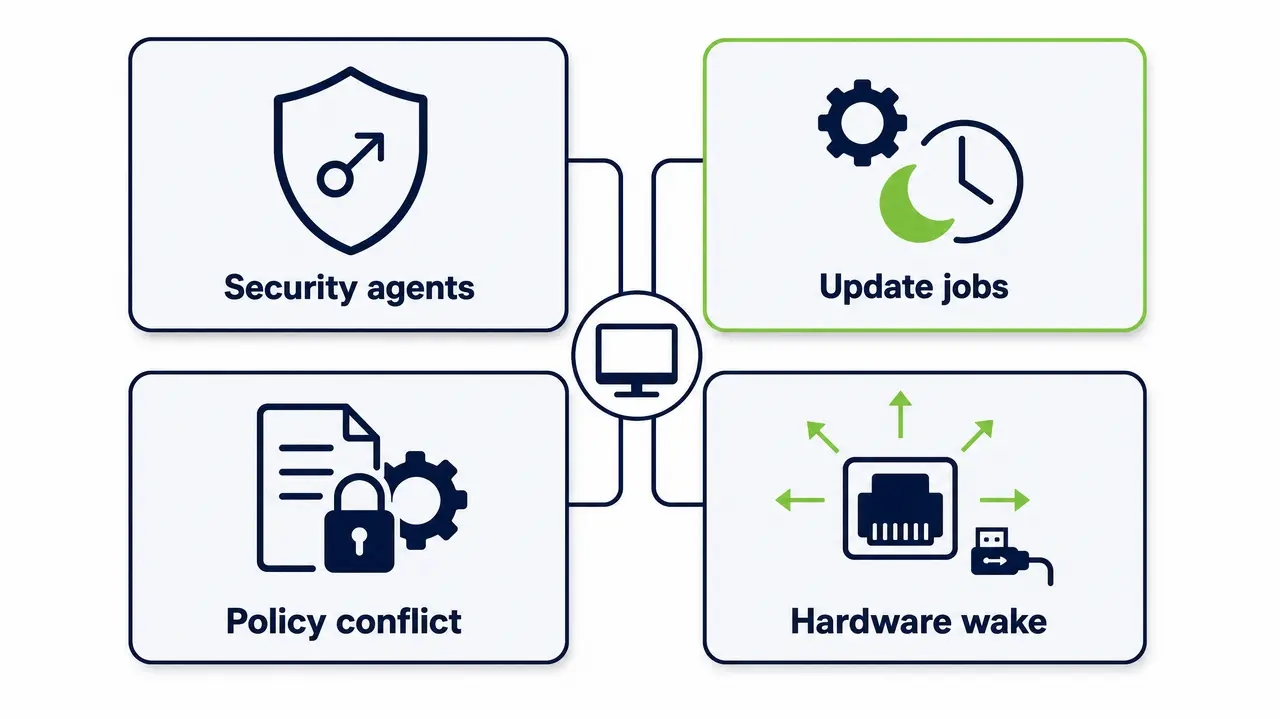
Across managed fleets, the computer staying awake issue almost always traces back to four categories, and enterprise machines usually suffer from several at once:
| Culprit | Typical offenders | Fleet impact |
|---|---|---|
| Remote and security tooling | EDR, RMM agents, remote support clients | Each agent can independently hold the system awake |
| Update and maintenance activity | Windows Update, automatic maintenance, SCCM deployments | Wakes or holds devices overnight for patch compliance |
| Misconfigured power policy | Orphaned Group Policy, conflicting Intune settings | Fleet-wide “never sleep” nobody remembers approving |
| Hardware and driver wake behavior | Network adapter waking on any traffic, USB receivers, docks | Unpredictable wake cycles, device won’t stay asleep |
Here is the mistake most teams make: they treat each category as a reason to give up on sleep entirely. Once you identify the category, you can choose the least disruptive fix instead. Scoping a backup job to a declared window costs nothing. Leaving 5,000 machines on all night to protect one backup job costs real money, every night, all year.
Windows Update Does Wake Machines, and That Is Fine, If It Goes Back to Sleep
Yes, updates prevent sleep. Windows Automatic Maintenance, update scans, and restart orchestration can all hold a device awake or wake it overnight, especially where policy prioritizes update compliance. The operational tension is real: patch velocity requires reachability, and reachability historically meant “always on.” Microsoft’s own model for automatic maintenance in Task Scheduler describes the intended pattern: the machine wakes, runs maintenance, and returns to sleep.
Most enterprises get the first half right and the second half wrong. They allow wake for updates. They never verify return to sleep. The machine wakes at 2 a.m., installs a 90-minute update, and then sits idle until 8 a.m. because a post-update agent holds a power request. Six hours of waste, every patched machine, every patch cycle. Managed tooling built for exactly this tradeoff, PowerPlug Pro being one example, closes the loop by waking devices for the patch window and enforcing sleep afterward.
Patch windows versus active hours
Active hours are a user-comfort setting: they define when Windows should not restart while someone is working. A patch window is an IT-defined maintenance window, usually overnight, when restarts and deployments are permitted. Document both, together, in the same standard. If they conflict, patch windows win on managed devices, and users should know that in advance rather than discovering it.
The wake-to-update-then-sleep-again pattern
Define and monitor a target return-to-sleep interval after maintenance completes, for example 15 minutes where appropriate for your environment. Microsoft’s guidance on optimizing Windows 10 update adoption acknowledges that sleep settings directly affect update behavior, which means your power policy and your update policy are the same policy. Teams that measure return-to-sleep catch stuck agents immediately. Teams that do not measure it pay for the failure silently.
Many Self-Waking PCs Are Triggered by Scheduled or Configured Activity
When a PC wakes up by itself after finally going to sleep, the cause is usually one of three things: wake timers on scheduled tasks, a network adapter configured to wake on traffic, or an external device generating wake events. The enterprise triggers read like a who’s-who of overnight jobs: compliance scans, inventory collection, backup jobs, and maintenance tasks. On the hardware side, look at USB mice and wireless receivers, docking stations, and NICs set to wake on any packet rather than only on a magic packet.
The diagnostic discipline matters. Identify the wake source first, then decide whether that wake is actually required. A nightly inventory scan that could run during business hours is not a reason to wake a machine at 3 a.m. Restrict legitimate wakes to approved windows and kill the rest.
Wake timers: control them, do not just disable them
Fully disabling wake timers breaks legitimate maintenance, and most teams that try it quietly reverse the decision a month later when patch compliance drops. The better move is scoping: only approved tasks should carry the wake-to-run flag. Microsoft documents this capability in the TaskSettings.WakeToRun property. Audit which tasks hold that flag across the fleet, and you will usually find more than anyone intended.
Magic packet versus any traffic
Wake-on-LAN in the enterprise sense means the NIC wakes the machine only when it receives a specifically formatted magic packet. Some adapters ship configured to wake on any network traffic, which on a corporate LAN with broadcast noise means effectively random wake cycles. Wake on magic packet is the correct setting for managed fleets; wake on any pattern is how you get machines that sleep for four minutes at a time.
Modern Standby Changes the Rules, So Treat It as a Separate Device Class
Modern Standby, or S0 low power idle, is the newer power model where the system appears asleep but keeps portions of the platform active for background connectivity. Microsoft’s documentation on Modern Standby and how it differs from traditional S3 sleep is essential reading for endpoint teams. The practical consequence: users report “it never sleeps” while the screen is off and the OS technically entered standby, because background activity kept the system more active than anyone expected.
Do not fold these devices into your general troubleshooting flow. A Modern Standby machine generates different diagnostics, SleepStudy reports rather than classic S3 event patterns, and different expectations. Segment your fleet by power model, define separate standards for each class, and your sleep-quality metrics will actually mean something.
The Fix That Preserves Remote Support and Overnight Jobs
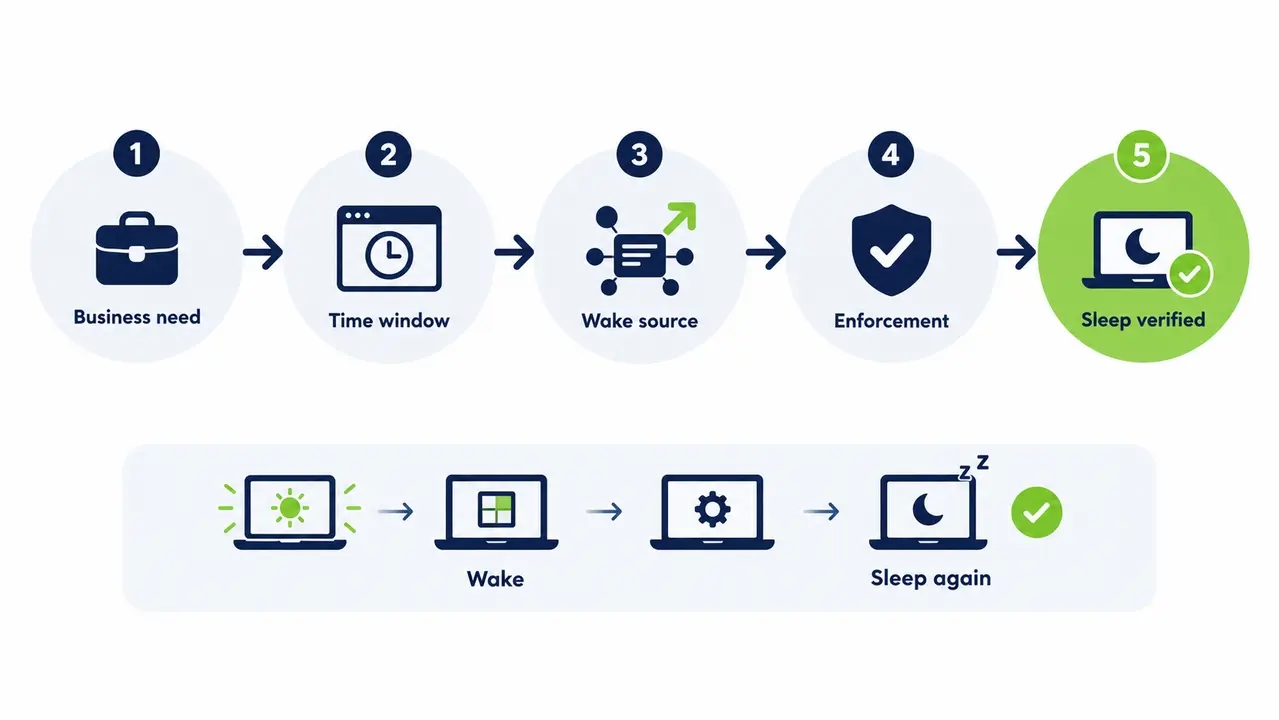
Here is the framework that separates fleets that fix this problem from fleets that keep fighting it. Replace blanket “Never sleep” configurations with rule-based logic. Define the approved wake reasons, which for most organizations are updates, remote support sessions, and declared critical jobs. Block everything else. Require jobs to declare their execution needs in advance rather than grabbing a power request ad hoc. Then verify, machine by machine, that devices return to sleep after each approved job completes.
This is exactly the space where enterprises rely on wake-up technology built for enterprise fleets rather than leaving devices always-on. The policy model is a simple chain: business requirement first, then the required time window, then the required wake source, then the enforcement method, and finally verification that the device went back to sleep. Every exception in your fleet should be traceable through that chain. If it cannot be, it is drift, not an exception.
Return to sleep is a success metric, not an assumption
Put this on your dashboard: percentage of devices that returned to low-power state within 15 minutes of a maintenance job completing. Teams that track it find stuck agents, failed update cleanups, and misbehaving backup clients within days. Teams that do not track it are funding those bugs with their energy budget.
How to Prevent Insomnia Mode on Enterprise PCs Fleet-Wide
To prevent insomnia mode on enterprise PCs at scale, you need four things: a standardized endpoint power policy baseline, centralized enforcement, explicit exception handling, and monitoring for drift. Build the baseline by device class, because laptops, desktops, and kiosks have genuinely different requirements. Define exceptions explicitly for developers, render stations, and call center machines rather than letting informal exceptions accumulate. Then watch for outliers: devices with persistent power requests, repeated wake cycles, or unusually high overnight uptime.
One device staying awake is a ticket. A pattern of devices staying awake is a policy failure, and it needs a policy fix. That is the whole reason fleet-level prevention beats per-device troubleshooting: it scales, it holds, and the next audit finds the same baseline you set, not three years of quiet drift.
The Settings Worth Standardizing Across the Fleet
Fleet-wide power settings standardization comes down to a handful of decisions, made once and documented: sleep and display-off timeouts by device class, wake timer policy, network adapter wake behavior, and lid-close behavior for laptops. The ENERGY STAR program for computers provides a solid reference for power management baselines, and the underlying assumption in those specifications is that machines will actually use their low-power states rather than idle at full draw all night.
| Setting | Desktop standard | Laptop standard |
|---|---|---|
| Display off | 10 to 15 minutes idle | 5 to 10 minutes idle |
| System sleep | 30 to 60 minutes idle | 15 to 30 minutes idle, on battery sooner |
| Wake timers | Approved maintenance tasks only | Approved maintenance tasks only |
| Network wake | Magic packet only | Magic packet only, often disabled on battery |
| Lid close | Not applicable | Explicitly defined, not left to default |
Note what is not in this table: any setting that keeps devices reachable by keeping them on. Reachability is a wake problem, and you solve it with wake, not with uptime.
Docked laptops are a different machine
A laptop docked with external monitors and peripherals can behave differently from the same laptop undocked, because docks introduce their own power management and wake-event quirks. Your standards need to account for the docked scenario explicitly. Teams that test only undocked laptops ship policies that fail for half their hybrid workforce.
When the Problem Only Happens on Locked Machines
A distinct pattern, and a distinct diagnosis. The machine sleeps fine while the user is present, then misbehaves only when locked. The trigger is usually a policy or a background task scheduled against the idle or locked state: maintenance tasks configured to run “when computer is idle,” or security tooling that scans during what it assumes is downtime. Correlate lock event timestamps with Task Scheduler history, using the documented behavior in About the Task Scheduler and the schtasks commands for enumerating tasks, and the culprit usually appears within two or three nights of logs.
Repeatability is everything in this scenario. Get the user to lock the machine at a known time, then pull wake events against that timestamp. Time-based evidence, not screenshots of the settings page, is what resolves these tickets.
“Keep Screen On” and “Keep Computer Awake” Are Not the Same Cost
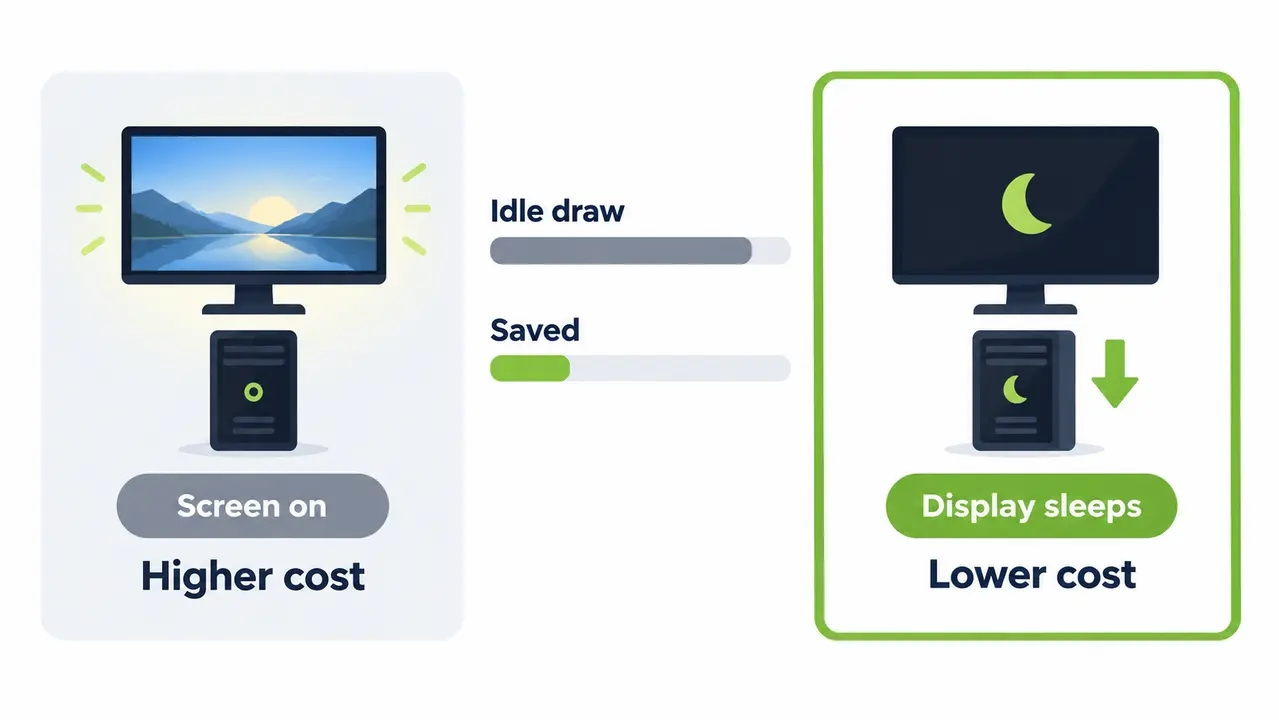
Keeping the screen on prevents display sleep. Keeping the computer awake prevents system sleep. Both waste energy, but a lit display typically adds far more to idle power draw than the platform behind it, so a workaround that accidentally keeps the screen lit multiplies the cost of what was already a waste. The EPA’s guidance on power management for computers and monitors treats the two separately for exactly this reason.
The enterprise answer is a policy that lets the display sleep aggressively while the system stays awake only for approved jobs and patch windows. That single clarification, screen versus system, prevents fixes that quietly increase energy costs across the fleet while appearing to solve the ticket.
Measuring the Fix: Baseline, Remediate, Remeasure
Fixing sleep behavior without measurement is invisible work. Run a simple 30-to-60-day cycle. First, capture a baseline: what percentage of your fleet is awake after business hours, which are the top recurring sleep blockers, average time-to-sleep per device, wake events per device per night, and the count of informal exceptions by department. Then remediate against your new baseline policy. Then remeasure the same metrics and translate reduced runtime into estimated kWh and avoided cost.
Tie the results to operational outcomes, not just kilowatt-hours: fewer sleep-related tickets, consistent patch windows, measurable energy reduction. For a concrete example of this approach at scale, see how one healthcare enterprise measured and reduced after-hours PC energy use across a large managed fleet.
What finance wants versus what ESG wants
Finance wants cost per device per year and total avoided spend. Sustainability teams want kWh and CO2 reduced, in a format they can use for ESG and CSRD-aligned reporting. Both answers come from the same dataset, so report both from the same source of truth. The Department of Energy’s guidance on purchasing energy-efficient computers is a useful external reference point, including its confirmation that sleep modes do not shorten hardware life, which defuses the most common objection from end users.
When Manual Fixes Stop Scaling
Per-device troubleshooting is fine at fifty machines. At five thousand, it collapses. Manual fixes drift, exceptions multiply, and within a year the baseline you carefully established is unrecognizable. What scales is centralized policy enforcement, visibility into blockers across the fleet, controlled wake and sleep behavior, and reporting that finance and sustainability can both use.
For organizations managing thousands of endpoints, a centralized power management platform makes it possible to enforce these rules consistently without device-by-device intervention, keep devices reachable for approved tasks without leaving everything on all night, and deploy in hours with ROI that our customers typically see in as little as four months. Organizations running PowerPlug Pro have together saved over $50 million and eliminated more than 200,000 tons of CO2, which is what governed sleep looks like when it is done at scale.
See how much your fleet could save
If you manage hundreds or thousands of PCs, we can review your current power settings and estimate the after-hours energy waste in your fleet, with no obligation on your side.
The goal is not maximum sleep. The goal is governed sleep, aligned to business needs, and that is the entire discipline of preventing sleepless PC syndrome enterprise-wide.
Frequently asked questions
What is preventing my PC from sleeping in Windows 11?
Almost always an active power request from an application, driver, or background agent, or an enforced policy overriding the visible sleep timer. Run powercfg /requests to see live blockers and powercfg /lastwake to check wake sources. On managed devices, also confirm whether a Group Policy or Intune power policy is enforcing different timeouts than what the Settings app shows.
How do enterprises keep PCs reachable for IT without disabling sleep entirely?
With Wake-on-LAN restricted to magic packets and an on-demand Wake-Up Portal, devices sleep normally and are woken only for approved activities like patching, remote support, or declared overnight jobs. This preserves maintenance windows and remote access while eliminating always-on waste. The critical piece is verifying that devices return to sleep after each job, which should be a tracked success metric.
Does Windows Update wake my computer at night, and can I control it?
Yes, updates and automatic maintenance can wake a device or hold it awake overnight when policies prioritize update compliance. You control it by defining IT-owned patch windows separate from user active hours, restricting wake timers to approved maintenance tasks, and verifying return to sleep after updates complete. The pattern to aim for is wake, patch, sleep again, not wake and idle until morning.
How do I stop my network adapter from waking my computer randomly?
Open Device Manager, find the network adapter’s Power Management settings, and allow wake only on a magic packet rather than on any network traffic or pattern match. Corporate LANs generate constant broadcast traffic, so “wake on any traffic” produces effectively random wake cycles. Magic-packet-only wake, orchestrated through Wake-on-LAN tooling, gives you deliberate, scheduled reachability instead.
What does a full power management rollout pay back, and how do we prove it?
Measure a baseline of after-hours awake devices and estimated idle energy, remediate with a managed power policy, then remeasure over 30 to 60 days and convert reduced runtime into kWh, cost, and CO2 avoided. PowerPlug customers typically see ROI in as little as four months, and an organization with 1,000 PCs can save tens of thousands of dollars a year. Report cost per device to finance and kWh plus CO2 to sustainability from the same dataset so both teams trust the numbers.

About the author
Nimrod Yedaya
VP Customer Experience
Over 15 years of experience in customer service, technical support, and customer relationships. Nimrod joined PowerPlug in 2012 as Customer Support Manager and was promoted to VP in 2016. He holds an MBA from BIU and a BSc in Communication Systems Engineering from BGU.