
Endpoint power policy templates for enterprise Windows fleets
By Nimrod Yedaya, VP Customer Experience

Walk through any corporate facility after midnight, and you will see hundreds of monitors glowing in empty cubicles. If you are searching for an endpoint power policy templates enterprise download, the useful questions are what you can actually download and how to deploy and verify it. Endpoint power policy templates are reusable configuration objects that set display and sleep timeouts, hibernate states, and wake behavior across thousands of Windows endpoints. Instead of relying on individual user habits or configuring machines by hand, IT teams use these templates to enforce consistent fleet power management from a single administrative baseline.
A true template is not an ad-hoc adjustment in the local Windows Settings app. It is a repeatable policy definition that your management infrastructure can target, update, and audit. Within an enterprise Windows power policy rollout, these power plan templates govern key operating parameters. They define when the display turns off and when the system sleeps or hibernates, as well as what the power button and lid do and whether wake timers are allowed. They also establish distinct operating rules when a system runs on alternating current versus internal battery power.
Large organizations require this level of standardization because it keeps operations consistent, makes power settings auditable, and gives exceptions a structured process. Without central templates, power behavior drifts across departments while patching compliance drops and energy waste goes unchecked. The sections below show where to get template configurations and how to deploy them through Active Directory and modern management channels, then how to validate and scale enforcement across your fleet.
Reading time: 5 minutes
First, let’s clarify what “download” usually means in a Windows environment.
Understanding enterprise power template downloads in Windows environments
When administrators search for downloadable power templates, they are usually looking for one of three technical deliverables. The first format is a set of administrative templates, known as ADMX and ADML files, which expose native Group Policy settings in the Group Policy Management Editor. The second format is a custom power scheme exported to a binary file using the Windows command-line utility powercfg. The third format is an enterprise policy pack built into a dedicated power management platform.
A downloaded template file does not enforce anything by itself. An exported power scheme or an administrative template must be linked to a delivery mechanism such as Group Policy, Mobile Device Management, or an endpoint agent to become active. Choosing the right format depends on whether you run an on-premises Active Directory domain, a pure cloud environment, or a hybrid infrastructure with off-network laptops.
| Approach | What you “download” | Best for | Pros | Cons / risks | Time to deploy | Ongoing maintenance |
|---|---|---|---|---|---|---|
| GPO-based power policy using built-in settings | No download needed because it uses native Windows templates | On-premises Active Directory domains with desktop fleets | Free and native to Windows, with no agent installation | No central reporting, static timers, and no wake coordination | Hours | Manual updates via GPMC |
| ADMX-enabled, template-driven policy configuration | ADMX and language ADML files for SYSVOL | Environments running new Windows client builds | Exposes new power settings and stays consistent across admin consoles | Requires SYSVOL replication and does not automate wake | Hours | Low once Central Store syncs |
| Scripted power plan import/export (power scheme GUID approach) | Exported .pow binary files and deployment scripts | Staged imaging, golden images, and initial staging | Transfers exact advanced settings with a predictable local GUID | Script maintenance overhead, and local changes can overwrite the plan | Days | High script maintenance burden |
| Centralized power management platform templates (policy pack approach) | Pre-configured policy packs within a management console | Large enterprises needing scheduled wake and reporting | Dynamic scheduling, automated wake, and granular energy telemetry | Requires platform agent and license investment | Days | Minimal, with automated central updates |
Each delivery method reflects a distinct operational trade-off. Native Group Policy settings and imported GUID files carry zero licensing overhead, but they leave your team blind to whether endpoints actually sleep or wake on schedule. Commercial policy packs demand budget approval, but they resolve maintenance conflicts by coordinating wake cycles with deployment schedules. For most enterprises, the fastest initial path begins with Group Policy.
Deploying power settings with GPO across enterprise fleets
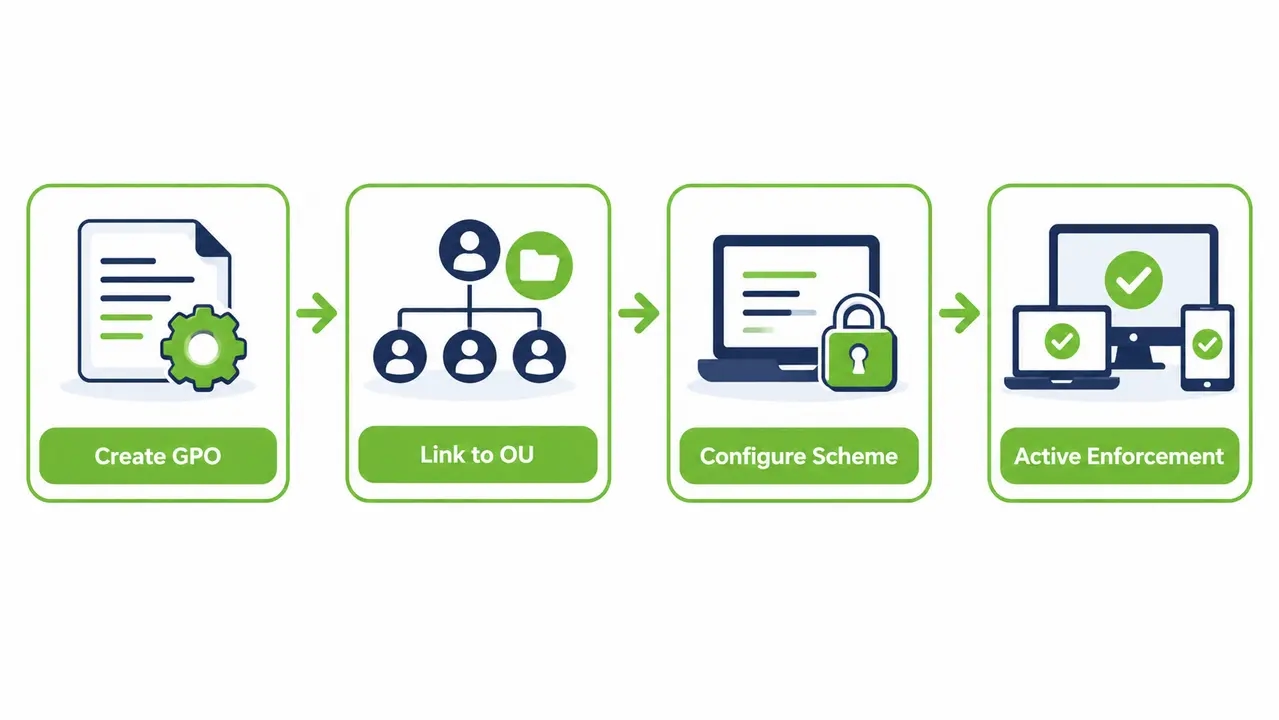
Enforcing power configurations through Active Directory relies on Computer Configuration policies. To standardize power plans across endpoints, you create a dedicated Group Policy Object linked to an organizational unit that contains your target computer accounts. Targeting computer accounts rather than user accounts prevents policies from shifting when multiple technicians or shift workers log into the same workstation.
A reliable deployment follows an established sequence. First, define your administrative scope by creating a pilot organizational unit containing representative hardware. Second, open the Group Policy Management Console and navigate through Computer Configuration and Policies to Administrative Templates, then open System and select Power Management. Third, configure your required display and sleep values while leaving security filtering at default authenticated users unless testing restrictions apply. Fourth, decide whether to deploy your rules as enforced Administrative Templates or as Group Policy Preferences. Enforced policies lock the interface against user modification, whereas Preferences write an initial baseline that local administrators can temporarily adjust. Fifth, link the GPO to your target organizational unit and initiate a staged pilot under enterprise change control.
Every deployment must operate under strict change management guidelines. Schedule your rollout within an approved change window, document the specific registry modifications written by the policy, and maintain an explicit rollback procedure. If unexpected system behavior occurs, remove the affected devices from the policy scope or disable the GPO link, then verify that the intended settings have been restored. Group Policy Preferences and certain configuration changes may persist after policy removal, so a tested rollback procedure should explicitly restore the previous power configuration.
Safest rollout sequence for power GPOs at scale
Do not apply a new power GPO to your entire enterprise overnight. Start with a dedicated IT department pilot for one week. Next, expand scope to a non-critical operational business unit for two weeks. Finally, initiate phased ring deployment across the remaining production fleet. Track helpdesk incident volumes and patch installation success rates at each phase before widening distribution. In an illustrative rollout funnel where 9,500 of 10,000 total endpoints fall within scope, 9,100 may achieve compliance while 300 operate under documented business exceptions and 100 require hardware driver remediation.
Before you configure specific timers, make sure the required settings are fully visible inside your Group Policy editor.
Importing ADMX templates to expose power settings in Group Policy
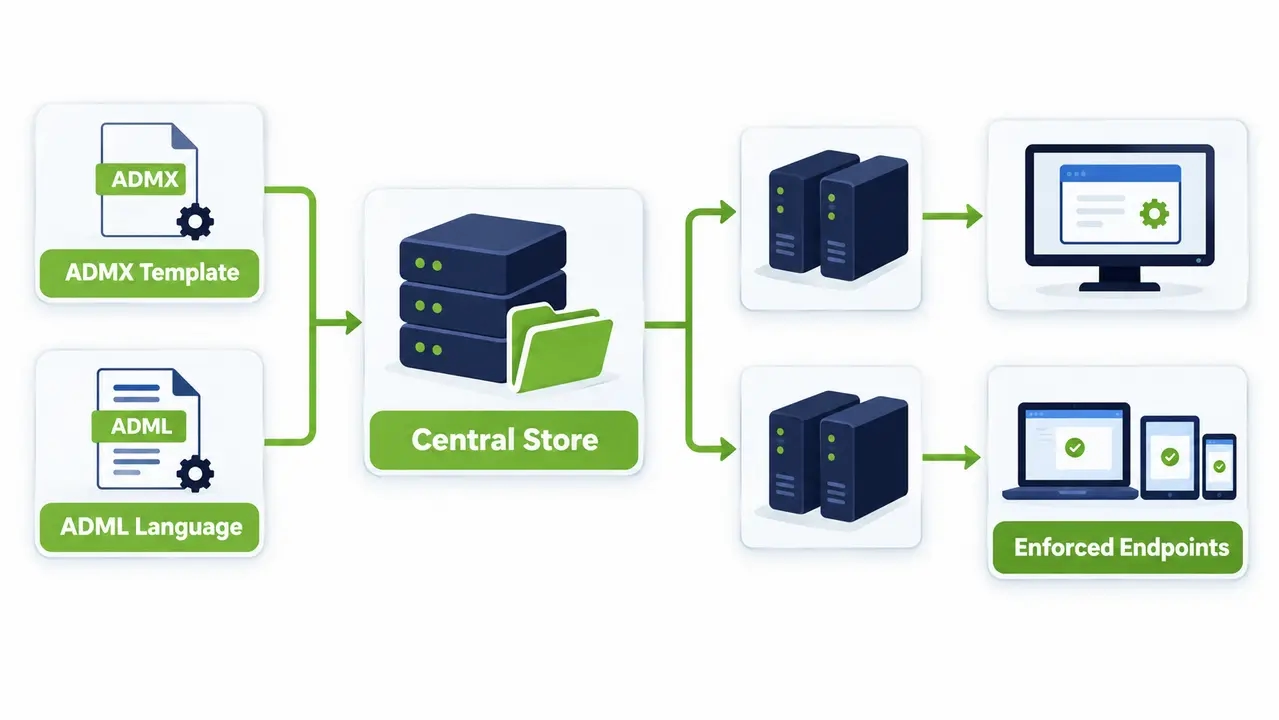
Group Policy tools read administrative templates from the local disk or from an Active Directory Central Store. When new versions of Windows introduce modified power capabilities, older administrative workstations may lack the corresponding policy definitions. Importing updated ADMX and ADML files ensures that every administrator on your team views identical configuration options when editing policies.
The architecture separates policy logic from localized language text. ADMX files contain the core setting definitions, registry paths, and supported platform keys. ADML files deliver the display names and explanatory text in language-specific subdirectories, such as en-US. Placing these files into the Central Store inside the SYSVOL directory automatically replicates them across all domain controllers. Microsoft documents the folder structure and replication requirements for the Central Store.
Follow a disciplined administrative procedure when updating your policy store. Confirm that your ADMX template package matches or exceeds the newest Windows client build running in your production fleet. Copy the ADMX files into the PolicyDefinitions root directory, and place the language files into their respective subfolders simultaneously. Allow sufficient time for Active Directory replication across all domain controllers before opening the Group Policy Management Editor. Test your templates on a staging workstation to verify that the settings display correctly without schema parsing errors.
Version mismatches inside SYSVOL generate missing settings or cryptic registry errors. Once your policy definitions are synchronized, you can design operational schedules that mirror business activity.
Structuring power plan templates for business hours and overnight savings
A static power plan that treats midday operations and midnight downtime identically will fail. Aggressive sleep timers during normal business hours interrupt users during phone calls, long video meetings, or background compilation tasks. Conversely, relaxed daytime timers left active overnight waste immense amounts of electricity. Successful fleet power management requires distinct rules for productive hours and after-hours periods.
Consider an illustrative starting point for office workstations, which your team can refine during a pilot. For business hours, establish a display-off timeout of 10 minutes and a system sleep timeout of 45 to 60 minutes. After hours, drop the sleep threshold to 15 minutes and configure hibernate at 45 minutes, while still permitting wake timers for scheduled IT operations. In an illustrative schedule heatmap, aggressive low-power rules take effect from 7:00 PM to 6:00 AM on weekdays and remain active across the entire weekend.
Different operational environments demand distinct template variations. Call center workstations supporting consecutive shifts need short display timeouts and near-instant wake, but they rarely need system sleep until the weekend. Engineering workstations running prolonged computational models require disabled sleep during the week, paired with an enforced weekend policy that powers down idle hardware. Public kiosks and reception PCs should keep displays active throughout building hours, followed by an immediate transition to sleep after doors lock.
Native Windows operating system features do not include clock-aware power switching out of the box. Windows applies static timeout counters regardless of the hour. Achieving dynamic time-of-day policy transitions requires custom PowerShell scheduled tasks, startup scripts, or an enterprise management platform.
Handling laptops differently from desktop workstations
Laptops require specialized policies because mobility introduces distinct hardware risks. Always configure separate idle thresholds for alternating current and internal battery operation, setting battery sleep timers substantially lower to preserve user mobility. Set the lid-close action on battery power to immediate sleep. For docked laptops connected to external monitors, thoroughly test sleep and wake reliability before rolling out aggressive hibernate policies, as legacy docking firmware frequently mishandles state transitions.
Savings only materialize when policies target the settings that drive measurable electrical consumption.
Critical GPO power settings for enterprise energy reduction
Focusing on the highest-impact settings prevents administrative complexity while delivering substantial electrical savings. The greatest power reductions come from controlling monitor backlights, enforcing low-power sleep states, and eliminating continuous overnight operation.
Prioritize these controls in the Power Management folder of the Group Policy editor, found under Computer Configuration and Administrative Templates in the System folder. Enforce the Turn off the display setting for plugged-in systems, which reduces monitor consumption after short periods of user inactivity. Configure System sleep timeout to transition the processor and internal components into low-power states during extended lulls. Enable the Turn on hibernate setting to save memory contents to non-volatile storage during extended sleep periods. Set Allow hybrid sleep to disabled on standard desktops connected to uninterruptible power supplies, ensuring fast sleep entry without unnecessary disk writes.
Configure Allow wake timers to enabled or administrator-controlled, ensuring the operating system can resume for scheduled tasks. Standardize Select the power button action to trigger immediate sleep rather than full shutdown, keeping machines responsive to remote commands. Finally, configure Require a password when a computer wakes under Sleep Settings. This requirement maintains enterprise security and satisfies endpoint compliance standards whenever machines resume from sleep.
Applying aggressive sleep settings without an automated wake strategy can disrupt off-hours patch distribution, vulnerability scans, and remote helpdesk access. Those savings also depend on settings staying applied, so let’s address user overrides.
Enforcing Group Policy to prevent local power setting overrides
A frequent challenge for systems administrators is the local user who adjusts Windows power sliders to never sleep. When you deploy power settings through Administrative Templates in Group Policy, the operating system writes these values into the Software Policies registry branch. The client enforces these values as mandatory policies, graying out the corresponding options in the local Windows Settings interface.
Windows refreshes computer Group Policy automatically in the background every 90 minutes, with a randomized 30-minute offset to prevent domain controller saturation. Even if a user with local administrative credentials modifies power scheme values using command-line tools, the background Group Policy refresh overwrites those changes and restores the enterprise standard. Rebooting the endpoint or executing a manual update command triggers the same enforcement mechanism.
Four primary exceptions can disrupt central policy enforcement. Users with local administrative rights may execute recurring scheduled tasks that alter registry keys between policy refreshes. Conflicting GPOs linked at different organizational unit levels can overwrite target values if inheritance is misconfigured. Group Policy Preferences generally reapply settings during policy processing, but selecting the “Apply once and do not reapply” option allows subsequent local changes to persist. Administrators should verify the configuration and understand that Preferences do not provide the same restrictions against local changes as enforced Administrative Template policies. Finally, conflicting Mobile Device Management configurations can override domain policies on hybrid devices. Document which controls are centrally locked, communicate these standards clearly to business units, and equip your helpdesk with scripts to identify local configuration drift.
If you also use MDM, avoid managing the same setting twice.
Managing Windows power policy through MDM and cloud management
As organizations transition to cloud-first device management, many IT departments govern endpoint power settings through Mobile Device Management services such as Microsoft Intune. Modern cloud architectures configure client power through the Power Policy Configuration Service Provider, known as the Policy CSP. This mechanism manages sleep timers, lid actions, and display states on corporate laptops without requiring on-premises Active Directory connectivity.
Choosing between cloud management and traditional Group Policy depends on your network architecture. MDM policy delivery excels for remote-first workforces, cloud-native Microsoft Entra ID joined endpoints, and organizations with distributed offices lacking local domain controllers. Group Policy remains the superior approach for complex on-premises estates, air-gapped corporate networks, and environments with intricate organizational unit inheritance hierarchies. Managing power settings through both channels simultaneously leads to configuration flapping, where endpoints continually switch between conflicting baselines.
Avoiding conflicts between GPO and MDM power settings
Establish a single source of authority for every hardware group. Do not target the same workstation with both a power GPO and an MDM power configuration profile. When migrating a business unit from on-premises management to cloud management, uncheck or remove the computer from the GPO scope before assigning the MDM power profile. Verify applied settings on representative test devices across multiple Windows builds before widening the migration boundary.
Managing day-to-day power savings is straightforward, but operations become complex when patching schedules collide with sleeping machines.
Maintaining patch windows while enforcing low-power sleep states
The primary objection to enterprise power management has always been maintenance accessibility. Systems administrators often leave endpoints powered on 24 hours a day, 365 days a year, simply to ensure that Microsoft Configuration Manager or third-party patching tools can reach the machines during overnight maintenance windows. Leaving thousands of PCs running overnight solely for occasional updates wastes immense amounts of energy.
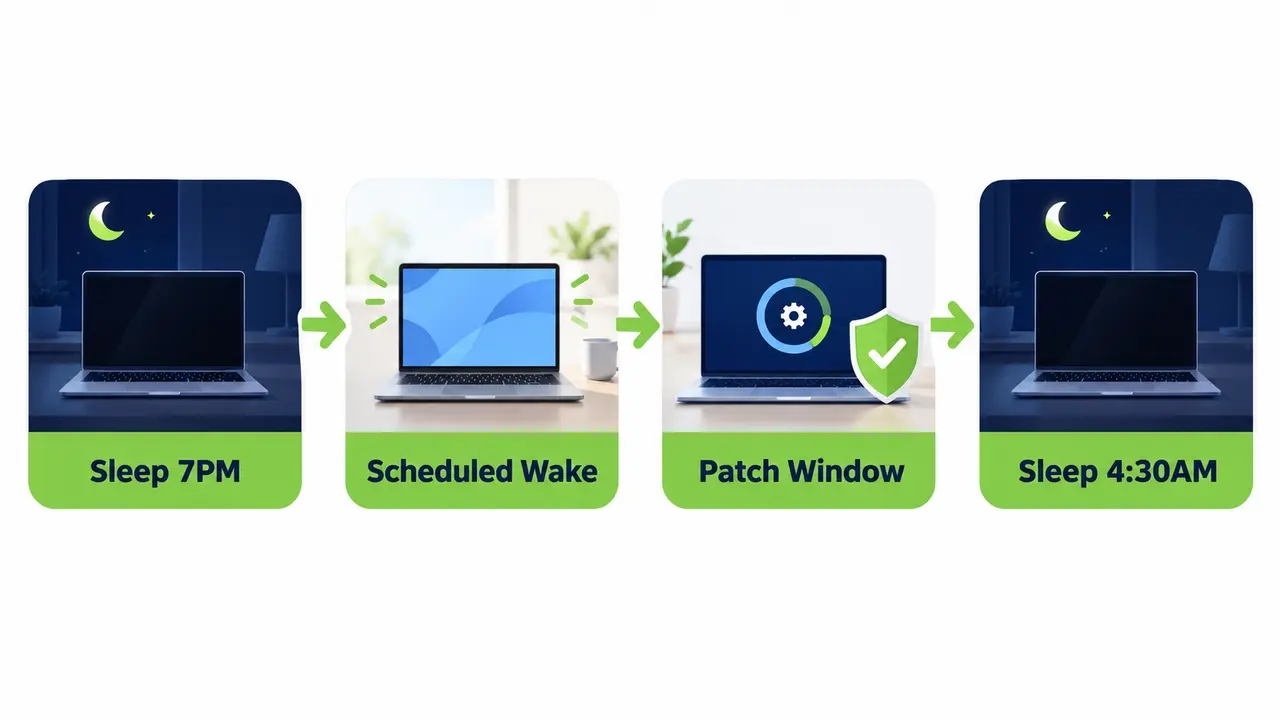
The solution is an operational architecture that combines after-hours sleep with scheduled and on-demand wake routines. Consider a standard weekly maintenance cycle. Desktops enter sleep at 7:00 PM, saving energy for seven continuous hours. At 2:00 AM, central automation wakes the endpoints. Systems install the required cumulative updates and application patches, then reboot if necessary before returning to sleep at 4:30 AM. Endpoints remain accessible for maintenance while drawing minimal power for the majority of the night.
Native operating system tools cannot handle this coordination at scale. Windows wake timers work reliably on individual isolated machines, but they cannot coordinate wake cycles across routed corporate networks with separate subnets or secure VLANs. If an emergency security patch requires midday deployment, native tools provide no mechanism to wake targeted machines instantly. Platforms with built-in wake-up technology can wake endpoints for maintenance windows and then return them to a low-power state, giving IT teams high patch compliance rates without sacrificing sustainability goals.
Next, confirm the policy actually applied.
Validating active power policies and schemes on endpoints
Never assume a power policy is functioning simply because a GPO is linked in the administrative console. Firmware variations, outdated network drivers, and unverified software services can inhibit sleep or alter system behavior. Administrators must validate policy application directly on client hardware during every deployment phase.
Open an elevated command prompt on a representative endpoint and execute standard diagnostic utilities. Run the command gpresult /r /scope computer to verify that your power policy object is listed under Applied Group Policy Objects. If the policy is missing, run gpupdate /force to trigger an immediate update. Inspect the active power scheme by executing powercfg /getactivescheme and powercfg /list, confirming that the active GUID matches your target enterprise profile.
Investigate operational readiness using specific powercfg switches. Run powercfg /waketimers to verify whether maintenance tasks are registered to wake the hardware. Execute powercfg /lastwake to identify what event or device brought the machine out of its preceding sleep state. Run powercfg /requests to check whether active processes, audio streams, or display drivers are currently blocking the operating system from entering sleep. Finally, review the Windows System Event Log, filtering for Kernel-Power events to examine Event ID 42 for system sleep transitions and Event ID 107 for resume operations.
Sample endpoints across all motherboard designs, processor generations, and network adapter vendors in your fleet. Firmware revisions can drastically alter how hardware interprets Windows sleep commands. If results do not match expectations, the underlying cause is usually policy precedence.
Troubleshooting power policy conflicts and failure to apply
When enterprise power configurations fail to apply or revert unpredictably, administrators must methodically inspect policy precedence and hardware states. The most common technical failure modes stem from improper organizational unit placement, competing policies, or unsupported hardware sleep modes.
Begin troubleshooting by verifying inheritance in the Group Policy Management Console. Check whether Block Inheritance is enabled on child organizational units, which prevents parent power policies from taking effect unless the GPO is marked as Enforced. Inspect security filtering and WMI filters to verify that the target computer account has explicit read and apply permissions. Verify whether loopback processing is misconfigured. Power management settings configured under Computer Configuration apply to computer accounts within the GPO’s scope. Ensure that the GPO is linked to the appropriate organizational unit and that the target computers have the necessary permissions to apply it. Group Policy loopback processing is not required for these computer settings.
Modern endpoint hardware introduces additional complexity through Modern Standby, also known as S0 Low Power Idle. Modern endpoint hardware introduces additional complexity through Modern Standby, also known as S0 Low Power Idle. Unlike traditional S3 sleep, Modern Standby allows the system to remain in the S0 power state while entering low-power idle conditions. Network connectivity and background activity depend on hardware capabilities, Windows configuration, and whether the device supports connected or disconnected standby. Power policies and wake behavior must therefore be validated separately for Modern Standby systems. Group Policy settings designed specifically for legacy S3 sleep can behave unpredictably on Modern Standby systems. Sampling hardware during initial testing prevents unexpected battery drain on modern mobile fleets.
Initial triage checklist for power policy failures
When troubleshooting an endpoint, follow a strict sequence of triage steps. First, confirm administrative scope by verifying the device organizational unit. Second, inspect policy precedence using Resultant Set of Policy tools. Third, execute an enforced policy refresh. Fourth, check for conflicting MDM profiles or local software inhibitors. Resolving precedence errors before altering individual setting values saves hours of engineering time.
It also helps to separate two terms that get mixed up.
Windows power plans compared to enterprise power policies
Technical teams frequently conflate the concepts of a Windows power plan and an enterprise power policy. A Windows power plan is a local configuration scheme stored inside the operating system registry, identified by a distinct GUID. It specifies idle timers and processor cooling policies along with hardware performance states and PCI Express link power management. It is a local technical blueprint residing on a single physical machine.
An enterprise power policy is the central management architecture that governs, deploys, and verifies power behavior across thousands of systems. It establishes who can change settings and which schedules apply to specific departments, as well as how exceptions are handled and how compliance is reported to corporate stakeholders. An individual exported power plan defines how an endpoint behaves while running, but an enterprise power policy defines how the entire organization enforces efficiency and security and then audits the outcomes.
You can export a local power plan using the command powercfg -export scheme.pow followed by the power scheme GUID, and import it across other systems. This command-line approach creates identical local profiles but lacks delivery automation, operational scheduling, and compliance reporting. That brings us to what enterprise buyers actually need, which is a template pack that is ready to deploy.
Essential components of an enterprise endpoint power policy template pack
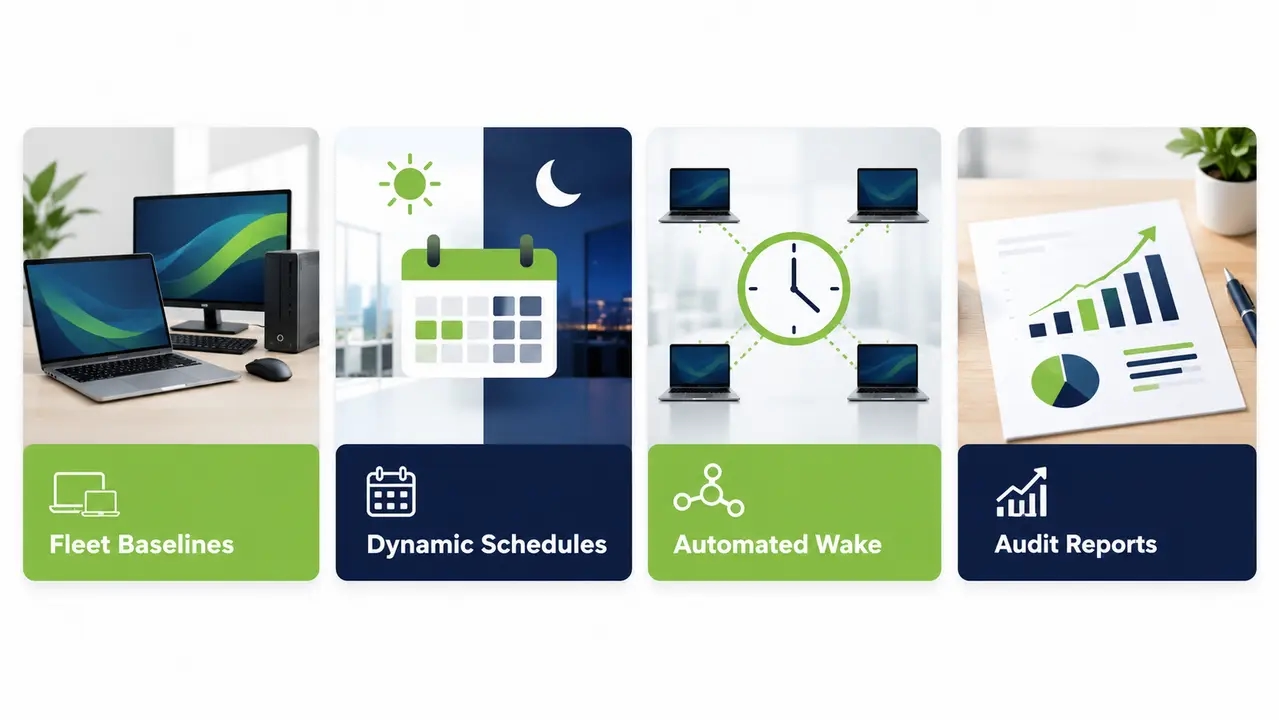
A comprehensive endpoint power policy template pack provides far more than a basic registry script. It delivers a structured operational framework that addresses security, IT availability, and administrative change control across an enterprise fleet.
A minimum viable template pack must contain baseline configurations customized for standard desktop environments and mobile laptop fleets. It must include explicit scheduling rules that distinguish productive business hours from after-hours energy conservation periods. It must incorporate an automated wake strategy that integrates with patch management tools to keep endpoints secure. It must enforce security baselines, ensuring systems lock and require credential re-authentication immediately upon waking. Finally, it must supply complete change control documentation that details modified registry paths and potential failure modes along with clear rollback procedures.
At enterprise scale, high-performing IT operations demand advanced platform capabilities. These include real-time compliance tracking, automated audit logs, and accurate financial and carbon footprint reporting. Teams that need reporting and enforcement at scale often choose a centralized power management platform instead of maintaining scripts. Platforms such as PowerPlug Pro let administrators implement enterprise-wide governance without building custom infrastructure because they combine power plan templates with scheduling and reporting in one place.
Now apply this to your evaluation process.
Evaluating power policy templates in a controlled pilot
Rolling out aggressive power policies without rigorous validation risks operational pushback. The most effective way to evaluate power policy templates is through a structured two- to four-week pilot program across representative business units. Before broad deployment, a disciplined pilot measures user sentiment and patch success while tracking policy compliance and real energy reduction.
Evaluate your pilot using five core operational criteria. The first criterion is productivity impact, which you can track through helpdesk tickets about wake delays or frozen docking stations and unexpected sleep transitions. Second, assess IT operations by verifying that overnight cumulative updates and security vulnerability scans achieve normal completion rates. Third, measure energy metrics by capturing the reduction in total after-hours idle hours across pilot devices. Fourth, confirm management coverage by verifying that remote laptops and off-network systems apply policies properly upon reconnecting. Fifth, evaluate administrative effort by tracking how many engineering hours are spent troubleshooting exceptions.
A pilot results dashboard illustrates performance before and after policy enforcement. In an illustrative corporate pilot, baseline monitoring might reveal an average of 14 idle powered-on hours per workstation per night. Applying automated policies reduces after-hours idle time to less than 2 hours per night, maintains patch completion above 98 percent, and achieves 95 percent sleep compliance. Measure these outcomes using your organization’s exact electrical utility rates and device inventories rather than relying on generic industry assumptions.
Finally, here is how to move from evaluation to a deployable setup.
Deploying enterprise-ready endpoint power policy templates at scale
The fastest path to enterprise energy reduction is deploying a comprehensive policy framework designed specifically for large fleets. Relying on manually assembled scripts, disparate Group Policy objects, and uncoordinated scheduled tasks introduces technical debt that breaks down during Windows feature updates. Modern organizations need unified management that combines templated enforcement, reliable wake automation, and auditable sustainability reporting.
Before launching broad fleet enforcement, confirm that your organization has completed essential readiness requirements. Define your operational scope by organizing computers into structured Active Directory organizational units or cloud device groups. Establish an agreed business exceptions list for mission-critical systems, shared monitoring workstations, and continuous lab equipment. Review endpoint security policies to confirm that screen saver locks and wake authentication are active across all endpoints. Document patch maintenance windows and align them directly with scheduled wake routines. Finally, define your sustainability reporting requirements to provide leadership with auditable energy and carbon metrics.
To see how PowerPlug Pro works across your own fleet and plan a pilot for your environment, contact our team and share your fleet size and management tools.
Plan a pilot for your fleet
PowerPlug Pro combines policy templates, scheduled wake-up, and energy reporting for organizations running 100 to 50,000 Windows PCs. Tell us your fleet size and your management tools, and we will scope a pilot that measures real savings in your environment.
Frequently asked questions
Does Windows have built-in GPO settings for power management?
Windows includes native Group Policy settings in the Power Management folder, which sits under System in the Administrative Templates section of Computer Configuration. These administrative templates govern display timeouts and system sleep thresholds as well as hibernate transitions and wake timers. They allow administrators to enforce standard power settings across domain-joined endpoints without installing third-party client software.
How do I enforce the same power plan on all domain computers?
You can standardize power plans by creating a computer-targeted Group Policy Object that designates the active power scheme GUID. Link the GPO to your target organizational unit and configure the required timeouts under System Power Management. Verify that the policy applies correctly on endpoints by running powercfg /getactivescheme from an elevated command prompt.
What are best practice sleep and hibernate settings for enterprise PCs?
There is no single universal timeout configuration for all organizations. A reliable starting point for standard business environments is turning displays off after 10 minutes and sleeping after 45 to 60 minutes during work hours. After-hours policies should enforce sleep within 15 minutes, followed by hibernate within 45 minutes, while permitting wake timers for IT maintenance.
How much money can an enterprise save with endpoint power management?
Financial savings depend on fleet size and baseline overnight idle hours as well as on hardware efficiency ratings and local commercial electricity rates. Measuring power consumption during a controlled pilot provides the most reliable financial forecast. Organizations managing thousands of endpoints can recover substantial sums in wasted electricity each year by eliminating overnight idle draw.
What is the safest way to roll out power policy changes to thousands of endpoints?
Deploy power policy changes using phased rollout rings under formal change control. Begin with an IT department pilot, expand to a non-critical operational business unit, and then roll out broadly across the remaining enterprise. Track helpdesk incident volumes and patch installation completion rates throughout each phase, maintaining a tested rollback plan to restore prior settings if issues arise.
Endpoint power policy templates work when they are treated as an operational program rather than a one-time configuration. Define a baseline through Group Policy or MDM and separate business-hours rules from after-hours ones, then verify application with powercfg on real hardware and coordinate wake windows with your patching calendar. A structured pilot measured against your own utility rates and device inventory turns those settings into a savings figure you can defend to finance and sustainability stakeholders alike.

About the author
Nimrod Yedaya
VP Customer Experience
Over 15 years of experience in customer service, technical support, and customer relationships. Nimrod joined PowerPlug in 2012 as Customer Support Manager and was promoted to VP in 2016. He holds an MBA from BIU and a BSc in Communication Systems Engineering from BGU.