
Energy Efficient Enterprise BIOS Settings
By Nimrod Yedaya, VP Customer Experience
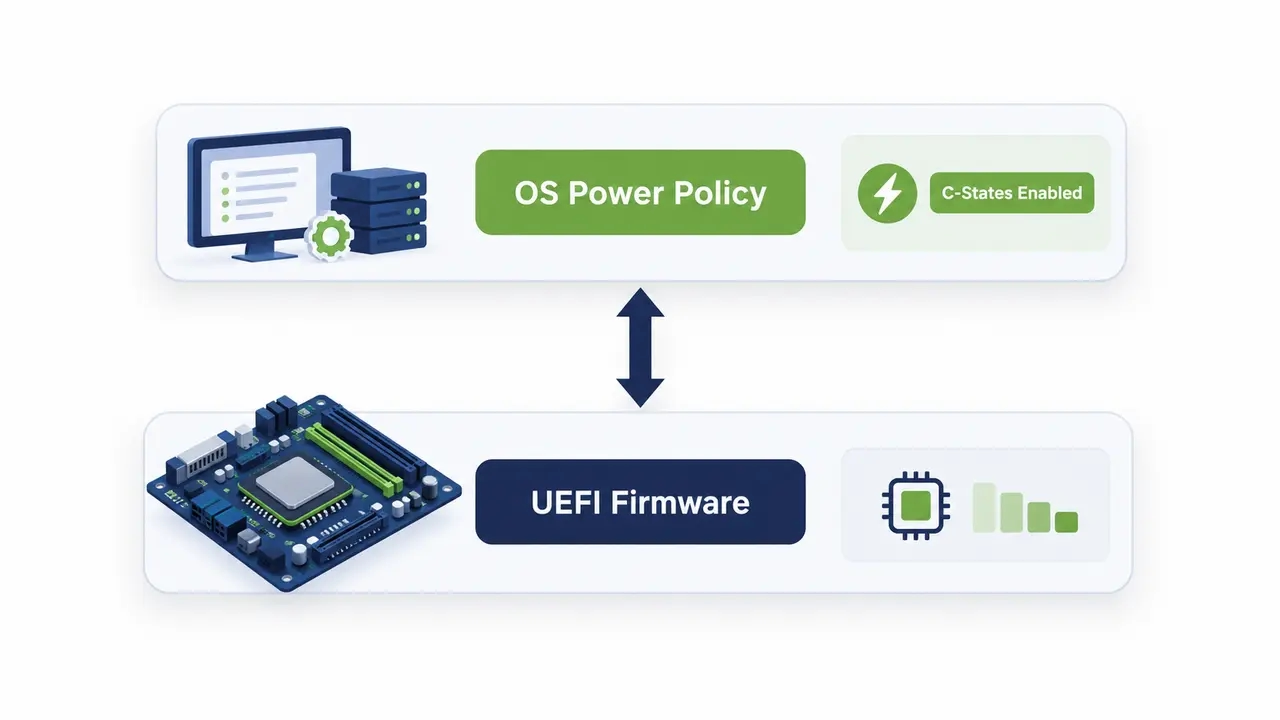
Walk through any corporate headquarters at two in the morning, and you will see rows of dark monitors connected to humming desktop towers. The office is empty, yet thousands of power supply fans spin steadily into the quiet cubicles. Those machines draw between thirty and forty-five watts each while doing absolutely nothing.
An idle workstation fleet drains operational budgets every single night.
Most enterprise infrastructure teams attempt to fix this waste by distributing Windows Group Policy Objects. They configure display sleep timers, set inactivity thresholds, and wonder why utility bills refuse to drop. Operating system power plans act merely as requests to the underlying hardware. When motherboard firmware blocks low-power platform states, Windows cannot force silicon into deep idle.
Getting endpoint power management wrong creates painful trade-offs. If your settings are too conservative, your organization wastes tens of thousands of dollars on unneeded electricity. If your settings are too aggressive, automated patch cycles fail and off-hours vulnerability scans stall. Standardizing firmware configurations resolves this tension by lowering baseline energy consumption without breaking operational continuity.
Reading time: 5 minutes
Energy efficient BIOS settings enterprise PCs require
Hardware-level firmware configurations establish the operating boundary for every physical endpoint in your organization. The Unified Extensible Firmware Interface, known as UEFI, acts as the foundational abstraction layer between hardware components and the operating system scheduler. It determines how voltage regulators respond to shifting computational demand and dictates whether the operating system can place inactive subsystems into low-power modes. Microsoft defines the formal rules governing these transitions in its documentation on system power states.
Single-device tweaking focuses on peak synthetic benchmarks, but enterprise endpoint management demands consistent fleet stability. If you configure a custom gaming motherboard in your home lab, you can sacrifice remote manageability for marginal efficiency gains. In contrast, an enterprise fleet must preserve administrative reachability and maintain agent health across diverse hardware generations. Every firmware adjustment must function predictably across thousands of endpoints without generating helpdesk tickets.
The highest kilowatt-hour reductions come from optimizing idle power draws rather than underclocking compute cores during active working hours. Workers require immediate responsiveness when compiling code, rendering architectural models, or calculating financial spreadsheets. Attempting to save power by crippling peak computational frequency frustrates users and reduces daily productivity. The real savings hide in the fourteen hours each weekday when workstations sit unattended.
Firmware baseline configurations must expose deep sleep states and dynamic clock scaling directly to the operating system. When the UEFI firmware correctly delegates power authority to the Windows kernel, the operating system can shut down idle silicon execution units in microseconds. Proper baseline settings convert empty office hours into sustained energy reductions.
PC firmware power optimization savings across endpoint fleets
Unmanaged business desktops can consume tens of watts while idle, depending on hardware configuration and connected peripherals. Firmware optimization can improve active-idle efficiency, while automated operating system sleep policies typically deliver much larger reductions by transitioning inactive computers into low-power states. Actual consumption during sleep, hibernation, and soft-off varies by platform and enabled wake capabilities and should be verified using wall-socket power measurements.
Consider an enterprise operating ten thousand desktop endpoints across regional corporate offices. Assuming each workstation is unattended for sixteen hours across 250 business days and forty-eight hours across 52 weekends, that represents approximately 6,496 unattended hours annually. Reducing electricity consumption by twenty watts per workstation during those hours could save approximately 1.3 million kilowatt-hours per year across the fleet. Actual savings depend on workstation usage, operating schedules, and measured power consumption.
Federal procurement programs recognize the enormous scale of computer power waste. The Federal Energy Management Program’s computer purchasing guidelines stress that automated power management delivers substantial life-cycle cost reductions. At commercial utility rates of fifteen cents per kilowatt-hour, a fleet-wide reduction of twenty watts per machine saves one hundred seventy-one thousand dollars every year.
Reduced electrical draw also shrinks facility cooling demands. High-density office floors packed with continuously running PCs generate constant thermal loads that force air conditioning systems to run through the night. Lowering endpoint thermal dissipation cuts building chiller runtimes, multiplying your utility savings and reducing corporate Scope 2 carbon emissions.
How to measure power savings from BIOS setting changes
Never deploy firmware modifications across an enterprise fleet based on vendor marketing claims. You must verify actual consumption through an empirical three-layer measurement framework before modifying production machines. The first layer uses physical wall-socket power meters on representative test benches to record true alternating current consumption. The second layer uses operating system telemetry to monitor sleep state transitions. The third layer aggregates fleet reporting to evaluate compliance across regional subnets.
Establish clear baseline Key Performance Indicators across a two-week observation period. Record active idle and deep sleep wattage along with wake reliability percentages and patch cycle completion rates. Controlling external variables is critical during this benchmark phase. You must account for external monitors, USB hubs, and docking stations because these unmanaged peripherals can draw substantial auxiliary power through the chassis.
Pilot measurement tracking and baseline diagnostics
Track your test systems in a standardized spreadsheet that records the motherboard model and BIOS release version alongside the CPU family and baseline wattage. Windows includes powerful command-line tools designed specifically for auditing hardware energy behavior. The commands documented in the Microsoft powercfg command-line reference allow engineers to run targeted energy diagnostics directly against system drivers.
Executing diagnostic audits identifies errant kernel drivers that prevent hardware from entering low-power states. A single outdated audio driver or misconfigured network stack can hold the CPU in an elevated power state despite correct firmware settings. Bench testing surfaces these software conflicts before you package firmware policies for wider deployment.
Why Windows power plans fail without BIOS power management
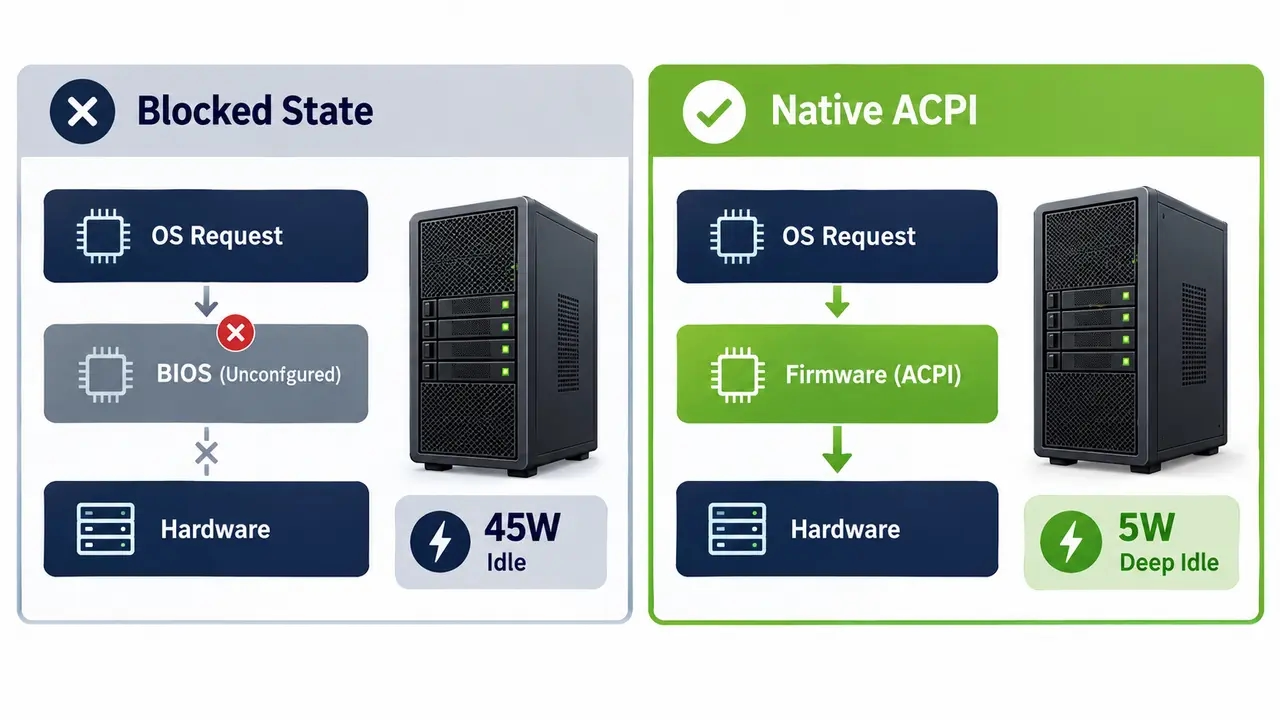
Desktop administrators frequently believe that deploying Windows power schemes through Active Directory Group Policy resolves endpoint energy waste. They configure sleep intervals and monitor deployment status, yet their energy meters show minimal improvement. Windows power plans act merely as software requests submitted to the platform firmware. If the motherboard UEFI disables ACPI power state reporting, Windows cannot access deep C-states or lower clock multipliers.
Modern operating systems rely on bidirectional communication through the Advanced Configuration and Power Interface tables. When a user stops typing, the Windows kernel examines incoming thread queues and instructs the processor to drop into a lower performance state. If the firmware enforces an internal performance bias, the motherboard overrides the operating system request. The system continues drawing maximum baseline voltage while waiting for work.
This conflict explains why identical Group Policy configurations yield wildly different results across mixed hardware estates. A fleet of modern micro-desktops running factory-balanced firmware might idle at fifteen watts, while older towers running performance firmware idle at forty-five watts under the exact same Windows policy. Enterprise power management requires native operating system control over underlying platform power states.
UEFI energy configuration profiles for enterprise fleets
Modern enterprise motherboards group firmware power toggles under high-level platform profiles. The labels vary by manufacturer and include Maximum Performance and Balanced as well as Energy Efficient or Cool. Enterprise infrastructure teams should avoid Maximum Performance profiles across general business workstations. Those profiles lock CPU voltages at elevated thresholds, force cooling fans to spin continuously, and disable platform low-power idle states.
Selecting Balanced or OS-Controlled firmware profiles delivers the best operational balance. A balanced UEFI profile allows the processor to hit maximum turbo frequencies instantaneously during demanding compilation or analytical tasks. The moment the workload finishes, the processor drops back to low-power idle within milliseconds. Task completion speeds remain intact while baseline waste disappears.
Assigning UEFI profiles to user personas
Match firmware energy baselines to the operational requirements of distinct employee groups. Task workers in customer contact centers handle standardized web applications that require steady execution without prolonged burst computing. Deploying efficiency-leaning firmware profiles across contact center environments minimizes thermal output on dense floor layouts.
Standard office employees and knowledge workers require balanced firmware profiles. These settings support responsive multi-tasking across heavy spreadsheets and video conferences while enforcing deep idle states during breaks. Technical workstations used for computer-aided design or software compilation should retain performance-leaning baselines. Pair those high-compute workstations with aggressive scheduled sleep timers so that heavy processing rigs do not waste electricity overnight.
| Firmware Profile | Target Workload | Idle Power Impact | Responsiveness |
|---|---|---|---|
| Maximum Performance | Dedicated rendering or specialized compute systems | May increase active-idle consumption | Prioritizes performance |
| Balanced / OS Controlled | General corporate workstations | Allows dynamic power scaling | Balances performance and efficiency |
| Energy Efficient | Contact centers and selected kiosks | May further reduce consumption | Potential workload-dependent trade-offs |
Energy Performance Bias configuration in enterprise firmware
Energy Performance Bias represents an architectural hint register built directly into modern processors. The register tells the internal power control unit how aggressively to trade execution latency against electrical consumption.
Configuring the bias register to Balanced Performance or Balanced Energy provides the sweet spot for business computing. Setting the value toward balanced performance guarantees snappy single-threaded execution when opening dense enterprise software suites. Setting it toward balanced energy ensures the processor drops its operational voltage immediately when thread queues empty.
Avoid setting the bias register to extreme power-saving modes on primary business workstations. Hyper-aggressive bias configurations can introduce noticeable micro-stutter when launching heavy corporate applications or uncompressing archives. Corporate security agents run periodic background scans that generate short computational spikes. A balanced bias configuration handles these background tasks without lagging the user desktop.
Disabling Turbo Boost and race to sleep trade-offs
Some desktop administrators attempt to trim workstation power consumption by completely disabling processor frequency boosting features. They turn off Intel Turbo Boost or AMD Precision Boost in firmware, capping CPU frequencies at base operating clocks. While this configuration successfully eliminates peak wattage spikes, it often increases total kilowatt-hour consumption over time.
This counterintuitive outcome stems from an architectural reality known as race-to-sleep. Modern processors operate most efficiently when they burst to maximum frequency, complete computational tasks in fractions of a second, and drop back into unpowered idle states. A capped processor takes far longer to execute the same workload, consuming sustained baseline power throughout the prolonged execution window.
Capping processor clock frequencies makes operational sense only in specialized form factors. Ultra-compact mini-PCs and wall-mounted digital signage players possess limited chassis volume and restricted thermal dissipation. Disabling frequency boost in those specific enclosures prevents aggressive thermal throttling and eliminates loud cooling fan noise.
Standard corporate desktops benefit from retaining full burst capability. Letting processors complete execution bursts rapidly allows the platform to spend maximum time in deep sleep. Fast task completion preserves employee satisfaction while delivering lower aggregate power consumption across the working day.
CPU C-states configuration for fleet efficiency
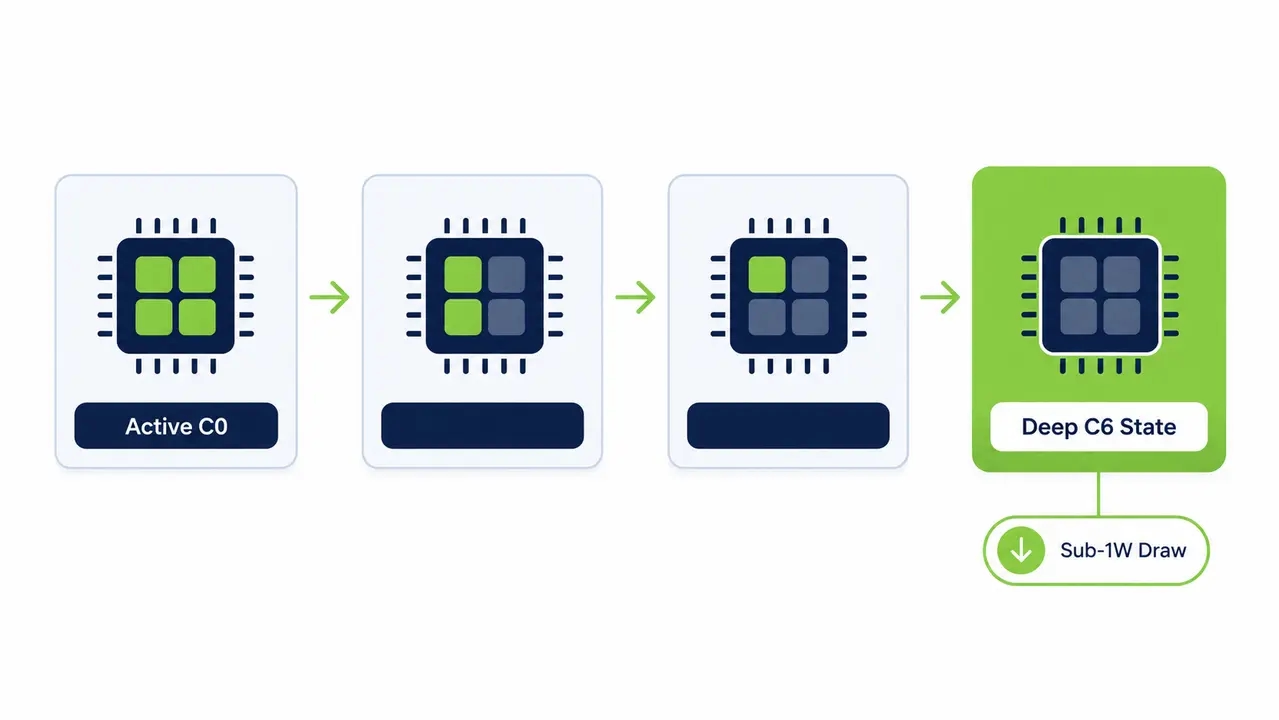
Processor execution states range from the actively executing C0 state down to deep sleep states like C6, C8, and C10. In deeper C-states the processor flushes internal cache hierarchies and powers down idle execution units before disconnecting internal clock generators. Power consumption drops from tens of watts down to fractions of a single watt.
Legacy IT myths claim that enabling deep C-states causes operating system instability and random blue-screen crashes. While early motherboard designs from two decades ago occasionally struggled with voltage transitions, modern enterprise hardware is engineered specifically for continuous state switching. Disabling deeper processor C-states restricts the CPU’s ability to enter its lowest-power idle conditions, potentially increasing idle electricity consumption. The actual impact depends on processor architecture, firmware settings, and operating system behavior.
Deep C-states should generally remain enabled on supported enterprise hardware, subject to compatibility and workload validation. The only legitimate exceptions involve specialized real-time financial trading systems or high-frequency laboratory data acquisition rigs where microsecond interrupt latency must remain deterministic. Standard enterprise productivity machines experience no measurable operational penalty from deep package C-states.
Sleep related BIOS settings that reduce enterprise power
Configuring dynamic processor states reduces energy use while machines are powered on, but sleep policies generate the largest cumulative savings across corporate fleets. Enforcing deep system sleep after hours saves dramatically more energy than any active voltage tuning performed during the day. The primary firmware choice centers on traditional ACPI S3 sleep versus modern low-power idle architectures.
Traditional ACPI S3 sleep preserves system memory while most processing and peripheral components enter low-power states. Modern Standby (S0 Low Power Idle) uses a different architecture that allows the system to enter low-power idle while remaining in the S0 state. Network connectivity and background activity depend on hardware capabilities, Windows configuration, and whether the platform supports connected or disconnected standby.
Modern Standby compared to classic S3 sleep in operations
Modern Standby gives enterprise laptops instant wake times and keeps background synchronization running while they sleep. However, mobile devices running Modern Standby can drain batteries rapidly inside transport bags if misbehaving drivers prevent deep sleep transitions. Traditional S3 sleep can provide low standby consumption on supported desktop systems, while preserving memory and selected wake capabilities. Its availability and behavior depend on platform firmware and hardware configuration.
Firmware wake arming configurations must be audited carefully. Disable unwanted hardware wake triggers such as erratic optical mouse sensors or transient USB power pulses. A single vibrating desk or floor can cause an entire pod of sleeping desktop computers to power on simultaneously in an empty office.
Wake-on-LAN BIOS settings and overnight patch windows
Here is where endpoint power management rollouts frequently stall. Infrastructure teams spend weeks configuring aggressive power savings, only to face immediate pushback from Security Operations and desktop maintenance teams. If endpoints sit in deep unpowered states all night, scheduled vulnerability scans fail and critical security patches miss compliance deadlines.
Wake-on-LAN functionality resolves this conflict when configured properly in firmware. Standard network wake requires the motherboard to keep the physical network interface controller energized in an auxiliary power state, drawing roughly one watt. The network card monitors incoming traffic for a specific packet sequence containing the machine’s MAC address and triggers system power-on.
Enterprise administrators must verify that UEFI settings explicitly permit wake events from PCIe network devices while avoiding hyper-aggressive deep sleep modes that cut auxiliary power to the physical network jack. Standard broadcast packets frequently drop across complex enterprise virtual networks and routed subnets. Organizations managing distributed physical locations often deploy advanced wake-up technology to keep endpoints reliably available during maintenance windows without leaving hardware running continuously.
Reliable wake capabilities eliminate the operational excuse for leaving office computers powered on 24/7. When desktop engineering teams trust that sleeping machines will wake reliably for overnight maintenance, aggressive power conservation policies become operationally viable.
ErP ready setting trade-offs for managed endpoints
Modern enterprise motherboards frequently feature a configuration setting labeled ErP Ready or EuP Compliant. This firmware toggle implements European energy efficiency standards designed to reduce soft-off and hibernate power draw below 0.5 watts. To achieve this ultra-low standby draw, the motherboard cuts power to all auxiliary buses.
Enabling ErP-related firmware settings may reduce auxiliary power supplied to network adapters, USB ports, and other components during hibernation or soft-off states. Depending on the manufacturer and configuration, this can disable Wake-on-LAN or certain out-of-band management capabilities.
For managed corporate endpoints that require remote wake-up or administration, validate ErP behavior for each hardware model and supported power state before enabling it. Where ErP conflicts with required wake capabilities, prioritize remote manageability and use operating system sleep policies to reduce unnecessary electricity consumption.
| System State | Chassis Power Draw | Network Wake Support | Enterprise Recommendation |
|---|---|---|---|
| Active Idle (Unmanaged) | 25W to 45W | Native Active Connection | Avoid across unutilized hours |
| Optimized Idle (C-States) | 4W to 8W | Native Active Connection | Standard daytime baseline |
| S3 Sleep (WoL Armed) | 1W to 2W | Fully Supported via Magic Packet | Recommended for desktop fleets |
| ErP Low Power Mode (S5) | Under 0.5W | Completely Disabled | Restricted to isolated endpoints |
Onboard device and PCIe link state power management
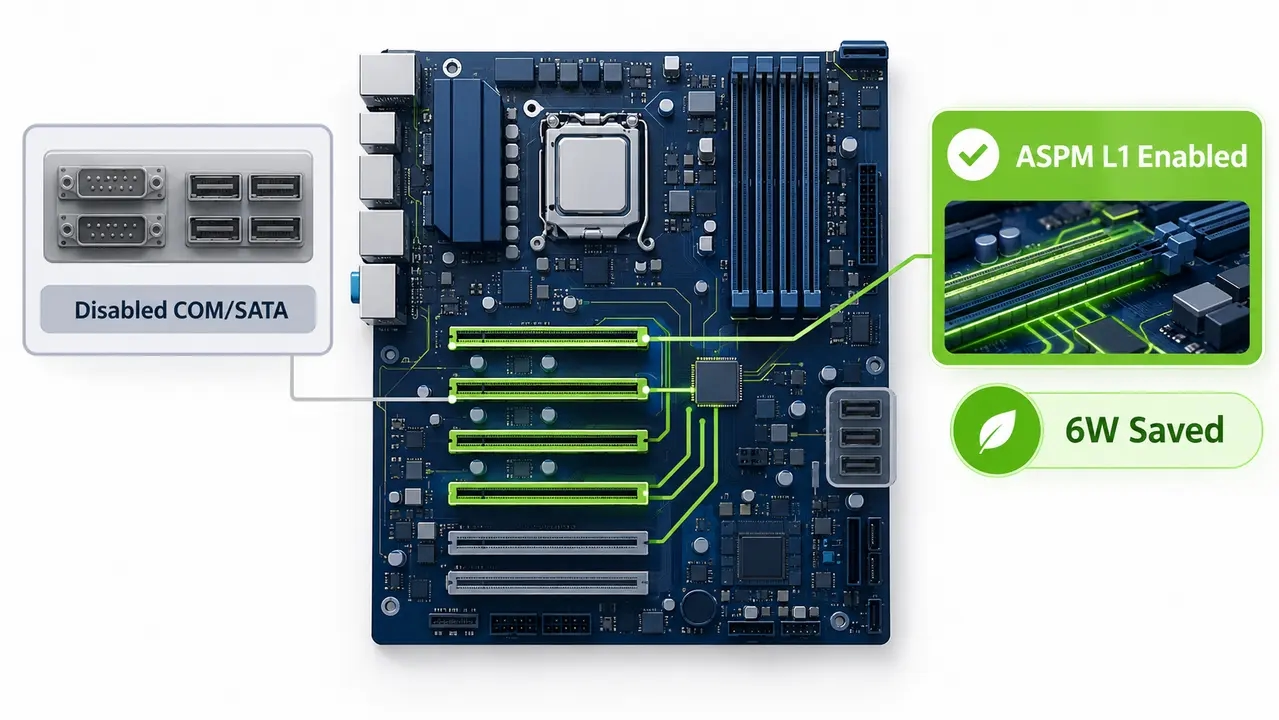
Peripheral buses and onboard controller chips consume several watts of auxiliary power when left unmanaged. Enterprise motherboards routinely include integrated hardware components that modern office environments never use. Disabling unused integrated devices in firmware reduces baseline chassis draw and eliminates unnecessary device driver overhead inside the operating system.
Audit your fleet hardware profiles and disable legacy serial COM ports, parallel printer ports, and secondary SATA storage controllers on machines running pure NVMe storage. If you operate headless systems or specialized banking terminals, disable integrated high-definition audio chips in firmware. Disabling these inactive silicon blocks trims chassis idle draw by two to six watts across every endpoint.
PCIe Active State Power Management, known as ASPM, represents another critical firmware efficiency toggle. Enabling link states L0s and L1 permits expansion buses to enter low-power modes during intervals when data is not traversing the bus. Storage drives, dedicated network controllers, and discrete graphics cards power down their high-speed signaling lanes until transactions occur. ASPM must remain enabled in both firmware and the operating system to prevent peripheral expansion cards from holding system buses in high-power states.
Endpoint power policy standardization across vendor hardware
Manually entering the visual BIOS setup screen on thousands of distributed workstations is operationally impossible. Enterprise infrastructure teams must package, standardize, and deploy firmware baselines programmatically using vendor-provided configuration utilities. Attempting to deploy a single monolithic firmware configuration file across mixed hardware generations will cause deployment failures and corrupted configurations.
Standardize firmware settings using vendor-specific automation tools such as Dell Command Configure, HP BIOS Configuration Utility, or Lenovo Windows Management Instrumentation scripts. These tools allow engineers to read existing settings, alter specific power values, and export cryptographically signed configuration packages. You can distribute these packages silently through Microsoft Configuration Manager or Intune.
A structured four-ring deployment sequence for firmware policies
Execute firmware rollouts through a phased four-ring methodology to catch hardware incompatibilities early. Ring Zero validates power draw, sleep states, and driver stability across isolated test units inside your hardware engineering lab. Ring One deploys firmware packages across technical staff workstations to monitor daily productivity, docking station compatibility, and multi-monitor resume behaviors.
Ring Two expands deployment to a representative business unit, such as Finance or Operations, observing real-world wake reliability and patch compliance across two full maintenance cycles. Ring Three automates deployment across the broader enterprise fleet with automated rollback scripts staged in your systems management platform. This phased sequence prevents fleet-wide disruption.
BIOS power settings that trigger helpdesk tickets
Aggressive power conservation must never compromise operational stability. The golden rule of enterprise endpoint management dictates that remote manageability and user productivity always take precedence over saving an extra fractional watt. Chasing marginal efficiency gains by enabling unstable firmware settings will flood your helpdesk with incident tickets.
Avoid disabling USB bus power during sleep states on machines connected to corporate docking stations. Cutting USB power completely prevents external keyboards, mice, and wired conference speakerphones from waking the computer properly. Users returning to their desks find unresponsive peripherals, forcing them to perform hard power resets that risk corrupting unsaved documents.
Do not force deep Package C-states on older legacy hardware revisions that possess known silicon errata. Certain legacy processor steppings suffer from voltage regulation latency that causes intermittent system freezing when waking from deep sleep. Maintain conservative idle states on aging hardware while enforcing deep sleep exclusively on modern, verified platforms.
Security and compliance alignment for low-power firmware
Firmware power optimization does not create security vulnerabilities when architected correctly, but uncoordinated policies can disrupt critical enterprise security controls. Leaving workstations running 24/7 simply to facilitate occasional vulnerability scans is an outdated practice that inflates corporate utility bills. Endpoint security agents can execute their missions without wasting continuous energy.
Unprotected firmware menus introduce severe security vulnerabilities into corporate environments. When BIOS setup menus have no administrative password, unauthorized personnel can alter boot device priorities or bypass disk encryption and even disable Trusted Platform Module hardware chips. Secure all firmware menus with strong administrative setup passwords before deploying energy management profiles.
Coordinate energy management schedules directly with your Security Operations team. Establish pre-scheduled wake events using firmware timers or centralized network wake platforms to bring sleeping endpoints online for vulnerability remediation and Endpoint Detection and Response signature updates. Once maintenance scripts finish executing, automated policies should return the endpoint to deep sleep immediately.
Desktop and laptop BIOS power settings differences
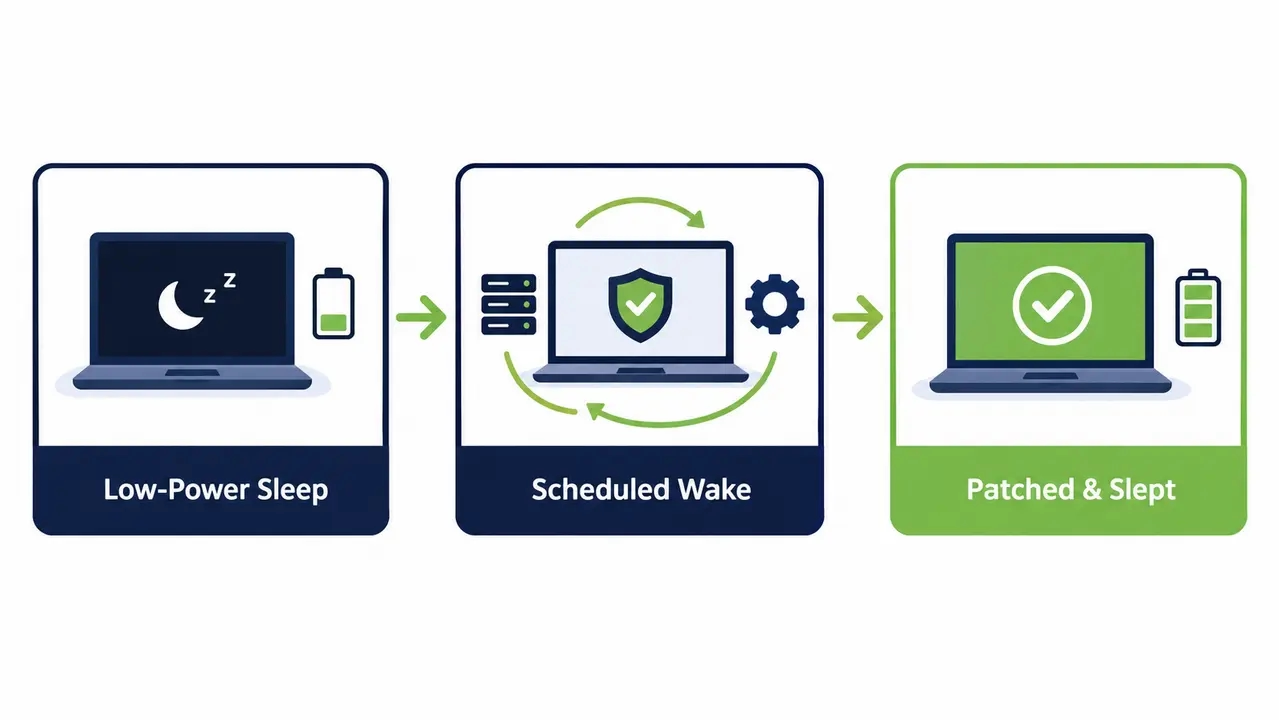
Desktop and laptop computers present fundamentally different engineering constraints that require distinct firmware power strategies. Desktop computers connect continuously to facility power lines, meaning every watt of baseline idle waste translates directly into utility expenses. Laptop management, by contrast, focuses on preserving battery chemistry and regulating the thermal envelope while keeping docking stations compatible.
Modern laptop firmware includes battery health optimization algorithms that extend lithium-ion operating life. Features like peak-shift charging and maximum charge thresholds prevent mobile batteries from sitting at 100% capacity while permanently connected to desktop docking stations. Capping sustained battery charge at 80% reduces the risk of battery swelling and cuts premature hardware replacement costs.
Desktop firmware must prioritize AC power recovery behavior. Configure the After AC Power Loss firmware setting to Power Off or Last State rather than Power On. Setting desktops to power on automatically after an electrical outage causes massive building-wide power surges when facility utility grids come back online, potentially tripping local circuit breakers and overloading uninterruptible power supplies.
OS-level power policies paired with energy efficient BIOS settings
Firmware defines what an endpoint is technically capable of achieving, but the operating system enforces daily behavior. Setting up an efficient UEFI baseline is wasted effort if Windows is configured to keep displays powered indefinitely or allow background processes to prevent sleep. Full efficiency comes only when firmware configurations and operating system policies work together.
Establish corporate operating system policies that enforce display sleep after ten minutes of inactivity and trigger system sleep after twenty to thirty minutes. Standardize on the native Windows Balanced power scheme, which respects ACPI power tables and allows dynamic processor clock scaling. Centralized policies must lock these parameters to prevent users from altering sleep intervals.
Standard users frequently modify power settings or run third-party keep-awake utilities to circumvent inactivity timers. Organizations achieve the highest compliance when they pair firmware baselines with centralized power management software that detects true user presence. Advanced management solutions like PowerPlug Pro bridge the gap between firmware capabilities and daily enterprise operations by automating wake schedules and providing audit-ready ESG reporting.
Large healthcare and enterprise institutions have demonstrated the massive financial returns possible through coordinated endpoint management. As the Clalit Health Services case study documents, orchestrating centralized power policies across tens of thousands of distributed clinical workstations dramatically cuts organizational energy spend while keeping systems fully available for medical staff. Coordinated policy enforcement turns theoretical firmware efficiency into verified fiscal savings.
Enterprise BIOS power optimization checklist for pilot testing
Starting a firmware optimization project requires a structured roadmap that minimizes operational risk. Select a single business department operating two hundred to five hundred units of identical desktop hardware for an initial thirty-day pilot program. Standardize this pilot cohort on the operational baseline outlined below before considering broader fleet deployment.
Phase One inventories targeted endpoints, records current firmware revisions, and benchmarks baseline idle power consumption using wall meters and operating system diagnostics. Phase Two packages your vendor-specific firmware profile. Set the UEFI profile to Balanced and Energy Performance Bias to Balanced Energy, then enable CPU C-states and PCIe ASPM. Keep Turbo Boost active for race-to-sleep benefits and enable Wake-on-LAN while leaving ErP disabled.
Phase Three deploys the signed firmware configuration package across the pilot cohort through your endpoint management system. Phase Four monitors helpdesk ticket volume, patch installation rates, and measured energy consumption across fourteen consecutive days. Move the firmware configuration to broad enterprise production once your pilot cohort achieves a 95% automated wake success rate with zero statistically significant increase in user incident tickets.
Cut PC energy costs without cutting availability
PowerPlug Pro combines centralized endpoint power policies with scheduled wake-up capabilities, helping organizations reduce unnecessary electricity consumption without sacrificing operational availability. The expected return on investment depends on fleet size, current power consumption, electricity rates, and deployment costs.
Frequently asked questions
Will aggressive BIOS power settings interfere with Microsoft Intune or SCCM maintenance windows?
Aggressive power settings will interfere with maintenance windows only if your firmware disables network wake features or severs auxiliary power to the network card. Retaining Wake-on-LAN support in firmware allows centralized management platforms to wake sleeping systems on schedule for patch deployment. Once patching concludes, automated operating system policies return the hardware to deep sleep without disrupting daytime operations.
How do enterprise power policies handle Wake-on-LAN across routed subnets?
Standard Wake-on-LAN packets rely on subnet-directed broadcasts that enterprise network routers and access control lists frequently discard. Organizations overcome this routing barrier by deploying directed broadcast forwarding on managed switches or implementing dedicated endpoint agent architectures. Centralized power management platforms resolve this challenge by orchestrating local proxy systems within each subnet to transmit wake packets internally.
Does disabling ErP mode prevent our organization from meeting CSRD sustainability targets?
Disabling ErP mode does not harm corporate sustainability objectives because keeping Wake-on-LAN active enables automated overnight sleep policies. While ErP reduces soft-off draw by roughly one watt, enabling it prevents remote management, forcing IT teams to leave workstations running 24/7 at thirty watts. The massive energy saved by successfully sleeping endpoints all night vastly outweighs the fractional standby draw of an active network adapter.
What is the expected ROI payback period when standardizing fleet power management?
The payback period depends on fleet size, baseline electricity consumption, achievable savings, electricity rates, and the total cost of deployment. Organizations should calculate ROI using measured workstation power consumption and realistic operating schedules rather than assuming a fixed payback period.
Can remote workers wake sleeping office workstations on demand from home?
Remote employees cannot wake sleeping office computers using native operating system tools across external corporate firewalls. Solving this workflow challenge requires deploying an on-demand wake portal integrated with your enterprise identity provider. Employees access a secure web portal from home to wake their designated office workstation in seconds, preserving energy efficiency without sacrificing hybrid work flexibility.
Firmware baselines define the ceiling for endpoint efficiency, and the largest savings come from deep sleep during the roughly sixteen hours each day that business PCs sit idle. Balanced UEFI profiles and enabled C-states, together with active PCIe ASPM and armed Wake-on-LAN, give the operating system the authority it needs to cut idle draw from as much as forty-five watts down to the one-to-two-watt range. Measuring before deployment, piloting on identical hardware, and coordinating wake schedules with security teams turn those settings into verified savings without helpdesk fallout.

About the author
Nimrod Yedaya
VP Customer Experience
Over 15 years of experience in customer service, technical support, and customer relationships. Nimrod joined PowerPlug in 2012 as Customer Support Manager and was promoted to VP in 2016. He holds an MBA from BIU and a BSc in Communication Systems Engineering from BGU.