
Enterprise Monitor Power Management Settings
By Nimrod Yedaya, VP Customer Experience
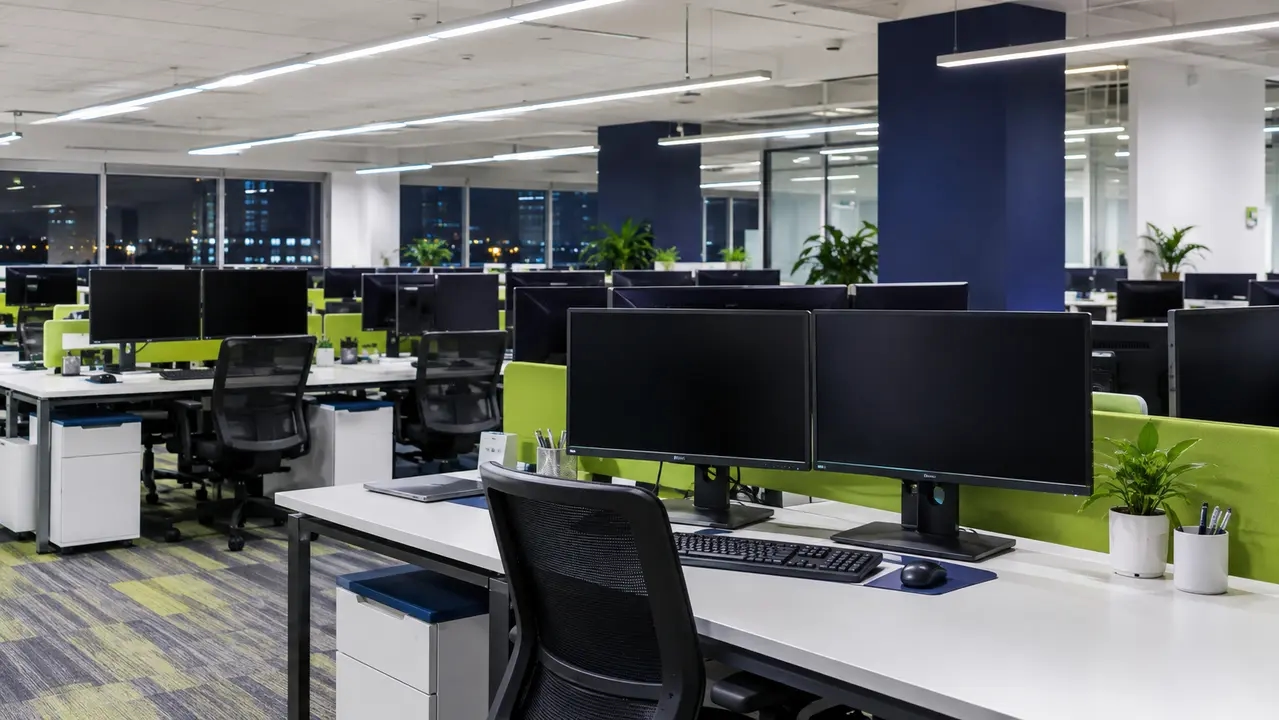
Walk through a corporate headquarters in Dallas at midnight, and you will see hundreds of empty workstations bathed in the pale glow of active LCD screens. Office chairs sit vacant, but the monitors continue drawing full power long after staff leave the building.
Many desktop engineers treat these glowing panels as harmless background noise compared to heavy server racks. A fleet of three thousand displays running unmanaged throughout the night wastes tens of thousands of kilowatt-hours every single quarter. That unmetered consumption inflates enterprise electric bills without providing any operational utility to the business.
This operational guide demonstrates how enterprise infrastructure teams implement, enforce, and audit monitor power management enterprise settings across hybrid desktop fleets. You will discover how to eliminate phantom energy consumption without triggering ticket spikes from frustrated employees or breaking midnight patch cycles.
Unenforced screen timers create real security vulnerabilities and shorten hardware lifespans. Unattended monitors displaying open database records invite physical compliance violations under strict regulatory audits. Taking control of these settings protects organizational capital while safeguarding sensitive client information.
Reading time: 5 minutes
Enterprise monitor power management settings architecture
Centrally orchestrating monitor power management enterprise settings involves policy-driven control over display idle timers and panel backlights across corporate endpoints. Unlike personal computers configured through local consumer toggles, an enterprise deployment enforces uniform behavior across every managed asset. The display tier operates independently from full operating system sleep states, severing video output while preserving active background compute sessions.
According to EPA guidance on IT power management, automated screen timeouts provide the foundational baseline for institutional energy governance. Infrastructure architects apply these display rules across standard office desktops, multi-monitor developer hubs, and docked laptops connected to enterprise peripherals. Enforcing standard timeouts across these diverse endpoints establishes the lowest-friction entry point for corporate green computing programs.
Centralized display timeout governance versus local user autonomy
When IT departments permit staff to select their own display timers, configuration drift occurs within days. Many employees deliberately set their screens never to turn off so they can avoid password prompts during short interruptions. This casual circumvention completely destroys projected display energy savings across the organization.
Unattended workstations displaying sensitive information can create privacy and security risks, particularly in regulated environments. Display power management should be complemented by independently configured session-locking policies. Turning off a monitor does not automatically lock the Windows session, and organizations must enforce appropriate authentication and inactivity controls according to their security requirements. Leaving panels illuminated twenty-four hours a day also accelerates backlight degradation and induces thermal stress on LCD matrices.
Auditing committees reject unverified energy claims during sustainability assessments.
Unenforceable policies produce zero savings. Centralized governance converts erratic user habits into an auditable operational policy that generates predictable utility savings.
Technical differences between display sleep, system sleep, and hibernate
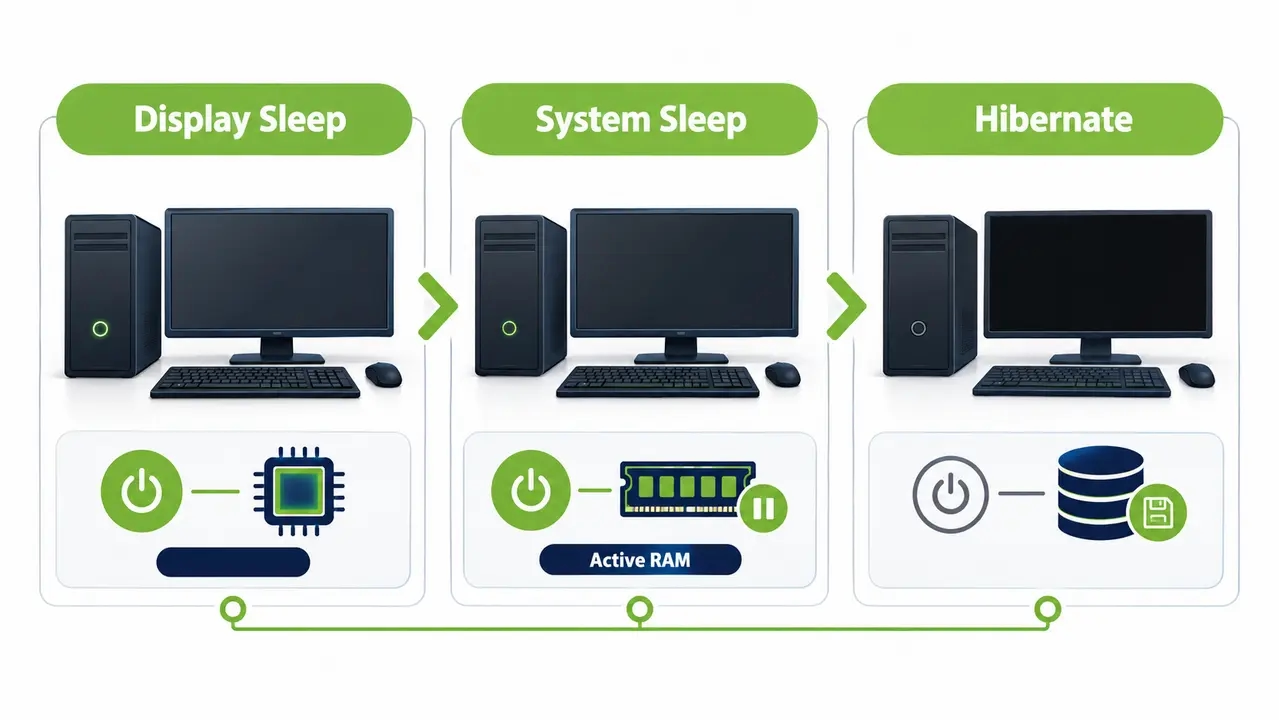
Modern desktop operating systems categorize power modes through distinct hardware and ACPI state architectures. Display sleep simply cuts the video output signal via Display Power Management Signaling, prompting the monitor to enter low-power standby. While the screen is dark, the processor and memory keep running at full capability, and so do the network interface and open applications.
System sleep drops the machine into ACPI S3 or Modern Standby, where dynamic RAM maintains system state while other internal components pause. Modern Standby maintains opportunistic network connectivity for background syncing, whereas traditional S3 cuts these connections entirely. Hibernate transfers the entire memory footprint onto storage drives before terminating all hardware power, which eliminates power draw but introduces substantial boot latency upon wake. Effective screen power management targets the display layer first to achieve prompt energy reduction without system downtime.
Fastest operational wins with minimal disruption
Aggressive display timeouts between ten and fifteen minutes deliver immediate electrical reductions without jeopardizing workstation availability. Because the operating system remains awake, employees experience an instantaneous return to work the second they tap a key. Long database queries continue processing, internal software downloads complete uninterrupted, and corporate VPN connections remain fully active.
Helpdesk ticket triggers from aggressive system sleep
Enforcing full system sleep prematurely creates substantial friction for support teams. Dropped softphone sessions and aborted overnight antivirus scans frustrate workers and administrators alike. Multi-monitor docking stations frequently scramble application window layouts when recovering from deep sleep states. Infrastructure engineers avoid these operational headaches by mastering display power rules before attempting fleetwide system suspension.
Monitor sleep settings tailored for diverse operational departments
Applying a single blanket power rule across every corporate department produces immediate operational friction. Field technicians, financial analysts, and customer care agents engage their workstations through fundamentally different physical workflows. System architects achieve maximum display energy savings by designing targeted monitor sleep settings that match specific departmental routines.
A large-scale healthcare network deployment demonstrates how specialized clinical environments maintain round-the-clock patient care while adhering to central power governance. Clinical workstations require distinct timers from administrative cubicles to preserve critical diagnostic data during physician consultations.
Persona-based policy design template
Knowledge workers in accounting and human resources operate reliably under a fifteen-minute display timeout on mains power. High-density contact centers require seventeen to twenty minutes because agents regularly talk with customers on the phone without touching the mouse. Shared nursing stations need five to ten minutes paired with fast badge authentication, whereas conference rooms require forty-five minutes to prevent screens blanking mid-presentation.
Two-week pilot execution strategy
Never push display policies fleetwide without validating the configuration against a representative test group. Select five to ten percent of your total device fleet across technical, administrative, and operations teams for a fourteen-day assessment. Collect baseline energy consumption metrics for two weeks before enforcing the target policy, then monitor the support queue for peripheral wake issues.
Enforcing monitor power policies across Windows fleets at scale
Consumer power menus inside the Windows settings panel cannot sustain enterprise operational requirements. Local administrative users can easily modify these sliders, and major operating system updates frequently reset custom preferences back to factory defaults. Scalable enforcement demands an authoritative control layer that continuously validates compliance and resets unauthorized adjustments.
While Group Policy and MDM profiles establish baseline timers, an automated power management platform adds dynamic scheduling and deep hardware analytics. Dedicated software like PowerPlug Pro resolves the operational gap between static operating system configurations and real enterprise workflows. It evaluates peripheral activity, executes targeted wake commands, and validates that monitor power management enterprise settings remain intact across thousands of corporate endpoints.
Configuring display timeout using Active Directory Group Policy
Active Directory Group Policy Objects provide domain administrators with centralized control over desktop display timers. System administrators find these settings by opening Computer Configuration and following Administrative Templates through System and Power Management to Video and Display Settings. Configuring these settings at the computer level prevents regular domain users from altering their personal screen idle limits.
Enable the plugged-in policy and enter an idle value of nine hundred seconds to establish a fifteen-minute display shutoff threshold. Mobile computers require an aggressive value under the battery policy, such as three hundred seconds for five minutes of idle time. Link the resulting GPO directly to workstation Organizational Units, applying WMI filters to distinguish chassis types where hardware profiles diverge.
Resolving conflicts with legacy power plans
Legacy Group Policy Preferences frequently conflict with modern Administrative Templates when managing workstation power profiles. Outdated scripts pushing legacy power schemes will silently overwrite modern timeout parameters during background policy refreshes. System administrators must decommission legacy preferences and disable proprietary vendor utilities before deploying updated monitor power management enterprise settings across the domain.
Validating applied policies on physical endpoints
Run command-line diagnostics locally to verify that target power configurations successfully apply to physical endpoints.
Executing the command powercfg /q reveals active video idle timeouts for both alternating current and direct current power sources. Generating a complete policy audit with gpresult /h gpreport.html confirms that your designated power GPO takes precedence over local machine defaults.
Deploying display sleep profiles through Modern Device Management
Modern cloud architectures require endpoint policies that travel with remote workers outside traditional office perimeters. IT engineers push monitor sleep settings to hybrid and cloud-joined hardware through Microsoft Intune configuration profiles. Managing displays through cloud profiles guarantees uniform enforcement whether an employee sits in the main office or works from a coffee shop.
Administrators configure these settings directly within the Settings Catalog or by creating custom OMA-URI entries targeting the Power Policy CSP. The URI path ./Device/Vendor/MSFT/Policy/Config/Power/DisplayOffTimeoutOnAC controls display behavior on mains power, while DisplayOffTimeoutOnBattery governs mobile operation. Both parameters take integer inputs representing idle seconds before the video subsystem powers down.
Co-managed environments present unique challenges when domain GPOs compete against incoming Intune device profiles. Infrastructure architects must explicitly configure the ControlPolicyConflict policy to establish whether cloud configurations override traditional domain rules. Defining this policy relationship prevents settings flapping and preserves stable screen power management across hybrid desktop estates.
Configuring distinct timeouts for plugged in versus battery power
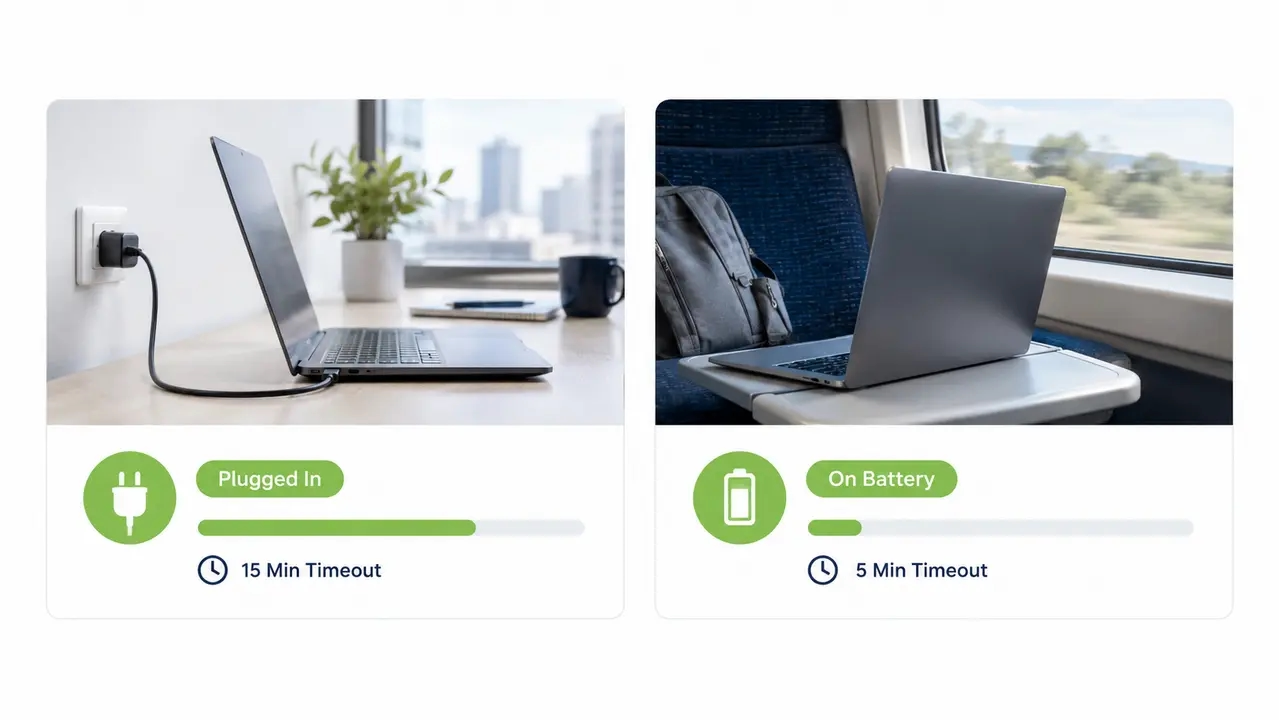
Mains electricity and internal battery cells serve fundamentally different operational objectives across mobile corporate fleets. Workstations connected to wall power prioritize sustained employee concentration during extended reading sessions or video conferences. Mobile laptops running on internal batteries prioritize operational runtime by aggressively minimizing unnecessary power draw from display backlights.
Establishing separate power thresholds represents standard practice for monitor power management enterprise settings. Configure mains power with a balanced ten to fifteen-minute display timeout to minimize nuisance interruptions during standard desk work. Set battery timeouts between three and five minutes, because high-resolution laptop panels consume significant battery reserves every minute they stay illuminated.
Standard USB-C and Thunderbolt docking stations introduce an important operational variable to mobile power profiles. When an employee connects a laptop to a powered docking hub, Windows immediately recognizes the machine as operating on alternating current. The operating system applies desk-based display timeouts instantly, restoring a relaxed screen threshold while external power charges the battery.
Troubleshooting monitor sleep failures and policy reversions
Endpoint power configurations sometimes fail to engage despite accurate policy assignment in administrative consoles. Uncovering the root cause requires a systematic troubleshooting framework targeting competing authorities, software execution requests, and hardware drivers.
Policy flapping occurs when multiple configuration engines enforce contradictory instructions on the same endpoint simultaneously. A device managed concurrently through SCCM, Intune, and on-premises GPO will constantly cycle through competing timeout thresholds. Consolidating policy ownership under a single authoritative management tool immediately stabilizes erratic monitor sleep settings.
Background application requests represent the most frequent obstacle preventing displays from entering low-power states. Executing powercfg /requests inside an elevated command prompt identifies active software processes holding display or system execution locks. Unclosed web conferencing sessions, browser tabs playing continuous video loops, and poorly coded internal database applications frequently block idle detection entirely.
Outdated docking station firmware and legacy display drivers also disrupt Display Power Management Signaling communication. When external monitors fail to acknowledge sleep commands from the graphics card, update the Thunderbolt dock firmware and install certified graphics drivers across the affected fleet.
Calculating display energy savings and utility cost reductions
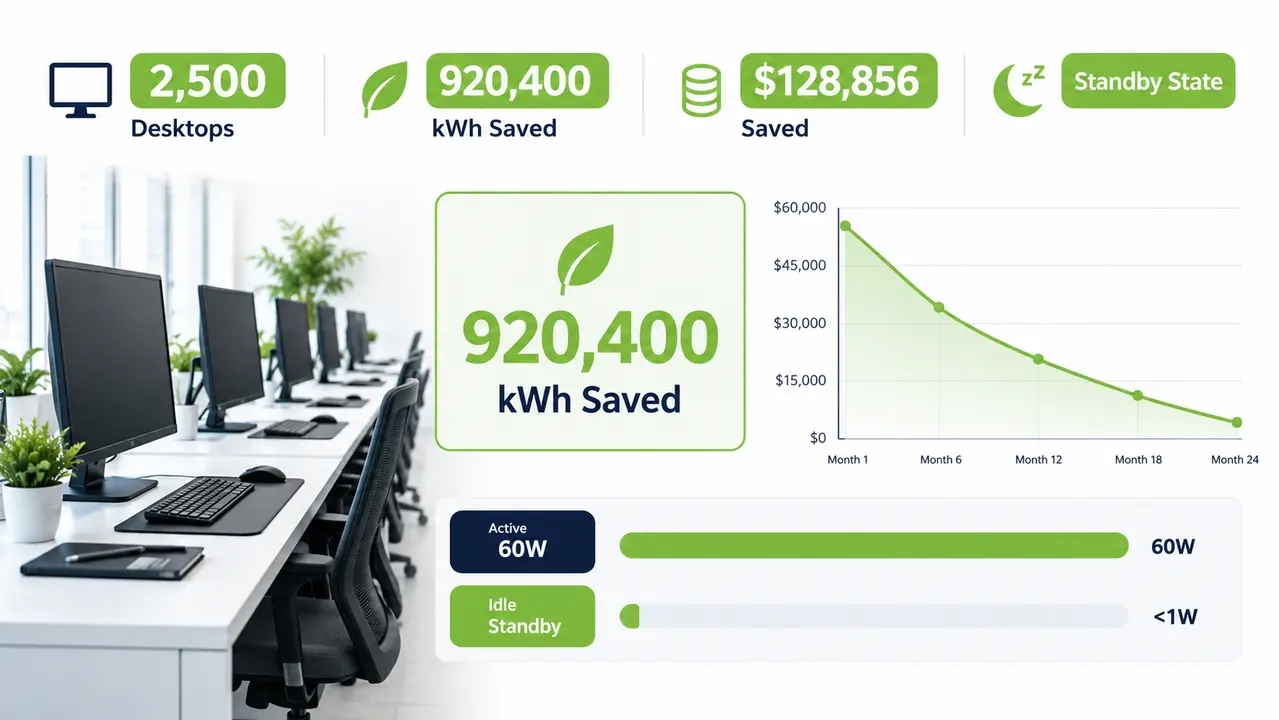
Display power governance yields substantial, verifiable financial returns when calculated across thousands of enterprise seats. Modern twenty-four-inch business displays consume twenty-five to thirty-five watts during active use, but drop below half a watt when entering low-power standby mode. Many corporate workstations employ dual-monitor or triple-monitor setups, multiplying that idle power drain across every row of cubicles.
The formula for calculating annual savings measures real operational variables across the fleet.
Annual kWh Saved = [Fleet Size × Average Daily Idle Hours Prevented × (Active Watts – Standby Watts) × Operating Days] / 1000
Consider an illustrative organization with 2,500 workstations, each equipped with dual monitors drawing a combined 60 watts when active and 1 watt in standby. Assuming 118 avoidable active-display hours per workstation each week, across 52 weeks, the estimated annual electricity reduction is approximately 905,060 kWh, or 75,422 kWh per month on average. Actual savings depend on display power consumption, existing timeout settings, working schedules, and policy compliance.
Consider an illustrative organization with 2,500 workstations, each equipped with dual monitors drawing a combined 60 watts when active and 1 watt in standby. Assuming 118 avoidable active-display hours per workstation each week, across 52 weeks, the estimated annual electricity reduction is approximately 905,060 kWh, or 75,422 kWh per month on average. Actual savings depend on display power consumption, existing timeout settings, working schedules, and policy compliance.
| Workstations | Active / standby | Annual kWh saved | Cost avoided |
|---|---|---|---|
| 500 | 30W / 0.5W | 90,506 | $12,671 |
| 1,000 | 60W / 1W | 362,024 | $50,683 |
| 2,500 | 60W / 1W | 905,060 | $126,708 |
| 5,000 | 75W / 1.5W | 2,254,980 | $315,697 |
Illustrative values assuming 118 avoidable hours per week, 52 weeks annually, full compliance, and $0.14/kWh. Figures rounded.
Put these numbers against your own fleet
Send us your workstation count and monitor configuration along with your local utility rate so we can model the annual kWh, cost, and CO2 reductions and the payback period for your organization before you change a single policy.
Auditable reporting frameworks for finance and sustainability stakeholders
CFOs and internal sustainability committees demand verifiable proof before approving energy conservation credits or operational claims. Assigning an administrative policy does not prove compliance, because local hardware faults or driver glitches can silently block display shutdowns. Verifiable accounting requires empirical operational telemetry gathered before and after policy deployment.
Establish an empirical baseline by measuring active display hours across a representative machine sample for thirty days prior to policy rollout. Once policies deploy, evaluate real screen-off state logs rather than assuming total policy enforcement across your directory. Apply conservative local utility tariffs rather than national electricity averages to ensure your financial figures withstand external accounting scrutiny.
Enterprise solutions like PowerPlug Pro support energy reporting by recording endpoint activity and power-state behavior. Organizations can estimate display electricity savings using representative monitor power measurements, recorded display activity where available, and applicable electricity rates. Associated carbon reductions can be estimated using documented emissions factors. Independent validation requires appropriate measurement and verification procedures.
Screen power management delivers maximum corporate value when backed by auditable data.
Maintaining endpoint availability during off-hours maintenance windows
Security teams and endpoint administrators often push back against aggressive energy policies out of concern for scheduled maintenance. They require continuous workstation accessibility during overnight windows to deploy software updates, execute vulnerability scans, and install operating system patches. Shutting down entire systems risks leaving endpoints unpatched against newly discovered zero-day vulnerabilities.
Decoupling display sleep from underlying operating system sleep completely eliminates this operational conflict. Workstation displays draw no productive value while SCCM distributes software updates at two in the morning. Enforcing a ten-minute display timeout and leaving system sleep disabled during maintenance windows keeps hardware fully accessible while preventing unneeded panel illumination.
Organizations migrating beyond display timeouts into full system sleep must implement reliable wake-up technology to maintain scheduled administrative workflows. Intelligent wake orchestration triggers endpoints before maintenance windows commence, runs overnight vulnerability scans, and returns machines to sleep once updates complete. This balanced architecture preserves operational security baselines while maximizing screen power management efficiency.
Resolving common user friction points and preventing support tickets
Poorly calibrated power policies generate immediate pushback from end users and overwhelm helpdesk technicians with repetitive support tickets. Employees complain when displays switch off during phone calls, when secondary monitors fail to wake, or when frequent password prompts disrupt workflow. Anticipating these common friction points allows infrastructure teams to deploy effective remedies before complaints escalate.
Setting display timeouts below ten minutes on mains power creates unnecessary frustration for workers reading lengthy technical documents. Maintaining a twelve to fifteen-minute threshold for office workers prevents untimely screen shutdowns while capturing substantial idle energy waste.
Docking station wake-up latency represents another frequent source of user irritation. Update the USB-C dock firmware, refresh graphics drivers, and disable deep sleep states within the physical monitor on-screen display menus. Deploying Windows Hello for Business reduces sign-in fatigue by replacing repetitive password typing with facial recognition or biometric authentication. Balancing monitor sleep settings against employee convenience ensures sustainable long-term compliance across the organization.
Operational exceptions justifying continuous display illumination
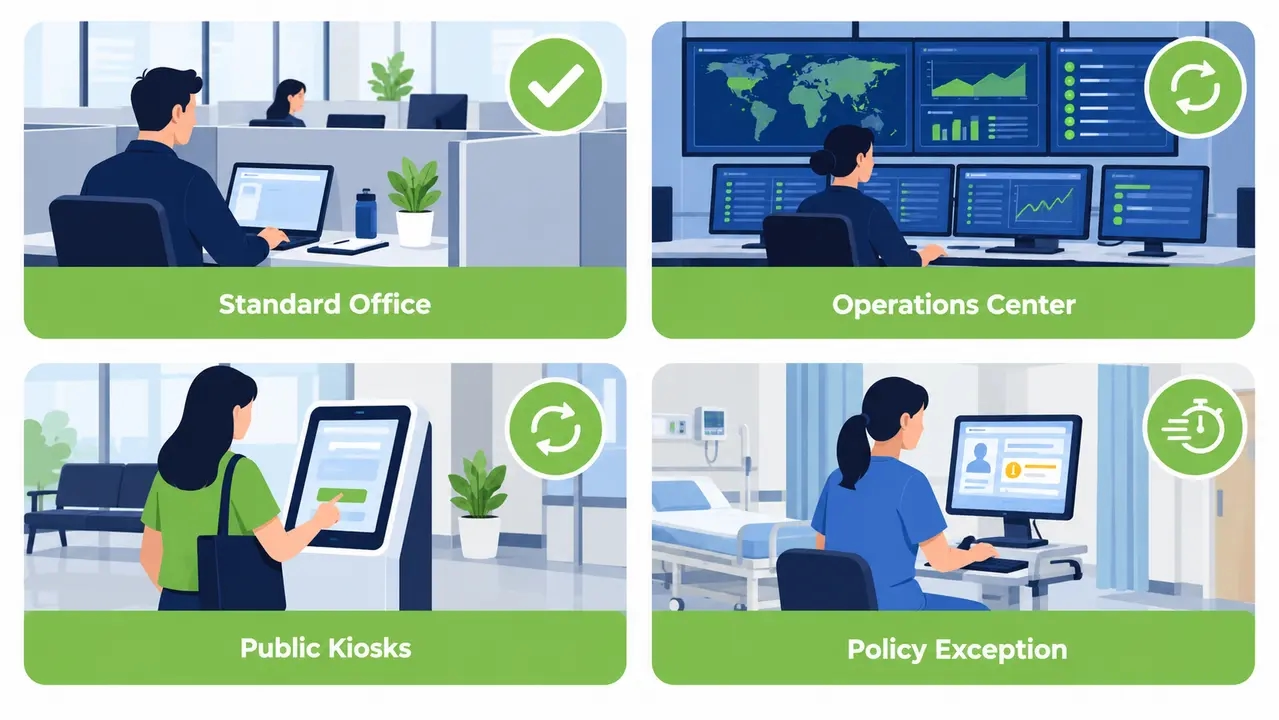
Blanket power mandates must accommodate specialized operational use cases where continuous screen illumination remains essential. Public check-in kiosks and digital cafeteria menus cannot switch off during business hours, and neither can network operations center wall monitors or emergency room diagnostic displays. Disabling screen timeouts on standard workstations, however, introduces severe panel burn-in risks and creates compliance vulnerabilities.
Exceptions must require formal authorization from department directors and IT security leads.
Each approved exemption should place the affected machine in a dedicated Active Directory security group subject to regular compliance audits. Implement compensating controls to mitigate energy waste, such as scheduling complete display power-downs between ten at night and six in the morning when buildings close. Managing these operational exceptions through formal governance prevents unapproved monitor sleep settings from spreading through the organization.
Enterprise policy standard for global monitor power governance
Establishing a scalable global governance policy requires formal documentation defining roles, technical thresholds, and compliance cadences. System architects should assign day-to-day policy maintenance to Endpoint Management teams while delegating energy reporting to Infrastructure and Sustainability directors. Clarifying operational ownership prevents policy neglect and ensures consistent execution across disparate business units.
A comprehensive enterprise standard defines distinct alternating current and direct current timeouts for every workstation persona across the company. The framework must account for regional electricity rate structures across European, North American, and Asian facilities. Specialized endpoint platforms like PowerPlug Pro centralize global policy governance, orchestrating uniform rules across disparate domains while accommodating verified local exceptions.
Conduct structured policy audits every six months to purge obsolete machine exemptions and update local electricity tariffs. Regular reviews verify that monitor power management enterprise settings continue delivering optimal efficiency without impeding business operations.
| Operational Device Persona | Plugged In Timeout | Battery Timeout | Screen Lock Requirement | Primary Management Objective |
|---|---|---|---|---|
| Standard Knowledge Worker | 15 Minutes | 5 Minutes | Immediate Lock on Screen Off | Balance Concentration and Power Avoidance |
| High-Density Contact Center | 20 Minutes | Not Applicable (Fixed Desktops) | Immediate Lock on Screen Off | Prevent Blanking During Voice Calls |
| Clinical and Shared Stations | 10 Minutes | 3 Minutes | Fast Proximity or Tap Re-entry | Maintain Strict HIPAA Data Privacy |
| Meeting Rooms and Presentation | 45 Minutes | 15 Minutes | Prompt on Sleep Wake | Eliminate Presentation Disruptions |
| Operations Center and Kiosks | Never (0 Seconds) | Not Applicable | Physical Perimeter Security | Maintain Continuous Operational Visibility |
A thirty-day implementation roadmap for enterprise screen management
Executing an endpoint power optimization program does not require months of disruptive planning. A structured four-week deployment delivers immediate utility reductions while preserving operational stability across your workstation estate.
Week one focuses on silent telemetry gathering and hardware inventory across all domain organizational units and cloud groups. Identify legacy endpoints configured with disabled sleep timers, audit docking station firmware revisions, and catalog active display execution locks. Gathering this data establishes an accurate operational baseline before applying configuration changes.
Week two finalizes your persona definitions and launches a targeted pilot across five to ten percent of your fleet. Deploy pilot policies to IT personnel and business unit volunteers, then monitor helpdesk ticketing channels for docking wake issues. Refine driver configurations and address peripheral wake latency based on direct user feedback.
Week three initiates fleetwide deployment accompanied by clear employee communications explaining the environmental and operational goals of the initiative. Push production Group Policy Objects and Intune configuration profiles across all target endpoints. Enable automated policy re-enforcement to prevent local tampering or configuration drift.
Week four reviews fleet adoption rates, reconciles policy exceptions, and calculates real display energy savings against your week-one baseline. Present the resulting energy and cost reduction report to executive leadership and corporate sustainability stakeholders. Deploying monitor power management enterprise settings through this phased approach secures lasting financial savings with minimal operational friction.
Start with a two-week pilot
PowerPlug Pro enforces display and system power policies across fleets from 100 to 50,000 PCs, and its Wake-Up Portal keeps overnight patch windows fully available. Tell us about your environment and we will help you scope a pilot on a small representative group before anything goes fleetwide.
Prefer a quick call? Reach us at +1 646 751 7797.
Frequently asked questions
What is the best monitor timeout setting for an office?
For standard office environments, the optimal setting is ten to fifteen minutes on mains electricity. This threshold strikes an effective balance between utility reduction and employee productivity, preventing displays from shutting down during phone calls while securing substantial idle energy savings.
How do I enforce screen timeout for all users in my organization?
Enforce screen timeouts at the machine level using Active Directory Group Policy under Video and Display Settings within Administrative Templates, or through Microsoft Intune using the Power Policy CSP. Setting display rules at the device layer ensures consistent enforcement across every user account logging into the workstation, preventing local tampering or unauthorized overrides.
Why does my display timeout keep reverting after I set it?
Display timeouts frequently revert due to policy precedence conflicts between on-premises Group Policy Objects and cloud-based Intune configuration profiles targeting the same machine. This instability can also stem from outdated Group Policy Preferences or third-party OEM hardware utilities actively reasserting factory power profiles.
Does display sleep save energy?
Yes, display sleep produces immediate and measurable energy reductions across desktop fleets. Modern enterprise monitors consume twenty-five to thirty-five watts during active use but drop below half a watt when entering low-power standby mode. Centrally enforcing display sleep across thousands of endpoints prevents tens of thousands of kilowatt-hours of electrical waste every year.
Modern enterprise IT departments can no longer treat endpoint electricity waste as an unavoidable cost of doing business. Aligning display hardware behavior with real human working patterns turns idle screens into an immediate source of operational efficiency. The technology to capture these reductions exists within your current management infrastructure, waiting for precise policy execution to deliver measurable financial returns.

About the author
Nimrod Yedaya
VP Customer Experience
Over 15 years of experience in customer service, technical support, and customer relationships. Nimrod joined PowerPlug in 2012 as Customer Support Manager and was promoted to VP in 2016. He holds an MBA from BIU and a BSc in Communication Systems Engineering from BGU.