
Power Profiles by Department: The Complete IT Playbook
By Nimrod Yedaya, VP Customer Experience
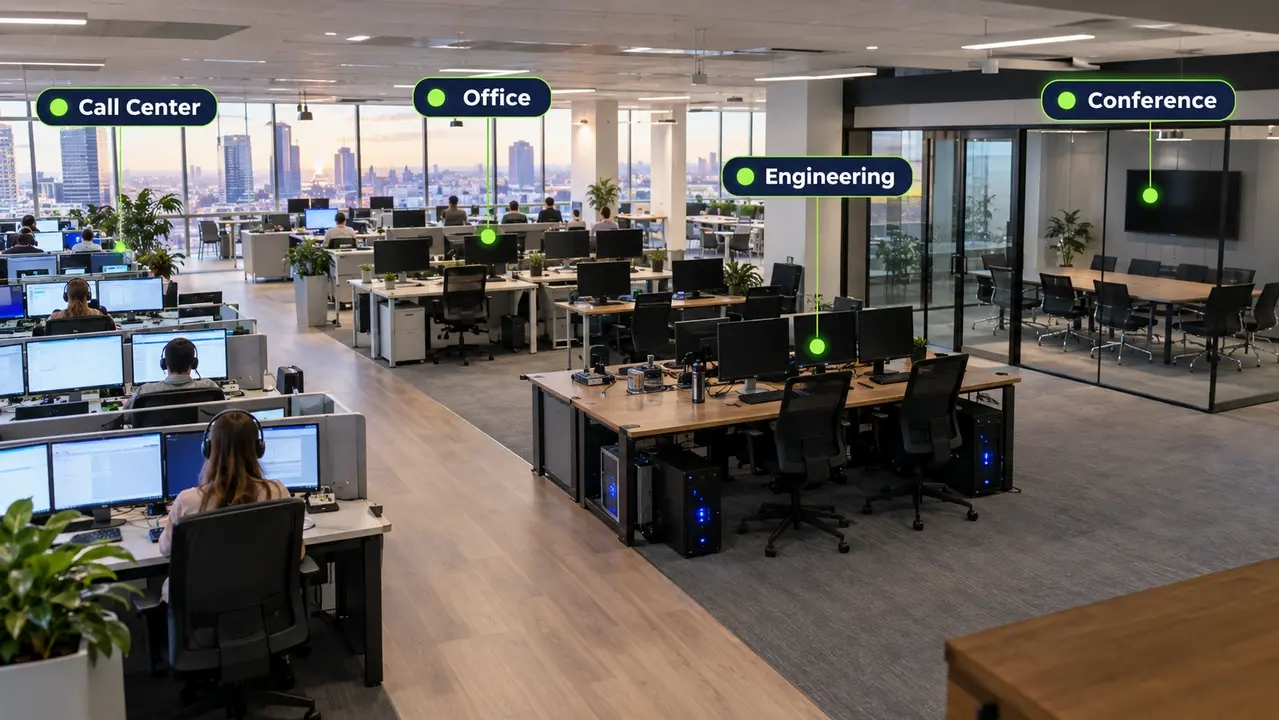
Your finance team leaves at 6 PM. Their PCs stay on until morning. Meanwhile, the call center runs three shifts and someone just applied the same sleep policy to both groups. This is the quiet failure mode of fleet-wide power settings: a single power plan applied to 10,000 endpoints either saves nothing (because it was tuned to the least tolerant department) or generates a flood of tickets (because it was tuned to the most aggressive one). Power profile customization for departments solves this by matching sleep, display, shutdown, and wake behavior to how each team actually works. This article shows IT and sustainability teams how to design, deploy, and govern department-specific power plans without disrupting productivity, patching, or remote support.
Reading time: 4 minutes
What power profile customization for departments actually means
Power profile customization for departments is the practice of applying different sleep, display, wake, and shutdown behaviors to different teams based on role and usage pattern, rather than pushing one plan to the whole fleet. The core logic is simple: departments become groups, groups map to policies, and policies deliver savings without disruption.
Consider three contrasting cases. A call center needs stations awake and reachable during shift hours, with aggressive shutdown only after the last shift ends. A finance laptop can sleep aggressively after ten idle minutes because nothing runs overnight except patching. An engineering workstation may sit at 90% CPU compiling for six hours, and an idle-based sleep timer that ignores CPU load would break the build. One plan cannot serve all three. Before designing profiles, though, you need to decide what “department” means technically.
How a “department” is defined for targeting
There are three targeting models, and choosing the wrong one is where rollouts stall. The first is the Organizational Unit (OU) in Active Directory, which follows your directory structure. The second is the device group, suited to shared or kiosk machines where the PC’s role defines its behavior. The third is the user group, which follows the person rather than the machine.
Pick one primary targeting method per environment. Overlapping OU-based and group-based rules create policy collisions that are miserable to untangle six months later. Microsoft’s Group Policy Preferences documentation covers the underlying targeting concepts if you want the directory-level detail. Once chosen, document it, because every troubleshooting session later starts with “which group owns this device?”
When user-based targeting beats device-based targeting
User group power settings win when the person defines the policy need: roaming staff, hot-desking, and hybrid work. An executive who logs into four different machines should get executive-grade gentle savings on all four, not whatever the machine’s previous occupant left behind.
When device-based targeting is the safer choice
Device groups are right for kiosks, lab PCs, conference room systems, and shared workstations. On these machines, who is logged in is irrelevant; the device’s role determines whether it should sleep, when it should wake, and whether it must stay reachable overnight.
Why different departments genuinely need different plans
Uptime tolerance varies wildly across roles, and pretending otherwise is how power projects die in the pilot phase. A help desk machine needs fast wake for remote support sessions. A trading or finance floor prioritizes performance and instant availability over every kilowatt. HR and back-office roles can tolerate aggressive idle sleep the moment someone walks away. Classrooms need scheduled wake timed to first period, and conference rooms need fast display-off while the system stays reachable for booked meetings.
The ENERGY STAR computers program, which sets efficiency requirements across off, sleep, and idle modes, is built on exactly this premise: savings come from machines spending time in low-power states appropriate to their use. You can read the ENERGY STAR requirements for computers for the mode-level detail. Department-specific power plans are simply the enterprise application of that logic.
How department plans cut costs without hurting productivity
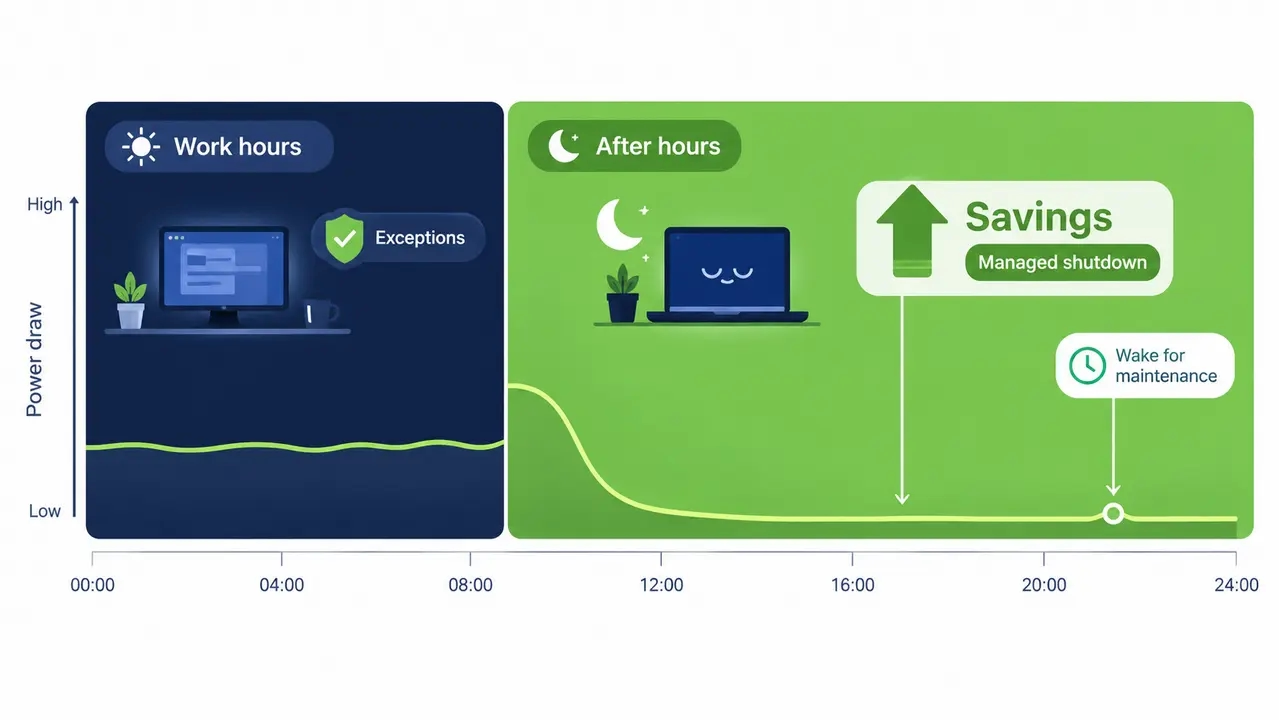
Frame everything around work time versus non-work time. During work hours, the goal is modest: display-off after a few idle minutes, sleep after a longer idle period that respects the department’s workload. After hours, the gloves come off: managed sleep or shutdown, with scheduled wake for maintenance. Most of your savings live in the second bucket, and most of your risk lives in the first.
Productivity is protected through exceptions, not through weak settings. An active session, high CPU load, or a critical process running should block sleep entirely. The ENERGY STAR Computers Version 8.0 specification formalizes the low-power behavior expectations that well-designed profiles should honor.
The three levers: schedule, idle thresholds, and exceptions
Schedule defines when savings windows open and close, for example 7 PM to 6 AM. Idle threshold defines how long a machine sits unused before sleeping, say 20 minutes for office roles. Exceptions define what must never be interrupted, such as a compile job, a backup agent, or an open remote session. Every profile is just a different setting on these three levers.
The maintenance window rule
Never let an overnight sleep policy block your patch, backup, or antivirus scan window. Align sleep schedules with the IT operations maintenance calendar so machines sleep after the maintenance window closes and wake before it opens. A profile that fights your patching cadence will be overridden by the first admin who misses a deployment, and rightly so.
Power plan versus power policy versus power profile
IT teams use these three terms interchangeably, and the confusion causes real deployment errors. A power plan is the settings bundle: sleep timers, display timeouts, hibernate behavior. A power policy is the targeting and enforcement layer: which group gets which plan, and with what priority. A power profile is the practical, role-based configuration you build for a specific department. The shorthand I use: profile equals department intent, plan equals settings bundle, policy equals targeting plus enforcement.
Microsoft’s documentation on default power plan configuration covers how plans are defined and imported at the OS level. Once the terms are clear, you can design consistent groups across departments.
How custom power policies groups work in an organization
Standardize a small set of policy groups instead of one-off configurations per team. Many organizations can cover most endpoint use cases with a relatively small set of core policy groups: Standard Office, Call Center, Engineering, Executives, Kiosk/Public, Lab/Always-on, Laptop Aggressive, and No Power Savings. Fewer groups means easier compliance tracking, cleaner reporting, and a troubleshooting process that fits on one page.
A centralized platform approach, such as the one detailed on the Our Platform page, lets IT teams manage these standardized groups from a single console rather than juggling separate scripts per department. PowerPlug Pro is one example of software built specifically for managing custom power policies groups at scale, with group-based targeting and per-department reporting built in from day one.
A naming convention that scales
Use a pattern like Region-Department-DeviceType, for example NA-Finance-Laptop or EU-CallCenter-Desktop. It is trivially easy to audit, filter, and report on, and it prevents the “what does POLICY-FINAL-v3 actually cover” problem that afflicts ad-hoc naming.
Priority strategy: who wins when rules collide
Define policy precedence explicitly and document it. The working rule is that an exception group always outranks a general department group. A machine in both Finance and Critical-Always-On gets the exception behavior, no exceptions.
Designing user group power settings that actually stick
Settings that drift are worse than no settings, because they destroy trust in the whole program. Stability comes from three practices. First, keep group membership rules clean and non-overlapping. Second, distinguish enforced settings (locked by policy) from recommended settings (defaults users can adjust). Third, give every device exactly one owning policy, with exceptions handled through a higher-priority group and documented ownership across IT Ops, Security, and Sustainability.
Policy collisions, where multiple configurations compete for the same device, are the number one cause of “it worked yesterday” drift. Stale group membership, conflicting GPOs, manual user overrides, and re-imaging that resets local settings account for most of the rest.
A governance checklist for change control
Before any policy edit: document the owning team, update the change log, confirm the rollback plan, and get approval if the change touches a new department. Review exception membership quarterly. That last item matters more than it sounds, because exception creep silently erodes savings.
See how much you could save by department
PowerPlug Pro applies department-specific power profiles across fleets from 100 to 50,000 PCs, with scheduled wake, exception groups, and per-department savings reporting. We can review your fleet profile and estimate your savings window before anything changes on a single endpoint.
Department profile blueprints you can copy
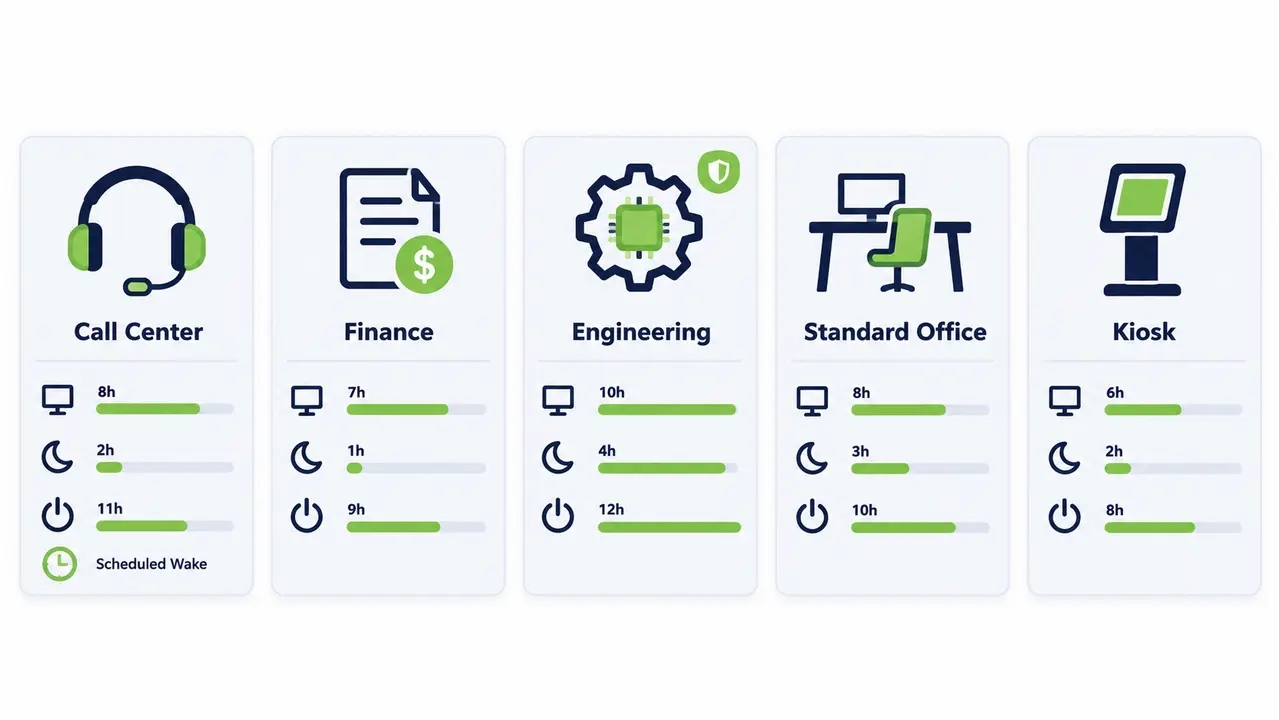
| Profile | Display idle | System idle (work hours) | After hours | Notes |
|---|---|---|---|---|
| Standard Office | 10 min | Sleep at 30 min | Sleep/shutdown at 8 PM | Baseline for most desk roles |
| Call Center | 5 min | Conservative, sleep at 60 min | Strong savings post-shift | Scheduled wake before first shift |
| Engineering | 15 min | Sleep at 90 min, CPU-load exception | Sleep after maintenance window | Never interrupt active builds |
| Finance/HR | 10 min | Sleep at 15 min | Strict after-hours shutdown | Wake for month-end close days |
| Kiosk/Shared | 2 min | Controlled sleep at 20 min | Sleep with scheduled wake | Device-based targeting |
| Executives | 15 min | Sleep at 60 min | Gentle sleep only | Minimal interruption priority |
| No Power Savings | None | Never sleeps | Always on | Reserved for critical endpoints |
Laptop versus desktop adjustments
Laptops need separate thresholds for on-battery versus plugged-in behavior; aggressive on-battery settings are usually already familiar to users. Desktops need only AC-based rules. Mixing the two in one profile guarantees complaints from one population or the other.
Conference rooms and training labs
These are the hybrid cases: fast display-off for energy savings, but the system must stay reachable for scheduled meetings and classes. Pair a 2-minute display timeout with a modest system sleep and scheduled wake aligned to the booking schedule.
Handling exceptions before they handle you
Build an explicit, higher-priority exception group from day one. Typical triggers include attached lab or diagnostic equipment, 24/7 communications systems, and overnight compute or render jobs. If you do not create a sanctioned path for exceptions, departments will create their own by disabling the agent or talking a sympathetic admin into removing the machine from the group. Then the exception is invisible, undocumented, and permanent.
Review exception membership on a fixed cadence. Wake-on-LAN behavior matters here too: many “must stay on” objections dissolve when the requester learns the machine can be woken remotely when genuinely needed, as documented in Microsoft’s guidance on Wake on LAN behavior in Windows.
Enforcement, user freedom, and the ticket trade-off
Enforced policies typically block end-user changes to managed settings, which is good for consistency but demands clear communication. My recommendation from field experience: enforce only what matters most, which is after-hours sleep and the wake schedule, and consider allowing local control during working hours where the environment needs flexibility. A user who can dim their own display timeout at 2 PM is far less likely to fight the 8 PM shutdown. Publish a plain-language “what changes for you” notice before go-live, because surprise enforcement generates more tickets than any technical misconfiguration.
A 30-day rollout that avoids the ticket flood
Week one is baseline: measure current idle hours, energy consumption, and existing settings per department. Weeks two and three are a pilot with one or two departments, ideally one tolerant and one demanding. Week four is expansion plus tuning. Get IT Ops, Security, Sustainability, and the pilot department leads in the same conversation before you touch a single endpoint.
Watch the known issues list: VPN sessions that die on sleep, remote desktop sessions interrupted mid-task, and overnight batch jobs nobody documented. For a real-world example of how a large, multi-department campus rolled out standardized power profiles at scale, see the Ben Gurion University case study.
Scheduling wake and shutdown by department
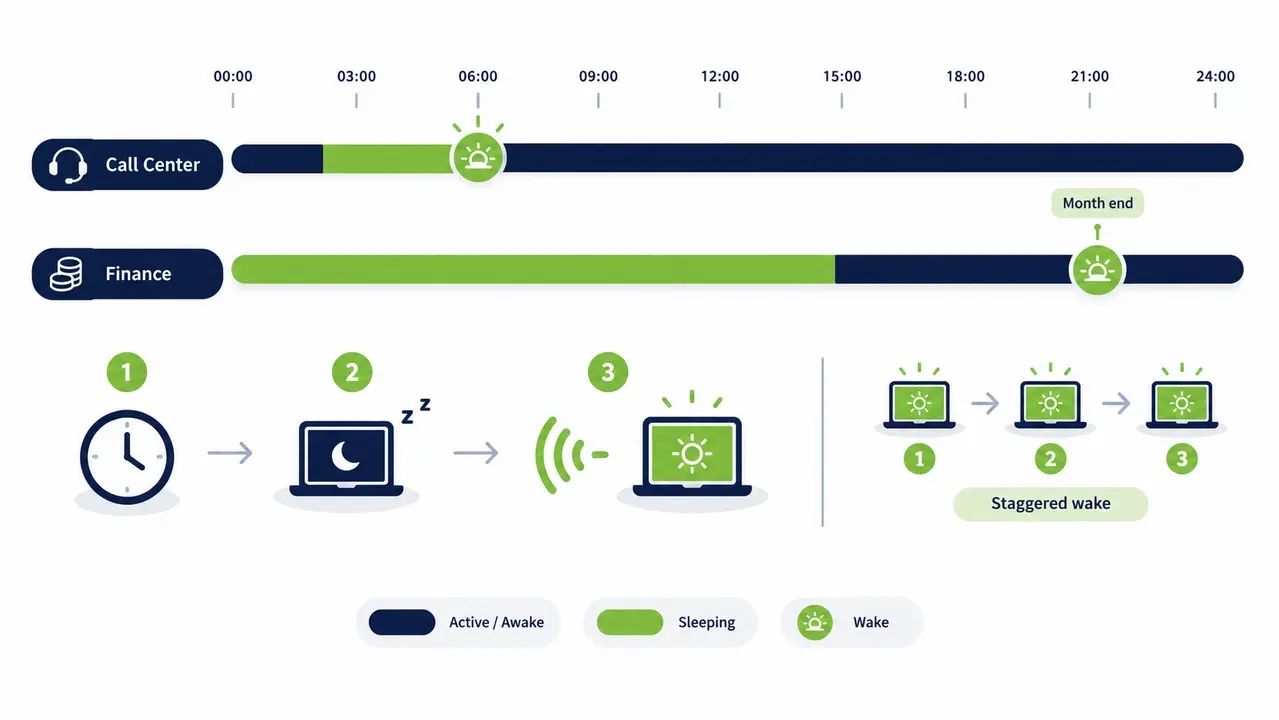
Align wake schedules to shift start times and maintenance windows. A call center might wake at 6:30 AM, finance machines wake on month-end close days only, and classroom PCs wake weekdays at 7:45 AM. Scheduled wake plus an on-demand wake capability for help desk workflows means a sleeping machine is never an unavailable machine.
This kind of scheduled and on-demand wake capability is powered by dedicated Wake-Up Technology that lets IT teams bring specific department groups online only when needed, rather than keeping everything awake on the chance someone might connect.
Shift-based scheduling on one site
Day-shift and night-shift departments on the same site can run separate schedules simultaneously. The call center sleeps from 2 AM to 5:45 AM; the finance floor sleeps from 8 PM to 7 AM. Site-level thinking is what limits savings; department-level scheduling is what unlocks them.
Avoiding wake storms
Never wake an entire fleet at once. Stagger wake times in batches over several minutes to avoid network and bandwidth strain, particularly across WAN links. Waking thousands of machines simultaneously can create avoidable bursts of network, authentication, management-agent, and patching activity. Staggering wake events reduces that infrastructure load.
Proving savings by department
Establish a consistent baseline per group before rollout, then compare the same metrics after. The core metrics are kWh saved, cost saved, CO2e avoided, percentage of endpoints compliant, and hours in idle versus active versus downtime. For emissions, use regional grid factors from EPA eGRID data and follow GHG Protocol Scope 2 guidance so your numbers survive an audit. The EPA’s greenhouse gas equivalencies methodology is useful for translating kWh into relatable equivalents for executive summaries.
What to measure weekly versus monthly
Weekly: compliance percentage, exceptions triggered, and tickets raised. Monthly: kWh and cost savings by department, emissions avoided, and trend versus baseline. Weekly metrics are operational; monthly metrics are the ones finance and sustainability report upward.
Explaining results to finance versus IT
Finance wants cost savings, ROI, and budget impact. IT wants compliance rates, ticket volume, and availability impact. Same data, two framings. Our customers with 1,000-plus PC fleets routinely present tens of thousands of dollars in annual savings alongside a ticket count that stayed flat, which is the pairing that keeps programs funded.
Why department power settings fail to apply
Run the troubleshooting flow in order: confirm group membership, confirm policy precedence, confirm the device is online and managed, confirm the active plan state, check for conflicting management channels, then verify again after a full sync or reboot window. Most failures fall in the first two steps.
The classic targeting errors are the “OU has no users” mistake, where you targeted an organizational unit that holds computer objects but no matching user group, and the “group isn’t a target” mistake, where membership exists but the policy scope excludes the site or domain. The other big one: GPO, MDM, and a third-party power tool all managing the same setting simultaneously. Designate one authoritative source per setting and the conflicts disappear.
The simplest way to start: three profiles, then grow
Start minimal with three profiles: Standard, High-availability, and No Power Savings. Phase two adds five to six department-tuned profiles. Phase three optimizes by site, shift, and device type. Trying to launch with eight profiles before you have baseline data is how programs stall in committee.
Department-specific power plans, custom power policies groups, and user group power settings do not need to be a year-long initiative. A purpose-built platform like PowerPlug Pro, deployed against your existing Active Directory and SCCM infrastructure, can have a phased rollout running in hours with ROI showing in as little as four months. Start with the three profiles, measure honestly, and let the savings data win the next phase for you.
Talk to us about your fleet
If you manage anywhere from 100 to 50,000 PCs and want department-specific power policies without disrupting patching or remote support, we can walk through your environment and outline a phased rollout plan. A short call is all it takes to get started.
Department-specific power profiles work because they match energy policy to how each team actually operates. Define one targeting model, standardize five to eight policy groups, protect productivity with a small set of exceptions, align sleep with maintenance windows, and report kWh, cost, and CO2e against a per-group baseline. Start with three profiles, measure honestly, and expand on the strength of the results.
Frequently asked questions
What is the best power plan for office departments?
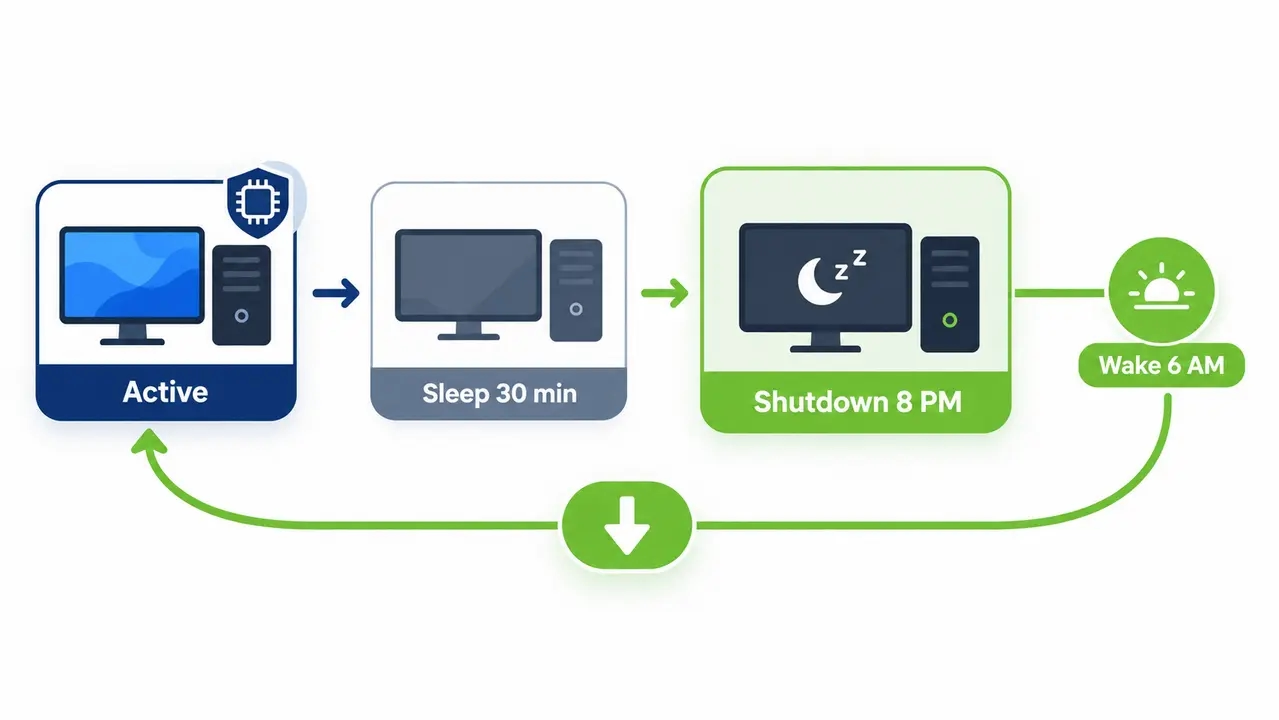
A display timeout of about 10 minutes during work hours, system sleep after roughly 30 idle minutes, and a managed shutdown or deep sleep after hours, typically starting around 8 PM with scheduled wake before the workday. The after-hours window is where most savings live, since a PC left idle overnight draws power for 12 or more hours serving nobody. Add a CPU-load exception so active work is never interrupted.
Can I set power policies by department without changing my OU structure?
Yes. Group-based targeting lets you assign power policies through security groups rather than restructuring Active Directory, which is usually faster and politically easier than moving computer objects. The trade-off is that group membership needs active governance, since stale memberships cause settings drift. Whatever model you choose, keep one primary targeting method per environment to avoid overlapping rules.
How do I prevent sleep from breaking overnight patching?
Align your sleep schedule with the IT maintenance calendar so machines stay awake, or wake on schedule, during patch, backup, and scan windows, and only enter deep sleep after the window closes. Scheduled wake timers plus Wake-on-LAN give you on-demand coverage for ad-hoc deployments. If a profile fights your patching cadence, admins will override it, so design the maintenance window into the profile from the start.
How do I exclude specific computers from power savings?
Create an explicit, higher-priority exception group, often called No Power Savings, for critical endpoints like lab equipment hosts, 24/7 communications systems, and overnight compute machines. Document every member and review the group quarterly, because exception creep silently erodes savings. Keep the exception path sanctioned and visible, or departments will create undocumented ones by disabling the agent.
How do I report energy savings by department for ESG purposes?
Capture a per-group baseline before rollout, then report kWh saved, cost avoided, and CO2e using regional grid emission factors from EPA eGRID, following GHG Protocol Scope 2 guidance for methodology. Report compliance percentage and exception counts alongside the energy numbers so the operational story supports the sustainability story. This gives finance the cost line and auditors a defensible emissions figure from the same dataset.

About the author
Nimrod Yedaya
VP Customer Experience
Over 15 years of experience in customer service, technical support, and customer relationships. Nimrod joined PowerPlug in 2012 as Customer Support Manager and was promoted to VP in 2016. He holds an MBA from BIU and a BSc in Communication Systems Engineering from BGU.