
Reducing Phantom Power on Corporate Workstations
By Nimrod Yedaya, VP Customer Experience
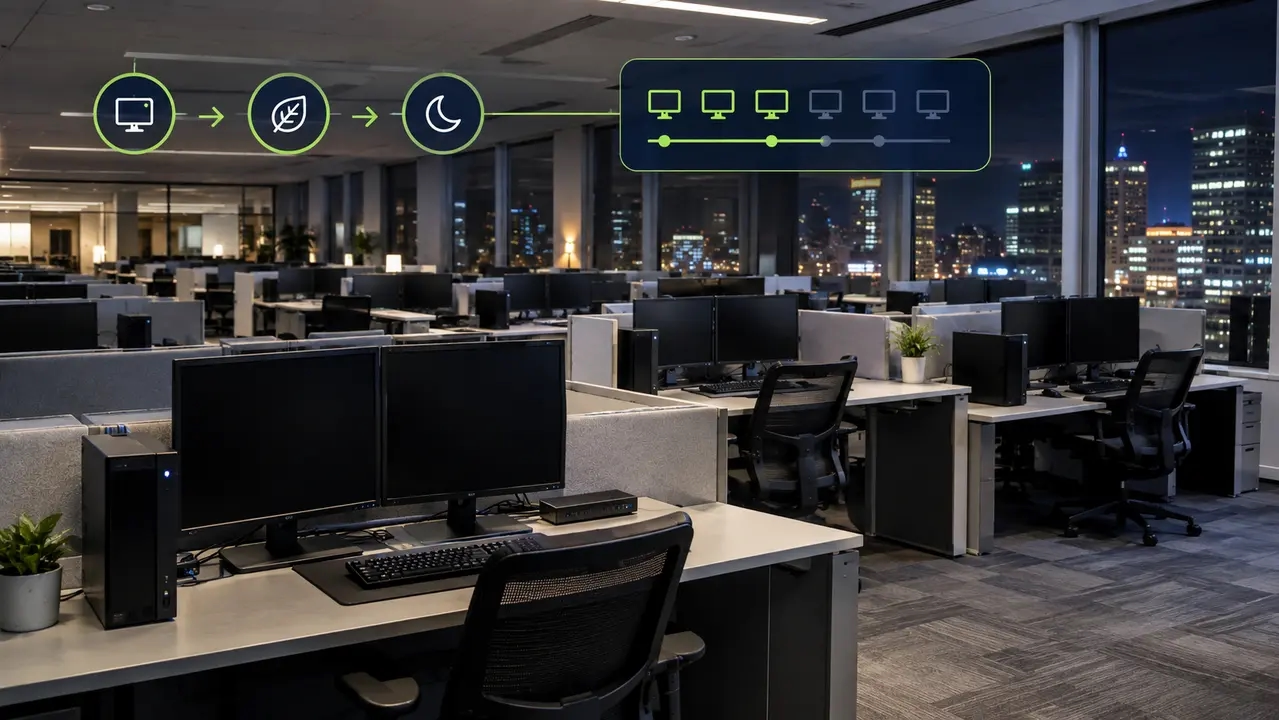
Corporate workstations silently pull electricity day and night, even after employees have finished their shifts and left the building, and IT and facilities teams can cut that waste at scale. Across hundreds or thousands of desks, the standby draw from computers, monitors and accessories inflates operating costs without supporting any business goal. Clear power state definitions and a simple savings model make the case, and a phased 30-day schedule shows how to deploy policies without breaking nightly patching.
Reading time: 5 minutes
What is phantom power in an office, and why does it happen even when computers look “off”?
Phantom power is the electricity consumed by office equipment that appears powered down or idle but continues drawing current to maintain network readiness, supply power to peripheral ports, and support internal management controllers. Even when a workstation appears inactive, internal sub-circuits remain energized.
Standby or sleep: The operating system pauses processing tasks and preserves the active user session in RAM. The workstation remains ready to resume immediately while consuming minimal wattage.
Soft off: The system appears completely shut down to the user, yet the internal power supply unit and network interface card remain energized to listen for administrative wake signals.
Idle state: The system is fully powered and waiting for user input. This is not a low-power mode, and the machine continues to draw baseline operational power.
A typical enterprise desk has a desktop tower and dual monitors plugged into a docking station, plus external speakers and a local printer. Each peripheral draws a modest baseline wattage, yet this continuous draw generates significant unnecessary cost across an inventory of 1,000 desks. Workstations frequently remain awake because background management agents, scheduled software updates, and remote-access connections actively prevent endpoints from resting.
What is vampire power on computers, and is it the same as standby power waste?
Vampire power on computers is an informal synonym for standby power waste, describing the continuous baseline electricity consumed by equipment that is plugged in but not actively performing computational work.
People who manage offices, from IT teams to facilities directors and energy managers, often use phantom load and vampire draw interchangeably with standby power or plug-load waste to describe this after-hours draw.
In practice, standby power covers several conditions. It comes from machines that are shut down but still plugged in or held in sleep or hibernate, from powered USB charging ports and from external adapters that give off heat while idle.
Standby draw differs from the broader category of plug load. Plug load covers every device plugged into a wall outlet anywhere in a facility, from active servers to breakroom appliances and task lighting. Standby power represents the specific fraction of that plug load consumed while hardware sits inactive.
How do office computers waste energy after hours, even with sleep settings enabled?
After-hours waste occurs when endpoints fail to enter designated low-power states, wake prematurely due to misconfigured background tasks, or keep connected peripherals energized throughout the night. Disparate operating system profiles and unmanaged user overrides compound this baseline consumption across corporate networks.
Several technical factors consistently undermine local power settings. Operating system idle timers are often configured with excessive delays or disabled altogether. Employees regularly enable presentation profiles or third-party utilities to keep screens active. Background enterprise utilities, open web browsers, and core line-of-business software continuously generate wake locks that prevent systems from suspending. Connected accessories, such as high-sensitivity input devices or external audio interfaces, transmit spurious wake interrupts. Remote access tools frequently leave corporate desktops in an awake state after users disconnect. IT departments also tend to apply different power profiles to fixed desktops than to laptops.
Screensavers do not conserve electricity. Graphic screensavers keep the processor and display panel running at full power, whereas configured monitor sleep settings power down the panel to conserve measurable energy.
Relying on staff education, office signage, and periodic emails produces brief improvements that quickly fade. Automated, centrally enforced policies maintain consistent energy governance across every endpoint without requiring ongoing human intervention.
Hybrid schedules make this waste more pronounced because office desktops often sit powered on for days while employees carry out their work remotely.
Does sleep mode actually reduce energy use on office PCs?
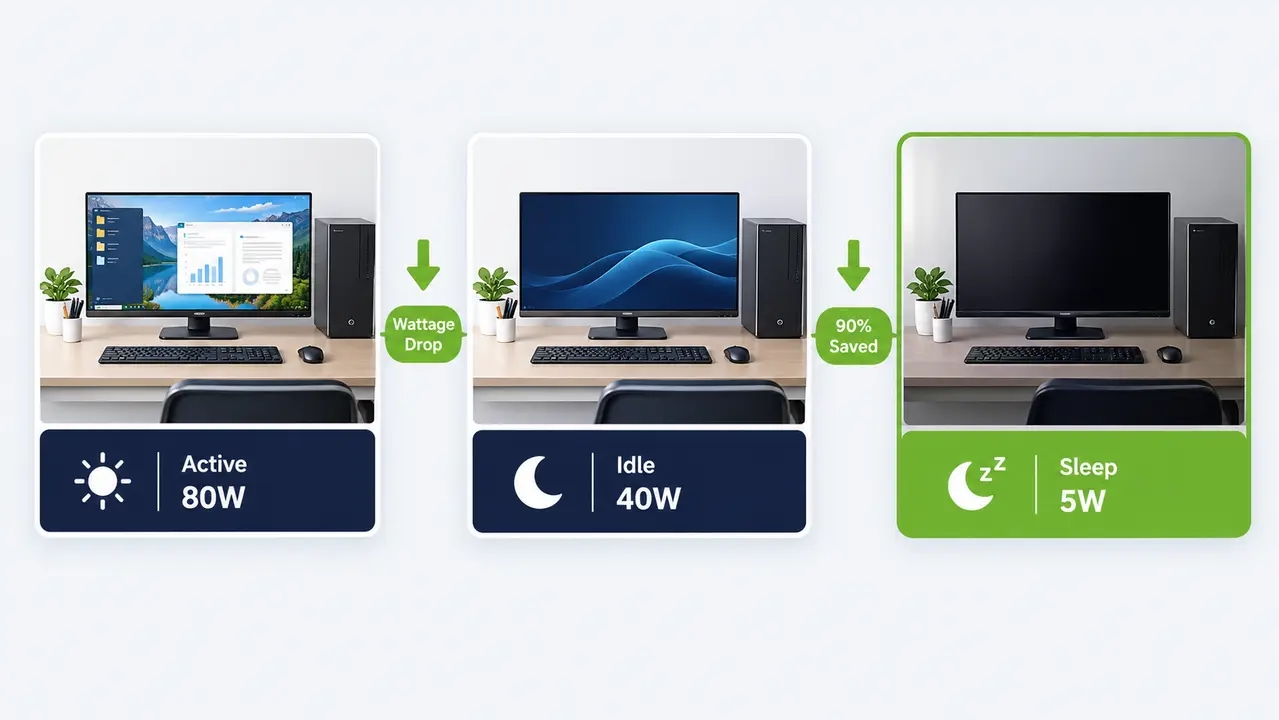
Sleep mode provides immediate energy reductions, typically dropping system consumption from 30 to 80 watts down to fewer than five watts. However, these efficiency gains only occur when endpoints transition into sleep states reliably and stay undisturbed.
Active state: The system actively executes tasks, drawing full power based on processor and graphics load demands.
Idle state: The system awaits user input while the central processor, system memory, and cooling fans run at standard operational voltages.
Sleep state: Sleep state: In traditional S3 sleep, most processing stops while memory remains powered to preserve the user session. On systems using Modern Standby (S0), selected background activities and network connectivity may continue, depending on hardware and operating system configuration.
In standard corporate environments, employees routinely leave desks to attend internal meetings. Short monitor sleep timers yield immediate savings without impeding their momentum, while system sleep can engage following longer intervals of inactivity.
Desktop power management demands careful oversight because these computers lack internal batteries, rarely alert users to ongoing power waste, and frequently run unnoticed through entire weekends.
Is hibernate better than sleep for reducing phantom load on desktops in offices?
Hibernate achieves deeper phantom load reductions than standard sleep by writing active RAM contents directly to the non-volatile storage drive and cutting power to system memory. However, resuming from hibernate requires additional boot time, which may not align with rapid-access user requirements.
Hibernate suits predictable overnight shutdowns and shared kiosks, as well as contact centers on structured shifts and non-critical administrative workstations.
Standard sleep serves dynamic business units where employees frequently step away from desks, attend scheduled discussions, and require near-instantaneous system access upon returning.
A complete shutdown gives the lowest baseline power draw, but it means the slowest startup times and limits IT’s access outside working hours. A balanced policy that assigns settings by department cuts the most energy while keeping daily work moving.
Can you estimate how much electricity office PCs waste overnight?
To estimate after-hours waste, multiply the average after-hours idle wattage per desk by inactive hours per day and operational days per year, then apply your electricity tariff and adjust for fleet size and policy compliance.
Annual kWh wasted equals after-hours watts multiplied by hours per night and nights per year, divided by 1,000.
Annual financial waste equals annual kWh multiplied by your local commercial electricity cost per kWh.
Total fleet impact equals annual financial waste multiplied by total managed endpoints and by the verified compliance percentage.
Consider an illustrative fleet of 2,500 desktop workstations. If an unmanaged PC consumes 40 watts while idle for 14 hours per night over 250 business days, it uses 140 kWh annually during those hours. Assuming sleep reduces consumption to 4 watts, each compliant workstation saves 126 kWh annually. At an electricity rate of $0.15 per kWh and an 85 percent compliance rate, the organization could save approximately $40,163 per year across the fleet. Actual savings depend on measured power consumption, operating schedules, and electricity rates. Actual financial returns depend on baseline endpoint configurations, verified compliance levels, and localized power pricing.
Chart description: Illustrative bar chart titled “After-hours energy waste by scenario” showing comparative annual kilowatt-hour consumption per workstation across four operational states. The “always on” bar shows maximum consumption at 350 kWh per year. The “idle only” bar shows 140 kWh per year. The “sleep enforced” bar shows 18 kWh per year. The “hibernate overnight” bar shows minimum consumption at under 5 kWh per year.
Which devices create the biggest phantom loads at a typical computer workstation?
Desktop towers left running while idle and external displays that remain active are often the largest sources of unnecessary after-hours workstation electricity consumption. Additional standby power is consumed by docking stations, power adapters, printers, and other connected peripherals.
Compute hardware: Desktop computers and docked corporate laptops running active background threads constitute the primary load.
Display hardware: External monitors that remain illuminated or cycle actively while searching for video signals pull steady power.
Connectivity hardware: Advanced docking stations draw steady current to run onboard controllers and supply standby power to communication ports.
Printing equipment: Local desktop printers and scanners sustain internal power supplies and maintenance electronics around the clock.
Power adapters: Switched-mode power bricks continuously dissipate baseline power as heat, even when attached systems are disconnected.
Docks and peripherals draw only three to ten watts each in standby, but across thousands of workstations that long tail adds up to a lot of waste.
Chart description: Illustrative stacked bar chart titled “Where phantom load comes from at a workstation” breaking down after-hours parasitic consumption by component. The compute tower accounts for 55 percent of total draw and external monitors for 20 percent, while docking stations contribute 12 percent, desktop peripherals 8 percent and AC power supplies 5 percent.
The National Renewable Energy Laboratory fact sheet on office plug and process loads highlights that managing these secondary electrical devices is critical because miscellaneous plug loads represent approximately 30 percent or more of total electrical consumption in commercial office buildings.
Does measuring phantom power at desks require a full energy audit?
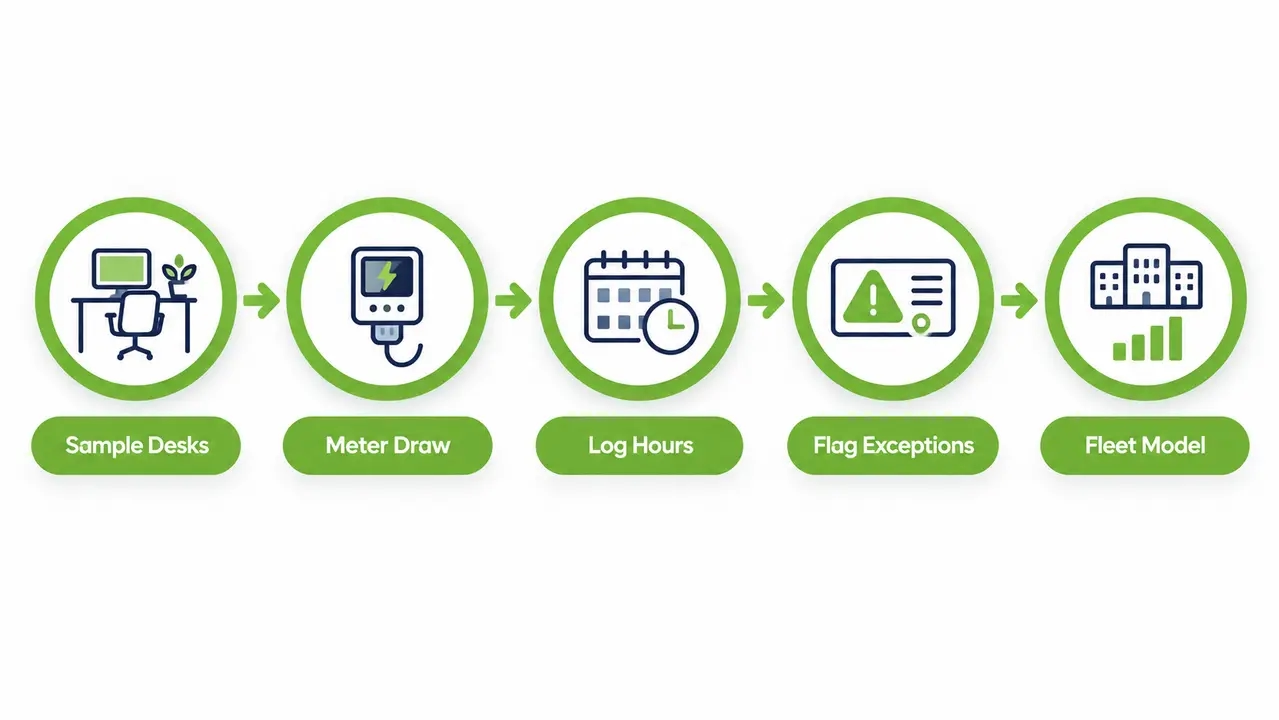
You can determine baseline workstation phantom loads without commissioning an invasive full-building audit by measuring a representative sample of workstations and extrapolating the results across operational divisions.
Step 1: Pick 10 to 20 representative desks that cover different departments, such as administrative staff, software engineering and customer support.
Step 2: Connect a calibrated, plug-in power meter at the wall outlet or primary power strip to measure the combined load of the workstation.
Step 3: Record the draw during business hours, again right after the workday ends and once more early in the morning before staff arrive.
Step 4: Flag hardware exceptions such as dedicated development servers, financial trading desks or diagnostic imaging terminals.
Step 5: Project the average standby wattage across your broader endpoint inventory to calculate total fleet power waste.
Centralized software telemetry complements localized hardware metering by providing comprehensive, continuous tracking of power state compliance across every managed device.
This process aligns with official U.S. Department of Energy Federal Energy Management Program guidance for measuring standby power, which stresses establishing a verified baseline before deploying efficiency measures.
How do you reduce phantom power on office computers without disrupting employees?
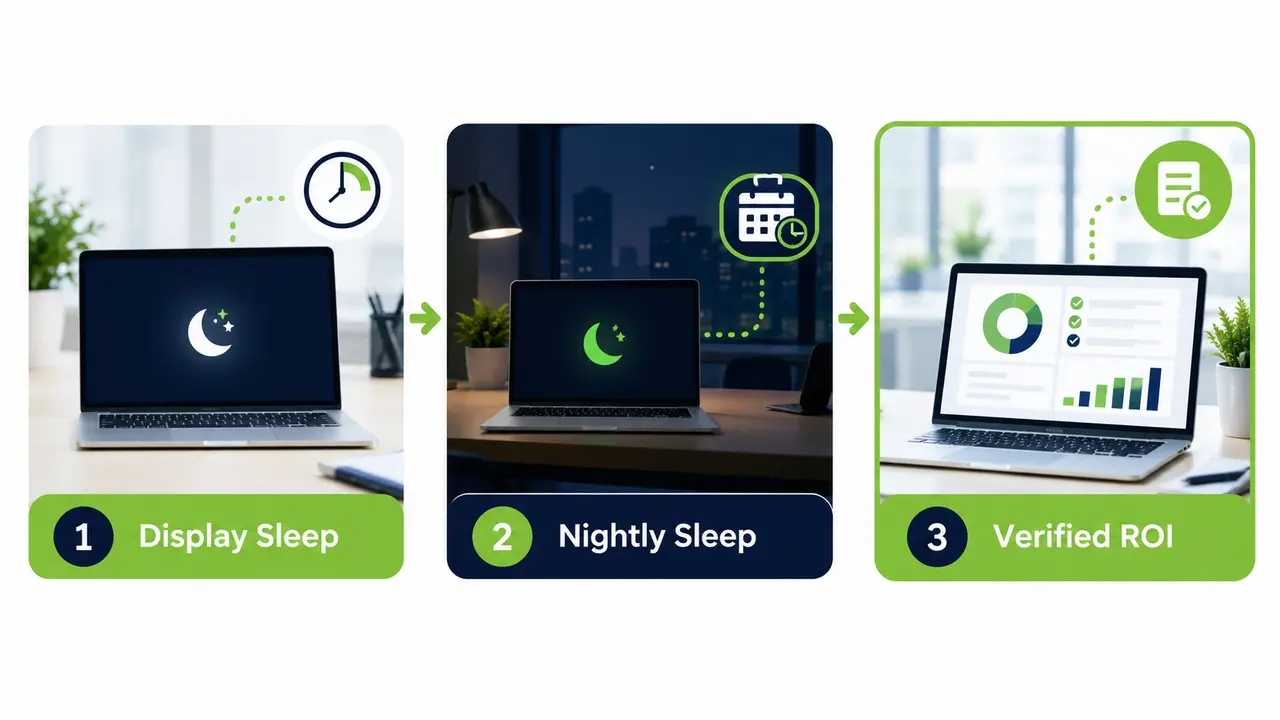
Reducing phantom power without impacting daily workflow requires a tiered rollout strategy that deploys display sleep first, applies role-based system sleep schedules second, and maintains flexible policy exceptions for specialized teams.
This tiered order follows the U.S. EPA’s widely used power management guidance for computers and monitors. First, configure monitor sleep settings to engage after 10 to 15 minutes of inactivity. Second, implement system sleep after 30 to 45 minutes of non-use. Third, apply structured overnight hibernate or shutdown schedules for standard operational groups with predictable working hours.
Account for functional responsibilities across your workforce. Graphic designers running 3D renders or developers executing test builds require scheduled policy waivers, whereas administrative teams on fixed shifts can switch to low-power states as soon as the workday ends.
Conference room PC power saving offers rapid returns because meeting room systems follow published calendar bookings and can safely sleep between scheduled gatherings.
Tell employees about the change before rollout. Provide a brief notification from IT explaining the environmental and operational purpose of the update, confirming that open files and session data will remain protected, and detailing the process for requesting temporary exemptions.
Why do centralized power policies work for reducing phantom power across hundreds or thousands of PCs?
Centralized power policies set consistent sleep timers, wake schedules and exceptions from a single management console, so the fleet no longer depends on voluntary behavior and settings cannot drift without authorization.
Modern management tools group endpoints by Active Directory organizational unit or physical location, and also by hardware form factor or work shift.
A structured endpoint power policy accommodates operational requirements by aligning with IT maintenance schedules, supporting secure remote access for hybrid workers, and generating audit-ready compliance metrics.
The standard for enterprise endpoint governance is simple. You set a policy once, apply it everywhere and prove compliance.
Enterprise platforms make fleet-wide enforcement practical. PowerPlug Pro brings group-based power policies, scheduling and reporting together in one console (see Our Platform for how it fits an enterprise environment).
See how much you could save
Send us your endpoint count, average electricity rate and current power settings, and we will model the after-hours waste across your fleet along with the savings a centrally managed sleep policy can deliver.
Will power-saving settings break overnight patching, updates or remote maintenance?
Power management policies will not interrupt nightly maintenance routines when your team integrates scheduled wake events with defined administrative maintenance windows. Systems can rest during inactive hours, wake automatically for maintenance, and return to sleep once updates conclude.
IT departments frequently leave systems powered on continuously to prevent failed update pushes or missed security definitions. However, leaving thousands of endpoints awake all night to support a two-hour maintenance window generates significant unnecessary expense.
1. Workstations enter low-power sleep or hibernate at the close of the regular workday.
2. Centralized systems initiate a maintenance window wake signal at a designated time, such as 2:00 a.m.
3. Enterprise deployment tools execute software distribution, security updates, and routine maintenance tasks.
4. The management agent confirms execution and returns the endpoint to its low-power sleep state.
Workstations running intensive overnight tasks or operating as shared resources receive tailored power management exceptions. Maintaining consistent patch levels is vital for endpoint security, and intelligent power management supports it by ensuring systems reboot and update reliably rather than running continuously for months.
Solutions with dedicated wake capabilities, such as PowerPlug’s Wake-Up Technology, let IT wake PCs inside a defined window and send them back to low power afterwards.
When should you allow Wake-on-LAN or wake timers?
Wake-on-LAN and hardware wake timers should operate within controlled maintenance windows and authenticated management architectures. Broad, unrestricted wake settings can trigger erratic system activations that cancel out projected efficiency returns.
Restrict wake privileges to authorized management platforms and log every wake in central records. Limit automatic wakes to approved maintenance schedules, and check that awakened systems return to low power once their tasks finish.
For hybrid staff requiring off-hours access, ensure corporate remote connectivity tools interface directly with your centralized wake architecture so users can power on their office workstations on demand without leaving them running all week.
Why do users and apps prevent sleep, and how do you stop the standby power waste?
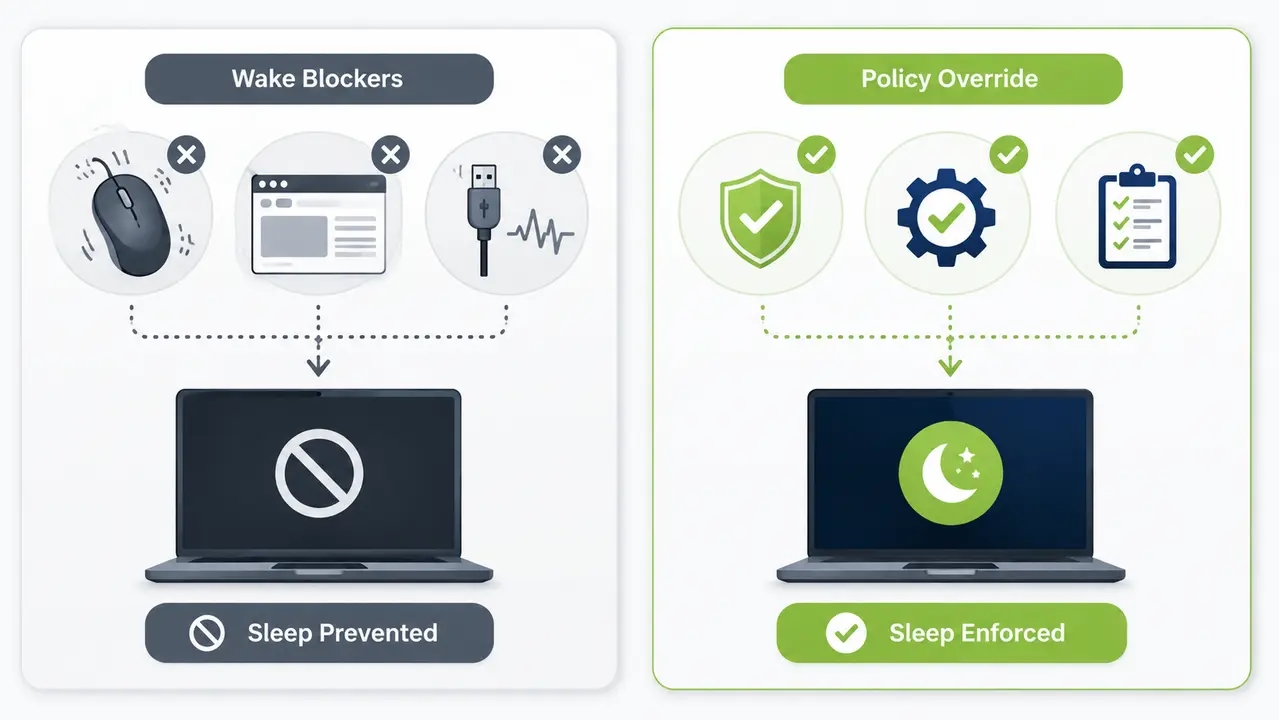
You can prevent software and user actions from blocking system sleep by standardizing operating system power configurations, tracking applications that hold active wake locks, and managing legitimate workflow requirements through administrative policy exceptions.
Sleep is most often blocked by collaboration platforms and background audio software, though outdated peripheral drivers, legacy enterprise software and input devices that send constant activity signals also play a part. Some workers also run unauthorized utilities such as mouse jigglers to fake activity and keep systems awake.
First, identify workstations that continuously show zero sleep compliance through centralized endpoint monitoring.
Second, resolve widespread software blockers through centralized endpoint policy configurations and updated device drivers.
Third, provide a simple administrative exception procedure for staff with genuine computational demands, such as overnight simulations.
Relying on user compliance produces inconsistent outcomes, whereas centralized management enforces low-power states regardless of background software activity.
When do smart power strips help with phantom load reduction for peripherals?
Peripheral phantom load reduction targets the secondary hardware operating alongside the central computer by cutting electrical feed to monitors, external sound gear and desk accessories when the main PC is inactive. Hardware smart strips provide a tactical solution for non-networked accessories, but software-driven policy enforcement delivers greater operational scale for enterprise computing fleets.
Advanced power strips perform reliably at fixed workstations with uniform hardware, consistent user hours, and secondary non-networked peripherals.
Smart strips are harder to manage where desks are shared and add mechanical failure points. They also give IT no central reporting, and staff can defeat them by plugging primary hardware into switched outlets.
Deploy smart power strips as a localized tactical measure for ancillary hardware, while using central endpoint power policies as your primary framework for managing enterprise workstations.
| Approach | Best for | Savings potential | IT effort | User disruption risk | Reporting capability | Scalability |
|---|---|---|---|---|---|---|
| User education and manual unplugging | Small teams and voluntary green programs | Low | Low | Low | Low | Low |
| OS local power settings | Unmanaged or standalone office computers | Medium | Medium | Medium | Low | Medium |
| Centralized policy enforcement | Large corporate fleets and distributed networks | High | Low | Low | High | High |
| Scheduled wake plus maintenance windows | Environments with strict overnight patch windows | High | Medium | Low | High | High |
| Smart or advanced power strips | Fixed desks with non-networked peripherals | Medium | High | Medium | Low | Low |
| Peripheral consolidation and standardization | Hardware refresh cycles and office redesigns | Medium | Medium | Low | Low | Medium |
For long-term hardware management, align procurement practices with U.S. Department of Energy Federal Energy Management Program recommendations for low-standby products, specifying that new workstations and peripheral hardware draw one watt or less in standby modes.
Can you track and report savings from reducing phantom power in offices?
Accurate reporting combines compliance rates and verified kilowatt-hours avoided with budget savings and avoided Scope 2 emissions, organized by location and department.
Leaders want to see verified cuts in utility spending and avoided Scope 2 greenhouse gas emissions, along with proof that patching and daily work went on without disruption.
Maintain complete audit readiness by recording initial power baselines, logging utility rate updates over time, and tracking policy deployment records across every endpoint group.
A regular cadence works well, with weekly compliance dashboards during the initial deployment, monthly savings summaries for facilities managers and quarterly policy reviews with IT operations.
In highly regulated environments, such as regional healthcare systems and academic campuses, audit-ready energy data is essential for validating environmental compliance and justifying capital investments.
For a view of how a large healthcare organization approached this at scale, read the Clalit Health Services case study.
Is there a practical 30-day rollout plan to reduce vampire power on office computers?
In 30 days an organization can measure baseline consumption and run a controlled pilot, then expand enforcement across departments and set up ongoing executive reporting without disrupting daily operations.
Week 1: Gather baseline endpoint telemetry and establish operational requirements alongside IT operations, information security, and facilities teams.
Week 2: Launch a controlled pilot in a single department or office and confirm that maintenance wakes, remote access tools and update deployments still work.
Week 3: Expand deployment across the remaining operational divisions in structured stages, configuring role-based policy exceptions for engineering and specialized units.
Week 4: Review fleet-wide power state compliance, present verified energy savings to executive stakeholders, and refine idle timers to maximize operational efficiency.
Chart description: Illustrative line chart titled “Compliance over time during rollout” tracking daily power policy compliance across 30 days. Compliance starts at an unmanaged baseline of 24 percent in Week 1 and climbs to 48 percent during the Week 2 pilot, then reaches 82 percent with staged deployment in Week 3 before stabilizing at 95 percent after fine-tuning in Week 4.
Organizations can orchestrate this rollout smoothly by using PowerPlug Pro to coordinate policies, monitor endpoint compliance, and automate maintenance wakes from a single administrative interface.
Lasting efficiency gains stem from centralized policy automation and continuous optimization rather than sporadic employee appeals.
Frequently asked questions
How much electricity does a computer use when it’s off but plugged in?
A modern computer in a soft-off state typically draws a small amount of electricity, depending on motherboard design and peripheral connections. Measuring sample units directly with a digital power meter provides the most accurate baseline for your specific hardware fleet.
Why won’t my work computer go to sleep automatically?
Office PCs stay awake when background software or media playback holds a wake lock, and outdated drivers or active network connections can do the same. IT teams can identify and resolve these underlying blockers using standard operating system diagnostics.
How do I enforce power settings across all company PCs?
Administrators enforce uniform power settings across corporate workstations by applying centralized, group-based policies linked to Active Directory. From one central console they can set sleep timers and maintenance wake schedules, manage exceptions and track compliance across all endpoints.
Can Wake-on-LAN wake computers from sleep for maintenance?
Wake-on-LAN can awaken sleeping computers across enterprise network subnets when network cards and management tools are properly configured. Confining wake triggers to scheduled maintenance windows ensures systems update successfully and return to low-power states afterward.
Which is the fastest way to cut energy waste from computers in a large office?
The fastest path to reducing phantom power on office computers combines short display sleep timers with an automated after-hours sleep or hibernate policy, supported by scheduled wake windows for IT patching and transparent reporting.
Measure an accurate baseline across representative workstation profiles.
Enforce standardized power policies segmented by department and role.
Prove sustained return on investment with automated compliance and energy reports.
Centralized computer power management turns after-hours energy waste into measurable savings and supports corporate sustainability goals without disrupting daily operations.
Put the 30-day plan in motion
PowerPlug Pro coordinates sleep and hibernate policies, scheduled maintenance wakes and compliance reporting from one console. Book a walkthrough to see how it maps onto your Active Directory structure and patch windows, or call +1 (646) 751-7797.

About the author
Nimrod Yedaya
VP Customer Experience
Over 15 years of experience in customer service, technical support, and customer relationships. Nimrod joined PowerPlug in 2012 as Customer Support Manager and was promoted to VP in 2016. He holds an MBA from BIU and a BSc in Communication Systems Engineering from BGU.