
The Enterprise PC Power Management Troubleshooting Playbook
By Nimrod Yedaya, VP Customer Experience
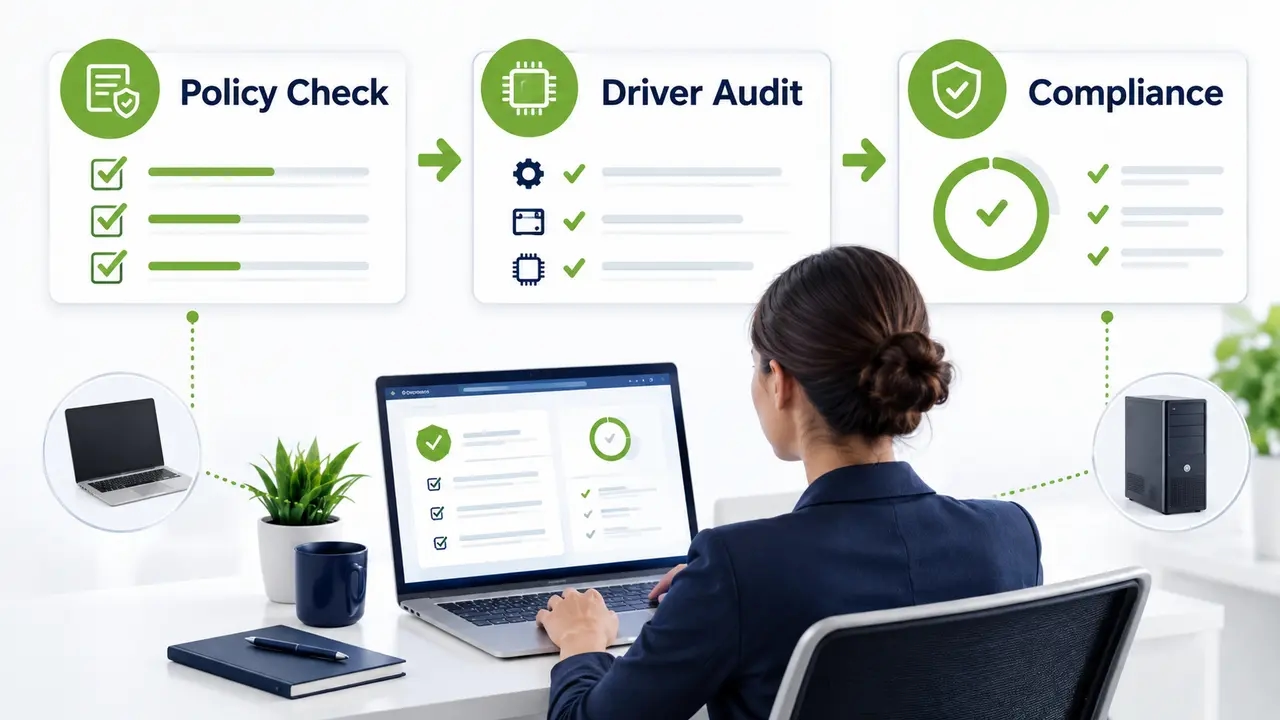
Troubleshooting power management issues in an enterprise starts with endpoints that do not sleep and wake or dim and hibernate the way policy says they should. IT teams frequently wrestle with a PC power policy not applying and laptops that never sleep, while settings revert after patching and enterprise power management errors appear in the central console. This playbook provides a step-by-step diagnostic workflow to fix power management problems at scale across complex environments. It starts by confirming scope and tracing policy authority and precedence, then audits hardware drivers and firmware before setting up drift prevention for long-term fleet power management.
Reading time: 5 minutes
What counts as a power management issue in an enterprise PC fleet?
A power management issue is any gap between the intended configuration policy and what endpoints actually do in production, covering sleep and display idle, lid actions and hibernate as well as wake timers and CPU states. When systems fail to enter low-power states, fleet energy consumption climbs and maintenance windows collapse.
In enterprise fleets, these gaps rarely present as a single broken computer. Instead, administrators see recurring operational friction across hundreds or thousands of devices:
- Workstations and laptops that refuse to sleep during non-business hours, leaving entire offices illuminated overnight.
- Aggressive sleep timers interrupting active user presentations, video conferences, or long-running database queries.
- Workstations that keep waking up throughout the night, triggered by network chatter or maintenance tasks.
- Remote and traveling workers reporting laptop battery drain in sleep while machines sit inside carrying bags.
- Standardized power schemes reverting to manufacturer defaults after monthly operating system cumulative updates.
- End users encountering grayed-out power configuration options in the local Windows user interface.
- Policies applying consistently to desktop systems while failing entirely on remote or co-managed portable devices.
The operational cost of these issues accumulates quickly. Leaving 1,000 office computers running overnight wastes tens of thousands of dollars in annual electricity costs and generates tons of avoidable carbon emissions. When endpoints sleep unexpectedly during deployment cycles, patching compliance drops and vulnerability remediation stalls, while ESG reports lose integrity. Resolving these challenges requires precise endpoint power management that treats power as an operational discipline rather than an unmonitored default.
Symptom vs root cause
| Root Cause Category | Typical Fleet Symptom | Operational Fleet Impact |
|---|---|---|
| Policy Precedence and Scope | Settings apply intermittently or revert after user logon | Compliance drift, broken power baselines, and configuration churn |
| Device Driver Locks | Workstations refuse to sleep and displays remain powered on indefinitely | Excessive idle power draw and inflated commercial utility costs |
| Firmware and Modern Standby | Excessive battery drain in transit and no available S3 sleep state | Hardware heat damage in transit and mobile user dissatisfaction |
| User and Peripheral Activity | Endpoints wake immediately after sleeping due to input jitter | Interrupted power savings and misidentified policy failures |
Before changing any setting, confirm the symptom and its scope.
How do you quickly confirm whether the power policy is actually being enforced?
To confirm enforcement quickly, query the effective power configuration directly on the endpoint using native command-line utilities, then verify which delivery channel applied those values. Comparing active runtime values against policy baselines isolates whether the failure stems from delivery, local overrides, or hardware misinterpretation.
Run a structured five-setting verification on the target device to audit the effective values against your intended baseline:
- Sleep timeout: verify the exact minutes of inactivity required before the operating system enters standby.
- Display timeout: confirm the threshold for screen blanking to separate display timeout tickets from true system sleep failures.
- Lid close action: verify that closing the chassis initiates the specified standby or hibernate routine rather than doing nothing.
- Wake timers: check whether background administrative tasks are allowed to wake the operating system outside scheduled maintenance windows.
- Hibernate: verify whether hibernation is enabled, configured, and accessible based on your hibernate vs sleep policy.
Inspect the running configuration through the command prompt. Run powercfg /getactivescheme to retrieve the GUID and display name of the currently active power scheme. Then run powercfg /query to inspect individual sub-group parameters and verify the exact applied timeout settings.
Always audit both AC and DC operational profiles. Many tickets about sleep timeouts not working occur because the policy sets AC and DC power values differently, leaving machines on battery with completely different timeouts. Finally, confirm whether the policy was deployed through computer-scoped configurations or user-scoped preferences.
What to capture in a troubleshooting snapshot
To diagnose fleet variations, collect an identical snapshot from a working endpoint and an affected machine:
- Device manufacturer, exact chassis model, and installed BIOS version.
- Windows operating system build, feature release, and cumulative update level.
- Supported ACPI power states retrieved directly from the hardware platform.
- Fleet management enrollment type (Active Directory domain join, Microsoft Entra join, or co-management).
- Active power scheme GUID and effective registry configuration snapshot.
Comparing these variables between compliant and failing machines rapidly highlights driver, firmware, or scope discrepancies across your estate.
Once you know what is active, you can trace who set it.
Why is my PC power policy not applying even though it looks correct in the console?
When a PC power policy does not apply even though the console shows a clean deployment, the cause is almost always a delivery failure or scope filtering error or a precedence collision. The management console confirms that a rule exists, but client-side processing determines whether the endpoint actually adopts the instruction.
Targeting and filtering errors remain the most frequent culprit behind a Windows power policy not applying across production endpoints:
- Incorrect Organizational Unit targeting where computer objects reside outside the inheritance tree of the linked policy.
- Security filtering misconfigurations that remove the Authenticated Users or Domain Computers principal from read and apply permissions.
- Overly restrictive WMI filters that evaluate to false because of chassis type or operating system release string mismatches.
- Loopback processing misconfigurations that inadvertently cause user settings to replace computer baselines.
- Policy refresh scheduling where machines process settings only at system startup rather than during background intervals.
- Remote worker disconnects where laptops fail to contact a domain controller because VPN connectivity establishes only after user logon.
- Competing endpoint agents overwriting registry values seconds after policy processing completes.
Consider a standard corporate re-imaging workflow. If provisioned laptops sit in a temporary staging container that lacks the production GPO link, you should expect the GPO power plan not to apply. Similarly, remote laptops running on home networks often miss computer-scoped Group Policy updates because the device cannot reach a domain controller before user authentication. The console displays a successful distribution status based on deployment targets, while the physical endpoints operate on stale local policies.
The three failure modes are not delivered, delivered but overridden, and delivered but unsupported
Not delivered means the client processing engine never downloaded the policy payload because of network reachability, directory replication, or security filtering errors.
Delivered but overridden occurs when the device successfully applies the policy and then a higher-precedence channel, local utility, or background task overwrites the settings.
Delivered but unsupported indicates that the client received the instruction and updated the registry, but the underlying motherboard hardware or driver stack lacks the capability to execute the requested power state.
If delivery is confirmed, the next question is who wins when settings collide.
Does Group Policy override local power settings (and other management tools)?
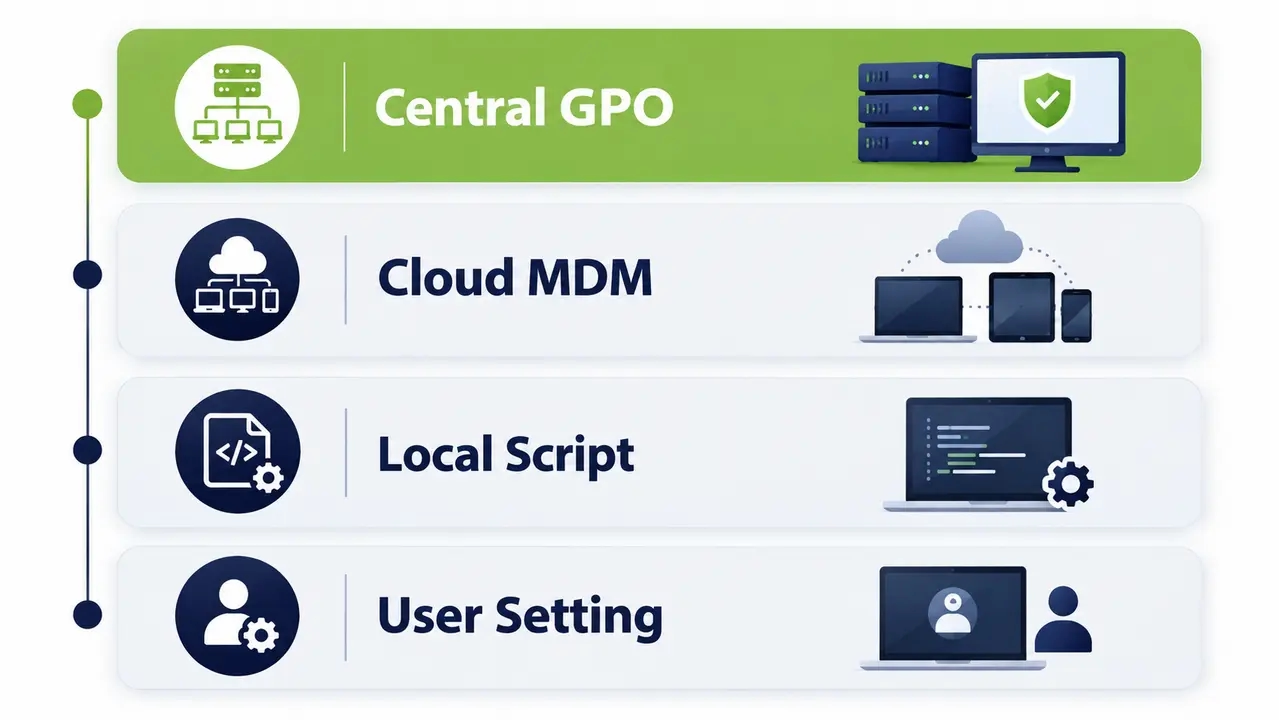
Group Policy overrides local administrative changes and unmanaged user preferences, but it does not maintain absolute precedence when multiple enterprise management channels compete. Conflicting instructions create unpredictable endpoint behavior when Group Policy targets the same power settings as MDM profiles, custom scripts, or OEM utilities.
Enforced policies consistently overwrite manual changes made inside the local Windows Settings interface. However, modern enterprise fleets rarely rely on a single management tool. Laptops frequently receive co-management profiles from Microsoft Intune, desktop fleets pull configurations from Active Directory, and hardware vendors install background optimization software at the factory. When several channels push different timeout values, the power settings conflict and the active scheme depends entirely on which tool executed last.
| Channel | Where It Is Set | Typical Scope | Common Conflict | Recommended Owner |
|---|---|---|---|---|
| Group Policy power settings | Group Policy Management Console (Computer Configuration) | On-premises domain joined desktops and servers | Overwritten by cloud MDM profiles or post-logon scripts | Core on-premises desktop infrastructure |
| MDM power policy | Cloud Management Console (Intune Device Configuration) | Remote, hybrid, and modern Entra ID joined laptops | Collides with on-premises GPOs in co-managed environments | Hybrid mobile workforce and remote endpoints |
| Endpoint management tool | Centralized administrative platform agent | Enterprise-wide multi-subnet device estates | Script overrides or uncoordinated GPO preferences | Unified corporate energy and sustainability policies |
| Script or scheduled task | Local task scheduler or distribution script repository | Targeted departmental machine groups | Silently reverts enforced policies during runtime | Temporary remediation only |
| OEM power utility | Vendor pre-installed hardware software suite | Specific hardware models and manufacturer images | Replaces standard Windows schemes with proprietary profiles | Disabled across standard enterprise corporate images |
| Local user change | Windows Settings or classic Control Panel | Individual user workstation sessions | Overwritten continuously by enforced policies | Unmanaged lab or developer testing environments |
Policies vs preferences vs scripts (why “it worked once” happens)
Enforced Group Policy settings write directly to protected policy registry keys, effectively locking the operating system user interface and preventing local modification.
Group Policy Preferences write to standard configuration registry paths, applying initial values while permitting users or local administrators to alter them until the next background refresh interval runs.
Standalone scripts and scheduled tasks execute on a fixed trigger, leaving settings vulnerable to silent modification by subsequent processes until the script runs again. Managing power effectively requires choosing a single authoritative owner for each device category.
If several tools touch power, you need a single source of truth.
What is the difference between user-based and computer-based power policies, and why does it matter?
Computer-based power policies apply directly to the hardware regardless of the logged-on account, whereas user-based policies evaluate during user session initialization and follow the individual profile. Managing power through user policies produces inconsistent timeouts across shared endpoints and leaves unauthenticated logon screens powered on indefinitely.
Relying on user-scoped configurations introduces severe operational blind spots across an enterprise estate. On shared and clinical workstations or training kiosks, user-targeted rules stop being enforced the moment an employee logs off. The physical workstation drops back to default unmanaged timeouts, drawing full idle power at the logon screen throughout the night. Furthermore, security screen savers and lock timeouts configured within user policies frequently masquerade as a display timeout defect, misleading administrators who audit the wrong configuration tree.
Operating system features like Fast Startup (hybrid boot) also influence policy execution. Hybrid boot saves the operating system kernel state to disk during shutdown, skipping standard computer policy processing cycles during subsequent boots. To maintain predictable fleet power policy compliance, establish computer-scoped configurations as your universal enterprise standard.
When policy processing timing breaks power changes (boot, logon, background refresh)
Boot processing executes computer-scoped policies before any user interacts with the machine, establishing consistent power governance for unauthenticated devices.
Logon processing applies user-specific profiles that can introduce conflicting display blanking, screen lock timers, or presentation settings.
Background refresh cycles re-evaluate policies at predetermined intervals, occasionally causing noticeable timeout shifts while employees are actively working. To avoid false conclusions, test configuration changes after a cold boot and a restart and again after an automated background refresh rather than relying solely on manual gpupdate commands.
Next, look at what the user actually sees when policy is locking settings.
Where do “power settings are managed by your organization” messages and grayed-out options come from?
The notification indicating power settings are managed by your organization means an administrative policy has applied restrictions to the Windows power configuration registry keys. This locks the graphical user interface to prevent local alterations, even if an administrator intended to standardize only a single parameter like standby timeouts.
When administrative power policies take effect, Windows restricts user manipulation across several core functions:
- Idle sleep thresholds and system standby timers.
- Chassis lid close actions and physical power button behaviors.
- System wake timers permitted to interrupt sleep states.
- The availability of manual hibernation in the power menu.
When users complain about grayed-out power options, administrators must identify the source policy rather than attempting to edit local client registry keys. Follow a clear resolution sequence:
- Identify the specific locked setting within the Windows Settings or classic Control Panel interface.
- Trace the enforcing authority back to its origin in Group Policy, MDM Policy CSP, or your endpoint agent console.
- Modify the policy scope or reconfigure the setting to allow local administrative control where operationally appropriate.
- Deploy the revised policy to a designated pilot device group and verify that user interface controls behave as expected.
Always route policy modifications through formal change control, documenting rollback configurations before expanding scope across production device rings.
If the UI is locked but behavior is still wrong, you may be facing a conflict or an unsupported setting.
Why does gpresult (or RSoP) show the policy applied but the power behavior doesn’t change?
A diagnostic report showing an applied policy indicates successful payload delivery to the client, not functional hardware execution. The observed behavior will not change if the setting targets a mismatched power plan GUID, if AC and DC conditions differ, or if an overlay alters runtime performance.
Verify policy application using authoritative administrative tools rather than relying on basic console status. Execute gpresult /h report.html /scope computer to generate an HTML diagnostics file detailing applied computer objects. Alternatively, run the PowerShell command Get-GPResultantSetOfPolicy -ReportType Html -Path .\rsop.html to capture RSoP power settings across managed endpoints.
When reports confirm successful application but endpoints fail to change operational behavior, investigate common disconnects:
- The deployed Group Policy targets the default Balanced plan, but the machine is actively running a manufacturer-installed power scheme.
- The policy successfully applied settings for AC power, but the device is currently operating on DC battery power.
- Modern Standby architectural differences prevent the operating system from executing classic sleep transitions.
- A secondary endpoint management tool or background maintenance script is rewriting configuration values after policy evaluation.
- Windows performance slider overlays are altering effective runtime behavior regardless of underlying power plan timeouts.
Plan identity problems (GUIDs, renamed plans, duplicated plans)
Windows references power plans using globally unique identifiers (GUIDs) rather than friendly display names. The operating system includes standard default GUIDs for Balanced (381b4222-f694-41f0-9685-ff5bb260df2e), High Performance (8c5e7fda-e8bf-4a96-9a85-a6e23a8c635c), and Power Saver (a1841308-3541-4fab-bc81-f71556f20b4a).
When administrators duplicate or customize a power plan, Windows assigns that custom scheme a new, unique GUID. If your management policies push timeout modifications configured against the standard Balanced GUID, but client workstations operate under a custom GUID, the settings are delivered successfully but never take effect. Standardizing on validated scheme GUIDs removes this common reason a power plan does not apply.
Move from “policy says applied” to “effective setting changed” by using built-in diagnostics.
How do you use built-in Windows diagnostics for troubleshooting power management issues?
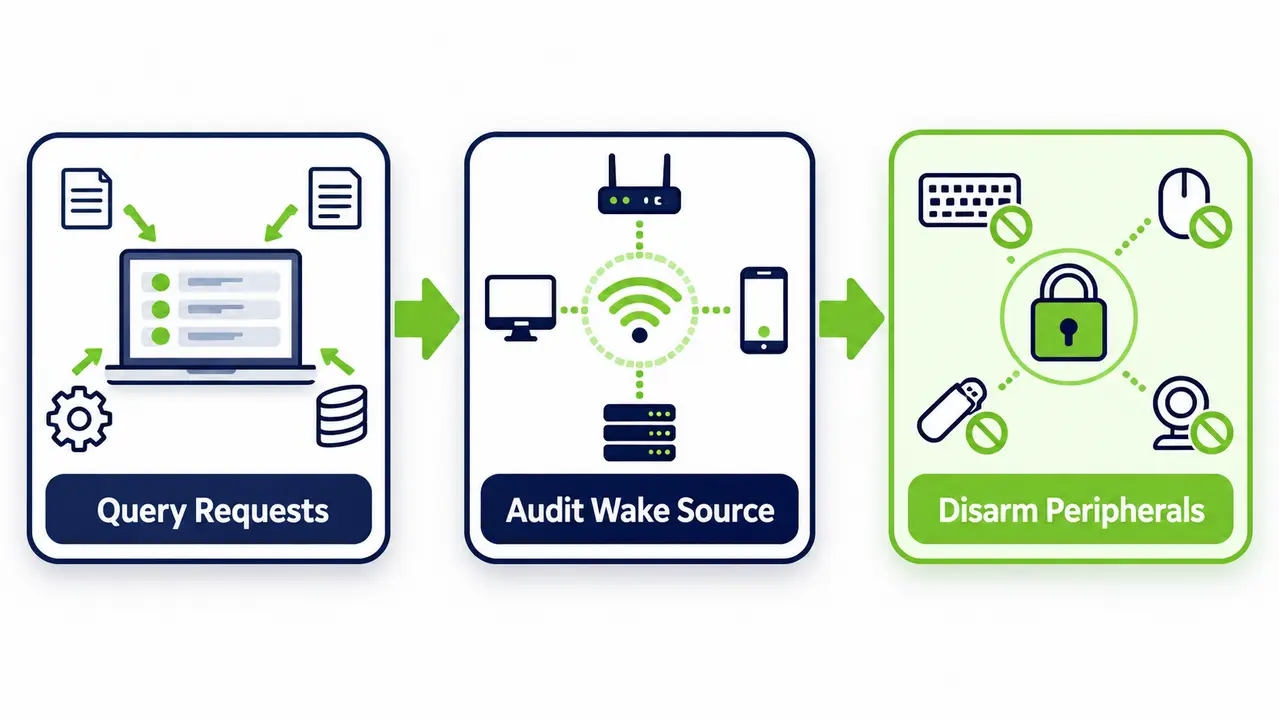
Built-in Windows command-line diagnostics produce detailed logs of active sleep blockers and wake sources, along with hardware power states and battery consumption profiles. Auditing these diagnostic artifacts allows administrators to isolate whether operational failures stem from network policy delivery or underlying driver and platform limitations.
The full syntax for each report is documented in Microsoft’s powercfg command-line options, but these are the ones that matter most for fleet triage. These utilities execute natively without installing external software, generating reports suitable for central collection and analysis across fleet deployments.
| Command | Generated Artifact | Diagnostic Objective |
|---|---|---|
| powercfg /a | Console text output | Enumerate available and missing ACPI system sleep states |
| powercfg /energy | energy-report.html | Audit 60-second runtime efficiency, driver locks, and timer issues |
| powercfg /systempowerreport | system-power-report.html | Review power transition history and standby performance metrics |
| powercfg /sleepstudy | sleepstudy-report.html | Analyze Modern Standby low-power idle efficiency and drain sources |
Correlate these reports with Windows Event Viewer logs. Inspect the System log and filter specifically for the Kernel-Power and Power-Troubleshooter sources to track sleep entries, wake triggers, and unexpected reboots. Review the Microsoft-Windows-GroupPolicy/Operational log to verify policy download times and client-side processing status. Scripting these diagnostic collections allows enterprise IT teams to compare failing hardware models directly against healthy baselines.
Check sleep states, wake sources, and active requests first
- Check supported sleep states: run
powercfg /ato confirm whether the motherboard firmware supports S3 Standby or S0 Low Power Idle. - Audit the most recent wake source: run
powercfg /lastwaketo identify the exact hardware device, timer, or driver that woke the system. - Enumerate active power requests: run
powercfg /requeststo detect applications, display threads, or drivers preventing sleep.
Diagnostics tell you whether you have a policy problem or a device and driver problem.
Get expert help with fleet power diagnostics
PowerPlug Pro applies and enforces power policy across Windows fleets from 100 to 50,000 PCs, keeps endpoints available for patch windows through an on-demand Wake-Up Portal, and reports verified kWh and CO2 reductions for ESG reporting. Tell us about your environment and we will map the fastest path to a compliant, energy-efficient fleet.
Which process or device is keeping my computer awake, and how do I find it?
Computers fail to enter low-power states because active software processes issue power requests, misconfigured network adapters signal false activity, or wake timers force immediate resumption. Determining whether the system fails to enter sleep entirely or sleeps and immediately wakes directs where to look.
When an endpoint refuses to idle into sleep, background software threads are typically holding active execution locks. Common culprits across enterprise environments include collaboration tools that keep audio streams open and endpoint detection and response (EDR) agents running real-time disk analysis, along with uncoordinated backup tasks and USB peripherals that send erratic input signals. Conversely, a machine that sleeps and then immediately powers back on is reacting to an armed wake device or an expired maintenance timer.
Execute targeted command queries to pinpoint the root cause:
- Run
powercfg /requeststo inspect active Display, System, and Execution locks held by applications or drivers. - Run
powercfg /lastwaketo identify the specific hardware component or software event responsible for the previous wake transition. - Run
powercfg /waketimersto enumerate active wake timers scheduled across the operating system. - Run
powercfg /devicequery wake_armedto list every hardware peripheral currently granted permission to wake the computer.
Device wake permissions (keyboard/mouse/NIC) and why they matter in fleets
Unmanaged peripheral wake permissions represent a massive source of after-hours power waste. If optical mice or sensitive keyboards remain armed to wake workstations, minor physical vibrations from nightly office cleaning staff can trigger entire corridors of computers to wake simultaneously.
On mobile devices, allowing network interface cards or input devices to wake the system causes severe battery depletion when laptops resume inside backpacks. Network adapters configured to wake on pattern match or link changes cause workstations to wake repeatedly throughout the night. Enterprise administrators must manage wake device permissions centrally, restricting wake capabilities to targeted Wake-on-LAN magic packets and authorized system timers.
If sleep works on some models but not others, look at updates, then at firmware and drivers.
Do Windows updates or feature upgrades reset power plans and timeouts?
Operating system updates and major feature upgrades frequently reset power plans because installation routines replace system binaries, re-evaluate hardware profiles, and reassert default power schemes. This causes power settings drift across the fleet, overwriting customized enterprise timeouts until management policies re-execute their enforcement routines.
Cumulative updates and feature releases alter endpoint power behaviors through predictable operational mechanisms:
- Setup routines reselect the operating system default Balanced plan, disassociating customized enterprise schemes.
- Updated operating system builds introduce modern power slider behaviors that supersede legacy timeout values.
- Hardware driver updates bundled with Windows updates re-enable OEM utility services that enforce factory configurations.
- Laptops experience a timing gap between upgrade completion and the next scheduled background policy evaluation pass.
Preventing post-update configuration drift requires proactive mitigation. First, establish automated post-upgrade compliance tasks that verify power scheme assignments immediately following an update cycle. Second, deploy scheduled enforcement logic through your management platform to reassert standard corporate timeout values. Third, integrate continuous configuration monitoring to detect and remediate endpoints that deviate from approved power baselines. Incorporate power baseline verification into the formal acceptance criteria for each progressive Windows update deployment ring.
If you see drift, you need monitoring plus re-application logic. First, make sure the hardware can honor your policy.
Does Modern Standby change how traditional sleep policies behave?
Modern Standby (S0 low power idle) replaces traditional S3 sleep by maintaining an active software session with low-power hardware states similar to a smartphone. Traditional sleep policies fail because systems remain connected to network services, run background tasks, and wake under entirely different triggers.
Migrating enterprise fleets to hardware supporting Modern Standby frequently introduces operational friction if administrators attempt to apply legacy power configurations. Common symptoms include severe laptop battery drain in sleep and machines that heat up inside carrying bags, along with persistent network telemetry during standby and erratic wake responses. Legacy Group Policy objects that rely on classic ACPI S3 sleep mechanics cannot control S0 low power idle states effectively.
Troubleshoot Modern Standby environments using a structured progression:
- Execute
powercfg /ato confirm whether the device platform uses S0 Low Power Idle or classic S3 Standby. - Generate a SleepStudy report by running
powercfg /sleepstudyto examine standby power consumption and identify errant background components. - Formulate hardware-specific policy baselines that configure Modern Standby networking rules and low-power idle timeouts.
- Validate device power profiles across real-world operational workflows before expanding broad mobile deployments.
When hardware doesn’t support the sleep state you’re trying to enforce
When motherboard firmware does not provision S3 sleep, enforcing an S3 requirement through legacy policies leaves the device reporting that the sleep state is unavailable. The operating system cannot adopt a hardware state that the underlying platform firmware does not expose. Pushing incompatible sleep directives causes devices to ignore the policy entirely, stay awake indefinitely, or fall back to unpredictable hibernate cycles. When hardware lacks support for a target sleep state, update platform BIOS firmware and adapt your configuration baseline to match the supported power architecture of that model.
Hardware constraints can make a correct policy ineffective, and conflicting tools can do the same.
When do enterprise power management tools report “policy conflicts” or “power settings failed to apply”?
Management platforms report policy conflicts or application failures when multiple administrative channels push competing power definitions to the same endpoint or when systems are offline during maintenance windows. These collisions leave settings indeterminate because competing agents repeatedly overwrite registry configurations.
Enterprise power management errors multiply when organizations introduce overlapping management systems without establishing clean boundaries. Common points of contention include:
- Co-management arrangements where on-premises Active Directory Group Policy clashes with cloud-based MDM profiles.
- Centralized endpoint configuration baselines competing against localized departmental Group Policy objects.
- Manufacturer optimization utilities pre-installed on vendor hardware running background services that overwrite standard schemes.
- Legacy startup or maintenance scripts deployed through task schedulers executing contradictory power commands.
- Security hardening templates whose aggressive lockouts conflict with operational power management timeouts.
Systematically resolve these policy conflicts by establishing clear operational boundaries:
- Inventory every administrative tool, cloud tenant, and local agent currently maintaining authority over endpoint power.
- Assign a single, authoritative management channel for each functional category of power settings.
- Eliminate overlapping or redundant configuration profiles across secondary management consoles.
- Formally document policy precedence rules within your central enterprise endpoint architecture standards.
Application failures also occur when target machines are powered down, disconnected from corporate networks, or engaged in operating system updates during scheduled maintenance windows.
After conflicts are removed, fix the scope problems that make results uneven.
Frequently asked questions
Which steps fix inconsistent power settings across departments, OUs, or device groups?
Inconsistent power settings across business units stem from fragmented organizational unit structures and competing inheritance blocks, as well as misconfigured security filters and unmanaged local policy drift. Standardizing fleet power requires auditing the directory hierarchy, removing conflicting local overrides, and implementing a centralized baseline paired with managed exception groups.
Begin troubleshooting scope discrepancies by systematically auditing your directory structure and policy inheritance rules:
- Check policy link order and verify whether inheritance blocking is preventing parent policies from applying to child containers.
- Verify whether specific Group Policy objects are marked as Enforced, which overrides downstream block inheritance configurations.
- Audit security filtering assignments to ensure computer accounts maintain explicit Read and Apply Group Policy permissions.
- Validate that WMI filters accurately evaluate the target operating system versions, build numbers, and chassis categories.
- Confirm that all temporary departmental exceptions are explicitly cataloged, approved, and tracked in central documentation.
When identical computer models inside the same department behave differently, compare their BIOS revisions and network adapter driver versions as well as their exact directory placement. Divergent behavior often traces back to machines remaining in misconfigured staging OUs following re-imaging.
A practical “baseline + exceptions” policy architecture for power settings
Rather than managing dozens of fractured departmental policies, adopt a standardized baseline paired with an exception framework:
- Define one global baseline policy applied universally to all enterprise endpoints, establishing non-disruptive business-hour timeouts and aggressive after-hours conservation.
- Create a restricted set of named exception groups for dedicated operational hardware, covering interactive kiosks and medical monitors as well as laboratory workstations and conference displays.
- Require all exception requests to document an operational business justification, named system owners, and mandatory quarterly review dates. For an example from a large healthcare environment, see the case study on how Clalit Health Services managed power policy.
Once scope is clean, design a baseline users will accept.
Can a power policy baseline avoid disrupting end users?
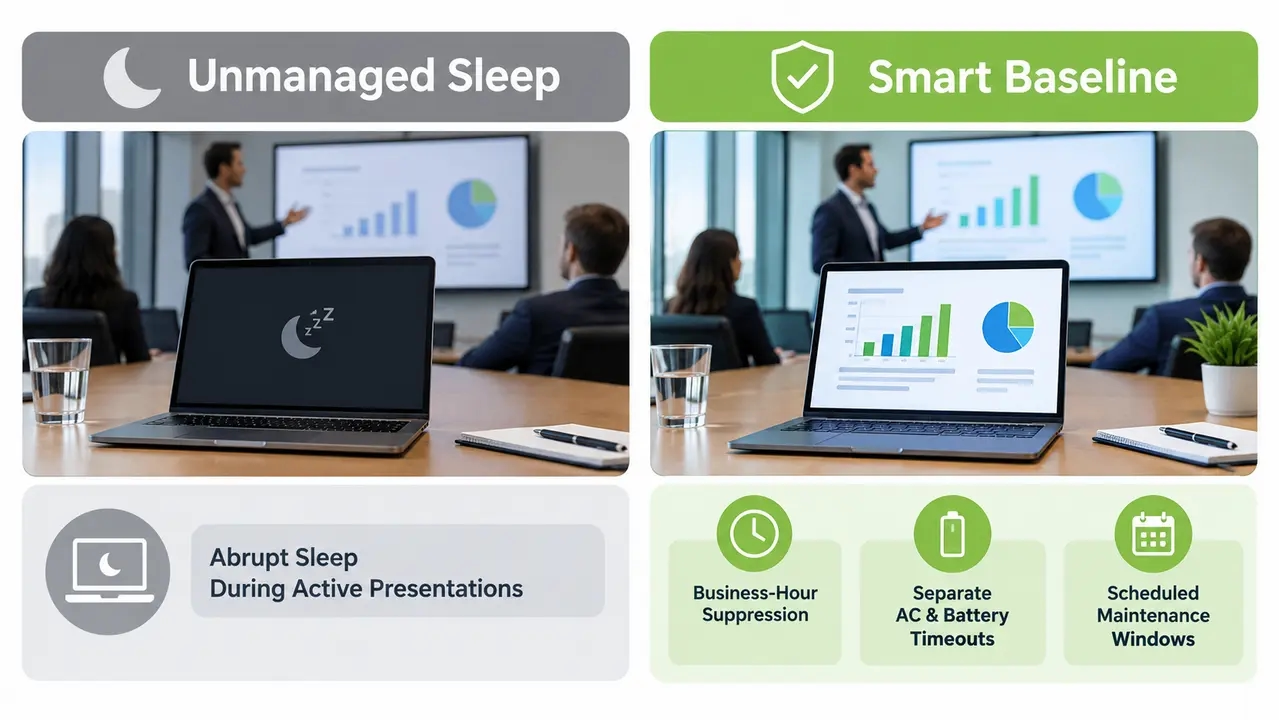
A successful power baseline balances measurable energy reduction with user productivity by implementing reasonable idle timeouts, separating AC and battery thresholds, and accommodating presentation modes. Aligning power states with operational workflows prevents end-user frustration and stops technicians from disabling power-saving controls.
Build user-friendly operational rules directly into your baseline configuration:
- Configure practical business-hour idle thresholds, such as 20 minutes for display blanking and 45 minutes for system sleep.
- Establish distinct operational profiles for AC vs DC power settings, enforcing tighter timeouts only when running on battery.
- Suppress system sleep triggers automatically while users are engaged in video conferencing, presentations, or large compilations.
- Ensure sleep transitions do not interrupt overnight patch management and security scanning operations.
- Enforce clear wake timer configurations to prevent unauthorized software from interrupting low-power sleep states.
- Implement an appropriate hibernate vs sleep policy for mobile systems to safeguard remaining battery reserves during extended transit.
Deploying an after-hours shutdown policy across static desktop fleets and computer labs delivers massive energy reductions, provided IT communicates schedules clearly and offers automated self-service wake options. Maintenance schedules require careful coordination so endpoints remain reachable for security updates without staying powered on continuously. Some organizations pair shutdown and sleep policies with scheduled wake capabilities, such as Wake-Up Technology, so devices are ready for maintenance without being left awake.
A baseline should be measurable, not just configured.
Is there a way to monitor and prove that power policies are working across the fleet?
Proving power policy effectiveness requires continuous compliance monitoring that verifies active endpoint settings, tracks sleep and wake cycles, and measures operational drift across hardware revisions. Centralized telemetry isolates non-compliant devices, validates carbon reduction metrics, and proves actual kilowatt-hour reductions to executive and sustainability stakeholders.
Effective operational oversight demands tracking key performance indicators continuously:
- Policy compliance percentages cataloged by hardware model, chassis type, and operating system build.
- Average after-hours idle duration across physical desktop fleets.
- Success rates of scheduled system sleep and shutdown transitions.
- Primary wake source categorizations to isolate rogue network events or errant background services.
- Audited energy savings estimates to fulfill regulatory ESG reporting requirements.
The PowerPlug Pro platform is built for managing power policy across Windows fleets and suits teams that want enforcement, monitoring, and reporting in one place. Implement automated operational alerts to identify machines experiencing sudden configuration drift following updates or endpoints that register zero successful sleep cycles over extended periods.
The minimum viable dashboard for power policy health
- Fleet compliance rate: tracks the percentage of devices adhering to assigned power baselines to spot configuration drift.
- Post-update drift index: reveals endpoints that lost approved configurations following recent operating system cumulative updates.
- Sleep lock outliers: lists endpoints that have failed to enter low-power states over the past 48 hours to pinpoint active driver locks.
- Primary wake triggers: aggregates wake event sources across subnets to isolate misconfigured maintenance tasks or peripheral issues.
- Realized financial savings: translates avoided kilowatt-hours into validated cost reductions and carbon emission decreases.
Monitoring turns troubleshooting from reactive to preventive, and it also tells you when to escalate.
When should you escalate power management issues to drivers, firmware, or hardware teams?
Escalate power failures to firmware or hardware engineering when diagnostic reports reveal missing ACPI sleep states, persistent driver power locks that survive software remediation, or model-specific failures that resist standard policies. Hardware escalation is necessary when clean policy scope and configuration verification fail to produce intended power states.
Route power issues to engineering teams when specific technical thresholds are crossed:
- An operational failure isolates entirely to a single specific hardware model, chassis revision, or motherboard run.
- System standby, sleep, or wake abnormalities emerge immediately following a manufacturer BIOS or UEFI firmware flash.
- Command diagnostics confirm that essential ACPI sleep states are unavailable directly at the firmware interface.
- Operating system event logs record repeated critical Kernel-Power events indicating unhandled hardware sleep crashes.
- Mobile endpoints exhibit thermal throttling while in transit or physical battery swelling, requiring immediate safety intervention.
Provide hardware and firmware engineering teams with a comprehensive technical evidence package:
- Exported copies of the system energy report, system power report, and SleepStudy analysis.
- Filtered System event logs capturing relevant Kernel-Power and Power-Troubleshooter entries.
- Complete hardware inventory details covering the device model and motherboard revision as well as the installed BIOS version and peripheral driver levels.
- Direct text outputs from
powercfg /a,powercfg /requests, andpowercfg /lastwakecommand runs. - Documented reproduction workflows alongside confirmation of the applied management policy scope.
Many escalated cases come down to firmware power management settings or drivers that prevent sleep. Resolving power management issues in enterprise fleets takes an orderly routine that confirms the precise symptom and its fleet scope and identifies the authoritative policy source, then evaluates device-level diagnostics and adds ongoing compliance monitoring to prevent drift.
See how much you could save
PowerPlug Pro combines policy enforcement, wake scheduling, and continuous compliance monitoring in one platform. Share your fleet size and hardware mix, and we will walk you through the expected energy and cost numbers for your environment.
Most enterprise power management failures trace back to delivery and scope errors or precedence collisions between management tools, driver and firmware limitations, or post-update configuration drift. Confirming effective settings on the endpoint, tracing policy authority to a single owner, and adding continuous compliance monitoring resolve the majority of fleet-wide power issues and keep them resolved.

About the author
Nimrod Yedaya
VP Customer Experience
Over 15 years of experience in customer service, technical support, and customer relationships. Nimrod joined PowerPlug in 2012 as Customer Support Manager and was promoted to VP in 2016. He holds an MBA from BIU and a BSc in Communication Systems Engineering from BGU.