
Wake-on-LAN for Remote Access
By Nimrod Yedaya, VP Customer Experience

Wake-on-LAN for telecommuting allows a powered-down workstation to turn on when it receives a specific network signal. This enables a remote worker to wake their office PC from home without leaving hardware running around the clock. The basic workflow is straightforward. The telecommuter requests a wake, the device powers on, and a remote desktop session begins. However, Wake-on-LAN is just a network-layer trigger. It is not the remote-control session itself. Reliability depends entirely on how the technology functions and how the network is configured.
Reading time: 4 minutes
What is Wake-on-LAN for remote access telecommuting?
Walk through an enterprise office at 2:00 AM. You will see thousands of monitors glowing in the dark. IT leaves them on for patching and remote access, but the energy waste is massive. Wake on LAN remote access telecommuting solves this by letting a powered-down workstation turn on when it receives a specific network signal. This allows a remote worker to wake their office PC from home without leaving hardware running 24/7. The basic work from home WoL workflow is simple. The telecommuter requests a wake, the device powers on, and a remote desktop session begins. This supports a secure telecommuter computer wake up process. You can wake computer remotely, establishing a work from home wake workstation routine. The process sets up telecommuting remote desktop wake access. However, WoL is just a network-layer trigger. It is not the remote-control session itself. Reliability depends entirely on how the technology functions.
How the magic packet actually works
The magic packet is a broadcast-style network message containing the target device’s MAC address. The network interface card recognizes this pattern even while the PC is in a low-power state. The adapter stays in a minimal-power listening mode to catch the packet. This is why NIC settings matter for any wol magic packet deployment. The mac address wake process requires the adapter to remain powered. According to the Wake-on-LAN overview, the magic packet structure demands the NIC remain powered in standby to listen.
What information you need before you start
IT admins need three prerequisites for a fleet-wide wake process. You need the device MAC address. You need the target subnet or network location. You also need the current power state of the machine, whether sleep, hibernate, or shutdown.
Why broadcast behavior matters for remote wake
Broadcasts are normally confined to a local subnet. This is the root cause of most problems where a wake works at the office but fails from home. Anything separating the requester and the target breaks the transmission by default.
You cannot wake a work PC from home over the internet by default
WoL is built for local networks. Waking a PC from outside typically requires a secure way to reach the target LAN. Sending packets directly across the public internet does not work. This is why attempts to wake on wan fail without infrastructure. To remote wake pc or wake sleeping pc remotely, you need a managed relay or a VPN. NAT and firewalls block broadcast traffic. Users often complain the wake works on home Wi-Fi but fails on cellular. This is a reachability issue, not a broken feature. A managed, policy-based wake path is the safer alternative to manual internet exposure.
A VPN is often required for Wake-on-LAN
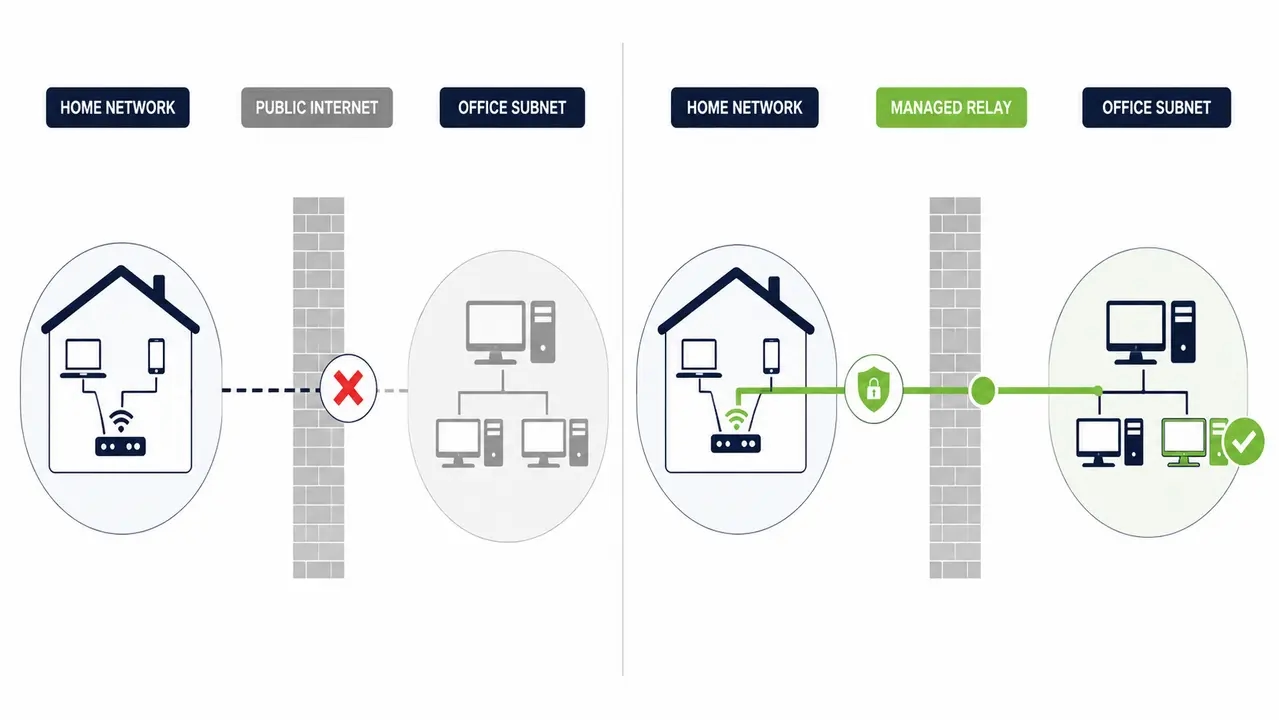
A VPN can make the remote device behave as if it is on the same network. This allows wake on lan over vpn to deliver packets appropriately in business environments. VPN solves network reachability. It does not fix hardware or BIOS limitations. Some VPN configurations still block broadcast traffic by design.
When VPN helps versus when it does not
VPN helps when it extends the broadcast domain or supports directed broadcast. It does not help when split-tunnel configurations exclude local traffic. It also fails when broadcast forwarding is disabled by the VPN vendor.
What to ask IT for regarding subnet access
Telecommuters should bring a checklist to IT. Ask if you are on the same subnet as your PC. Ask if the VPN forwards broadcast traffic. Ask if there is a wake policy you should follow instead.
Power state determines wake reliability
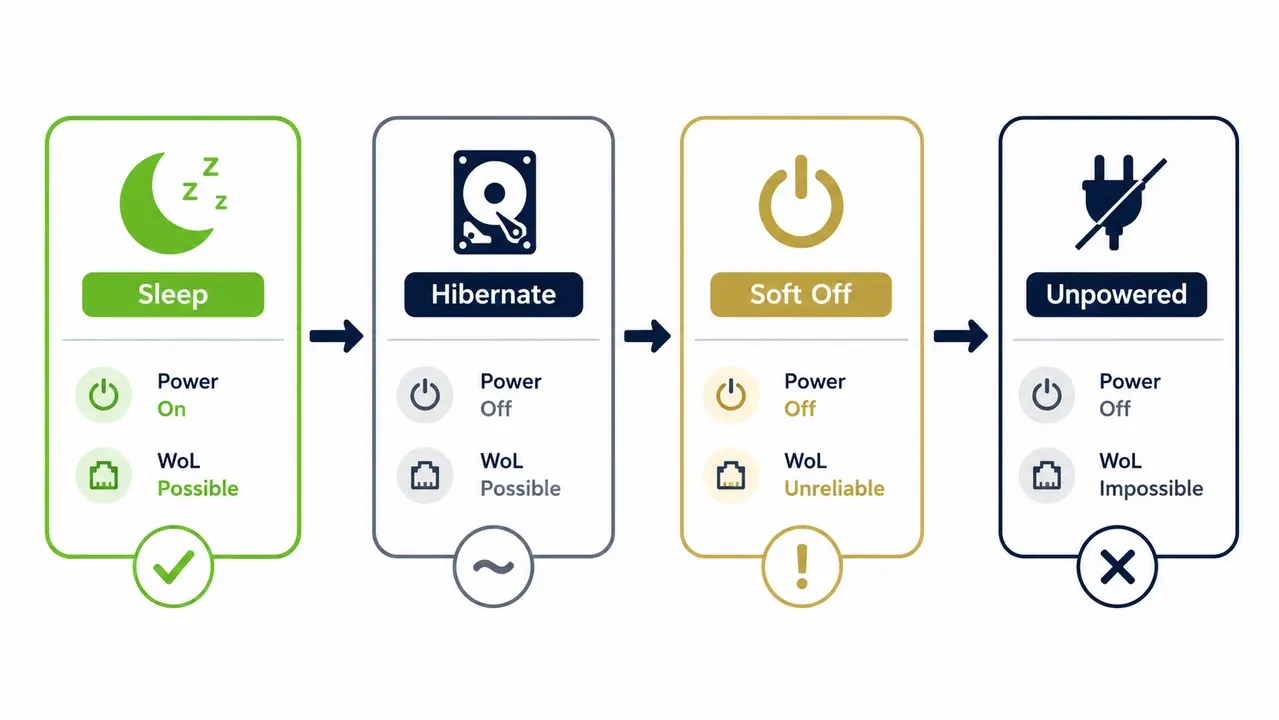
Reliability depends on the power state. Sleep is generally easiest. Hibernate varies by hardware. Full shutdown requires specific BIOS and UEFI support and may not work. The debate over sleep vs hibernate vs shutdown remote access comes down to hardware. Soft off means the system still has standby power to the NIC. Fully unpowered means WoL is impossible. Microsoft documentation on system power states describes distinct power state behaviors relevant to whether the NIC can remain listening.
What remote workers should choose
If guaranteed morning access matters most, test and standardize on sleep mode first. Do not rely on full shutdown wake until you have verified hardware support across the fleet.
Enabling Wake-on-LAN in BIOS and UEFI
You must enable the power-management option that allows the network adapter to wake the system. This is commonly found under Power Management or Advanced settings. Save the change and verify the NIC stays powered in low-power states. To bios enable wake on lan successfully, IT should standardize this setting across the device build image. Configuring one machine at a time does not scale. BIOS is only half the equation. OS and network adapter settings can still block the wake.
Configuring Windows network adapter settings
In the network adapter power management properties, allow the device to wake the computer. You must also restrict wake to magic packets only to prevent accidental wakes. Proper windows wake on lan settings require the network adapter allow device to wake setting. You must check only allow magic packet to stop false triggers. Microsoft documentation on NetAdapterPowerManagement describes configuring these adapter capabilities. Microsoft also offers guidance on unwanted wake-up events to mitigate false wakes.
The two settings that prevent most false wakes
Check two boxes explicitly. Check Allow this device to wake the computer. Check Only allow a magic packet to wake the computer.
Common Windows settings that break WoL
Driver updates often reset adapter settings. Energy Efficient Ethernet features can interfere. Fast Startup interactions break shutdown-based wake. Microsoft documentation on Wake-on-LAN feature troubleshooting covers these driver and setting conflicts.
Ethernet is the reliable path for Wake-on-LAN
Ethernet is the most reliable path. Wi-Fi wake depends on specific wireless hardware support and is often inconsistent. Many laptops cannot listen for magic packets over Wi-Fi while asleep or off. This is a chipset and driver limitation. If telecommuting access is mission-critical, prefer a wired connection at the workstation.
Why Wake-on-LAN fails from home but works in the office
Remote networks cannot deliver broadcast traffic into the target LAN. Firewalls, NAT boundaries, and subnet segmentation block it. Router-level restrictions also contribute. This is why wake on lan across subnets fails.
The same subnet rule of thumb
WoL relies on same-subnet broadcast. Anything separating the requester and target breaks this by default. VLANs, different offices, and cellular networks all break the transmission.
The top troubleshooting checks in order
Check for a different subnet or VLAN. Confirm broadcast forwarding is enabled on the router. Check if the router or firewall is blocking traffic. Verify the VPN passes broadcast traffic. Confirm the PC power state is supported by the hardware.
Waking a PC on a different subnet requires a relay
A controlled mechanism is needed to deliver the wake request inside the target subnet. Enterprises segment networks for security and compliance. This naturally breaks manual WoL setups. You need an internal relay or agent to send WoL locally on behalf of the remote request. Enterprises typically rely on a centralized platform designed to reach devices across subnets rather than manual packet-sending. This enforces policy-based, auditable wake paths for IT-managed environments.
Security depends on the wake path exposure
WoL itself is not authentication-heavy. Security depends on how the wake path is exposed and controlled. Endpoint power management requires a secure remote wake workflow. Open internet exposure of wake requests without access control is risky. Mitigation requires least privilege, access control, and logging. Pair this with secure remote access practices like MFA and device posture checks. Microsoft documentation on Intune DFCI settings illustrates how device-level policy controls can be centrally enforced.
What secure remote wake looks like in an IT policy
Core policy elements include role-based access to determine who can wake which devices. You need scheduling windows to restrict wakes to approved hours. You also need an approval and audit trail for accountability.
Logging and audit needs for compliance
Compliance stakeholders need visibility. You must know who requested a wake, when, and the success or failure status. This is critical for regulated industries like healthcare, finance, and education. Audit logs remote wake data provides this necessary trail.
Remote wake and remote access are two distinct steps
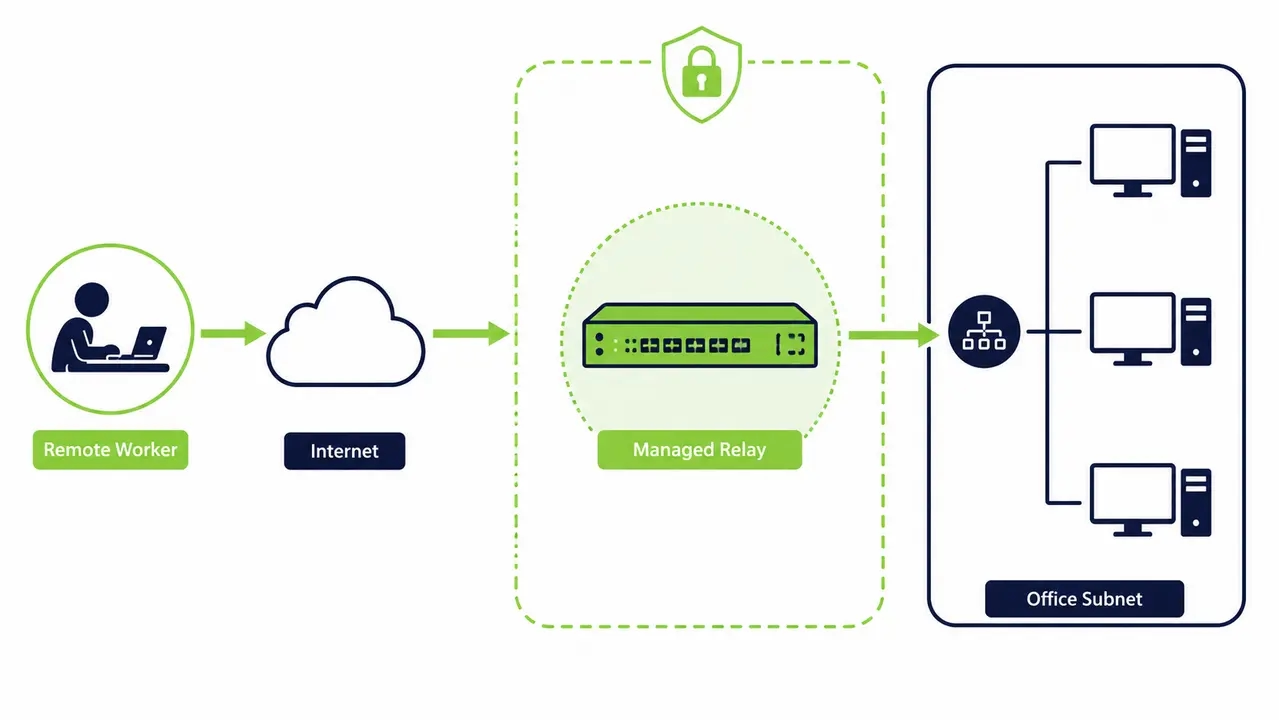
Remote wake powers the PC on. Remote access is the actual control session. Telecommuters need both steps to work reliably in sequence. To remote wake pc successfully, the user clicks wake. The system confirms the device is online. The user then connects via remote desktop or VPN. Without confirmation, users repeatedly retry wake requests. They open unnecessary helpdesk tickets. This is a key failure point that basic WoL guides ignore.
IT support without leaving PCs running all night
Combine scheduled sleep and shutdown policies with on-demand wake. Endpoints stay available during work hours and patch windows but do not waste energy overnight. This approach to pc power scheduling enables after-hours patching wake computers efficiently. It provides energy saving for business pcs. A centralized wake and shutdown policy is the solution. The ENERGY STAR sleeping guidance supports the energy-saving rationale for scheduled sleep. The U.S. DOE FEMP office energy checklist recommends powering down idle equipment. Microsoft documentation on planning to wake clients addresses fleet-scale wake for patch management.
Example policy for weekday schedule plus on-demand exceptions
PCs sleep at 7 PM weekdays and weekends by default. Employees can request on-demand wake outside those hours when needed.
Example policy for patch night automation workflow
Schedule a fleet wake. Run an automated patch and update window. Return the devices to sleep or shutdown automatically. This is the same approach used in how Ben Gurion University standardized after-hours patching across its IT fleet, reducing manual overnight intervention.
Troubleshooting Wake-on-LAN failures for remote workers
Troubleshoot in layers. Confirm WoL works locally first. Then confirm power-state support. Validate network delivery through the subnet or VPN. Finally, confirm the wake request method itself. Test wake from another device on the same LAN. Confirm the correct MAC address is being targeted. Verify BIOS and Windows adapter settings are both enabled. Confirm a wired Ethernet connection is used if reliability is critical. Verify the router, VLAN, or VPN is not blocking broadcast delivery. Confirm there is a log showing wake success or failure. Teams wanting fewer helpdesk tickets benefit from a repeatable method with built-in visibility.
What to look for in a Wake-on-LAN solution
Prioritize reliability with confirmation and retries. Require secure access control and centralized policy scheduling. Demand minimal end-user setup and reporting that proves outcomes. PowerPlug Pro delivers a remote worker self-service wake portal with audit logs remote wake capabilities. It handles wake on lan remote access with a structured approach. Look for role-based access for employee self-service versus IT admin controls. Ensure wake confirmation and automatic retries exist instead of fire and forget packets. Verify device grouping and time-zone-aware scheduling for distributed teams. Require audit logs for compliance and security review. Demand reporting on uptime, successful wake rate, and energy savings. The platform must provide a wake then connect workflow that reduces manual steps. You can talk to our team about a rollout plan for your organization to see how this works in practice.
| Feature | Manual WoL | PowerPlug Pro |
|---|---|---|
| Delivery mechanism | Local subnet broadcast only | Cross-subnet managed relay |
| Wake confirmation | No visibility | Automated retry and confirmation |
| User access | IT helpdesk ticket required | Self-service portal for remote workers |
| Audit logging | None | Full compliance trail |
Evaluate your remote wake workflow
If your IT team is managing remote access requests manually or leaving PCs running overnight for patching, a centralized wake portal can cut helpdesk tickets and reduce energy waste simultaneously.
Wake-on-LAN enables telecommuters to power up their office workstations on demand without leaving hardware running overnight. Reliable execution depends on correct BIOS configurations, proper Windows adapter settings, and a managed relay to cross subnet boundaries. Centralizing these wake requests into an audited, policy-driven portal closes the security gaps and eliminates the helpdesk friction associated with manual packet-sending.
Frequently asked questions
How do I wake my office PC from home for remote desktop?
You need a mechanism to deliver a magic packet to your office subnet. A VPN can sometimes accomplish this if it supports broadcast traffic. A managed wake portal provides a more reliable, self-service way to trigger the wake and confirm the PC is online before you connect.
Can Wake-on-LAN work over the internet without a VPN?
Direct WoL over the public internet is generally blocked by NAT and firewalls. Exposing WoL directly to the internet is a security risk. A managed relay or secure wake portal is the standard enterprise approach for triggering a wake without a VPN.
Why won’t my PC wake up unless I’m on the same network?
WoL relies on broadcast traffic, which routers do not forward between different subnets by default. If your remote connection is on a different subnet, the magic packet never reaches the target PC. A subnet-directed broadcast or a local relay agent is required to bridge this gap.
Does Wake-on-LAN work if my computer is completely shut down?
It depends on the hardware. Sleep mode is the most reliable state for WoL. A full shutdown requires specific BIOS and UEFI support to keep the network adapter powered in a soft-off state. If the PC is completely unplugged or stripped of standby power, WoL is impossible.
How much energy can a business save by not leaving PCs on overnight?
An idle PC still draws power. An organization with 1,000 PCs can save tens of thousands of dollars a year by enforcing automated sleep and shutdown policies. PowerPlug customers have together saved over $50M and eliminated 200,000+ tons of CO2 by cutting PC energy costs by up to 60%.

About the author
Nimrod Yedaya
VP Customer Experience
Over 15 years of experience in customer service, technical support, and customer relationships. Nimrod joined PowerPlug in 2012 as Customer Support Manager and was promoted to VP in 2016. He holds an MBA from BIU and a BSc in Communication Systems Engineering from BGU.